
Managing available skills
Step 1: Navigate to the Skills & Competencies screen
Section titled “Step 1: Navigate to the Skills & Competencies screen”- Go to the Settings page. If you’re using a mobile device, you may need to access this page by first tapping (menu).
- Tap Organization.
- Tap Options at the bottom of the screen.
- Go to the Evaluations tab.
- Under Eval Types, tap Skills.
- Tap Skills & Competencies at the top of the screen.
Step 2: Make the needed changes
Section titled “Step 2: Make the needed changes”The Skills & Competencies screen displays all defined skills, grouped by subject.
 indicates a default skill.
- indicates a custom skill.
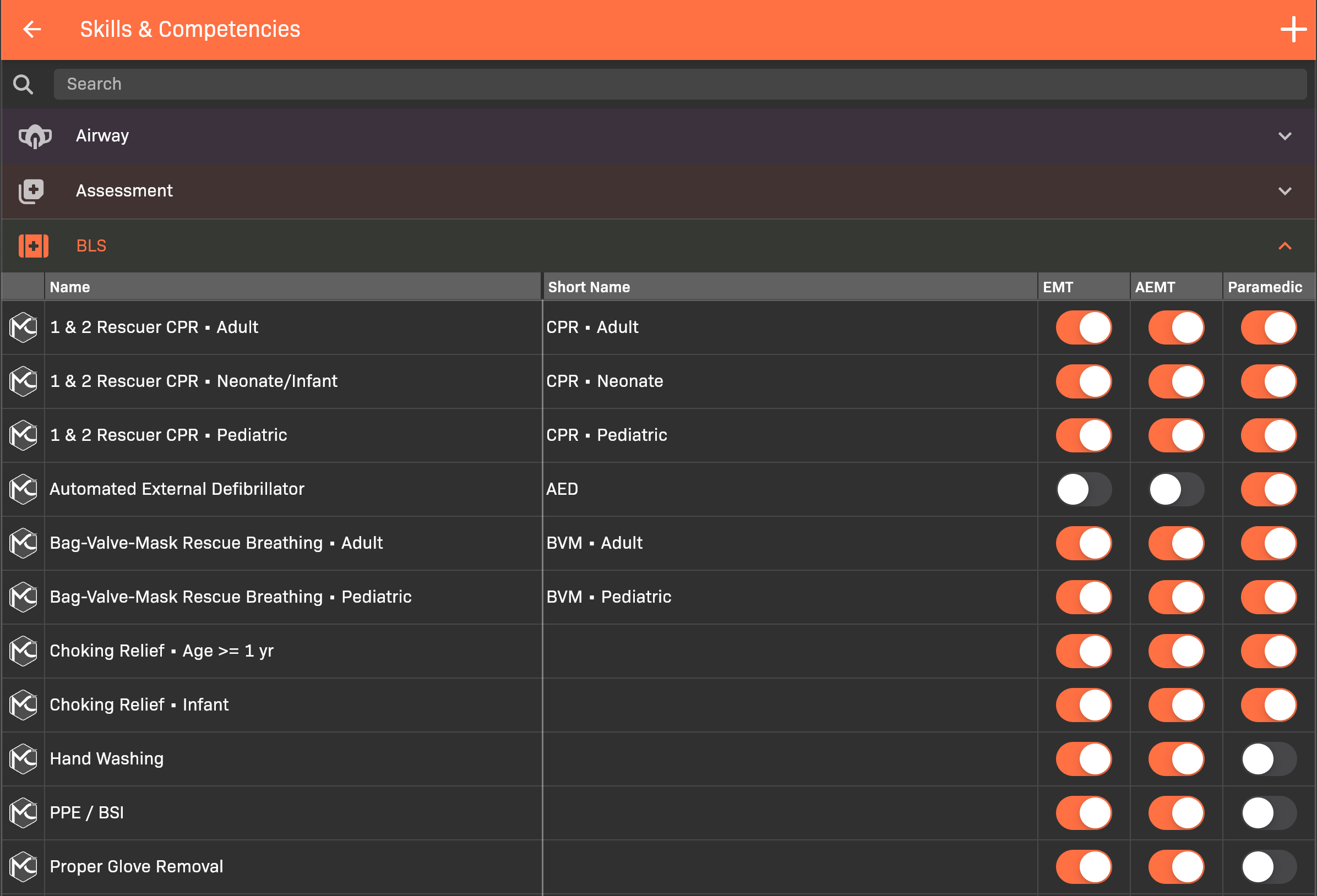
Skills Competencies
Add a custom skill
Section titled “Add a custom skill”-
Tap in the top-right corner.
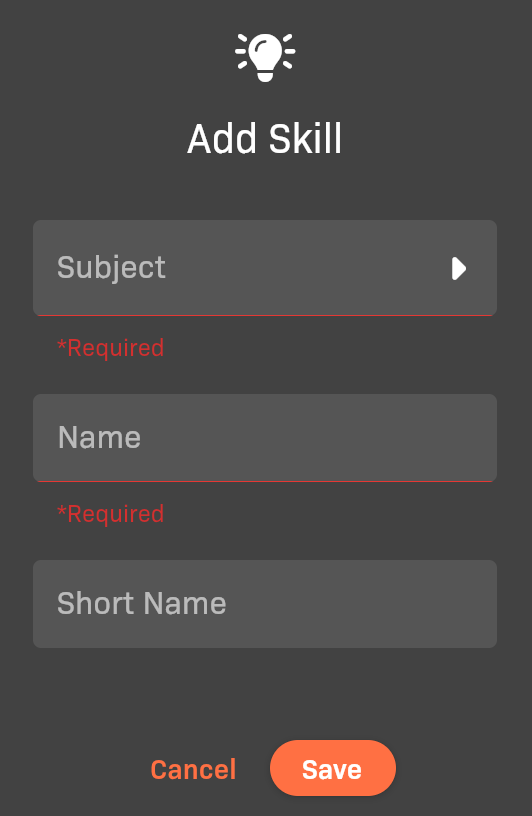
Add Skill
-
Select a Subject.
-
Enter a Name.
-
(Optional) Enter a Short Name.
-
Tap Save.
Filter the skills list
Section titled “Filter the skills list”Type a skill name in the Search field.
Rename a skill
Section titled “Rename a skill”Tap the Name of a skill, then edit the text.
Enable or disable a skill
Section titled “Enable or disable a skill”Tap the toggle to enable or disable a skill for each individual certification type.