
Create or join an organization
Getting started
Section titled “Getting started”An organization in EMCE represents a school or institution. If needed, you can belong to multiple organizations.
If you signed up as a director, we’ll do our best to automatically match you with your organization based on your email address. If we couldn’t match you automatically, you’ll have to search for your organization.
- If you see a Claim Organization banner, proceed to Claim your matched organization.
.png)
- If you see a Create a Profile banner, proceed to Set up a profile.
.png)
Claim your matched organization
Section titled “Claim your matched organization”If we were able to auto-match you to your organization based on your email address, you’ll see the the option to claim your organization.
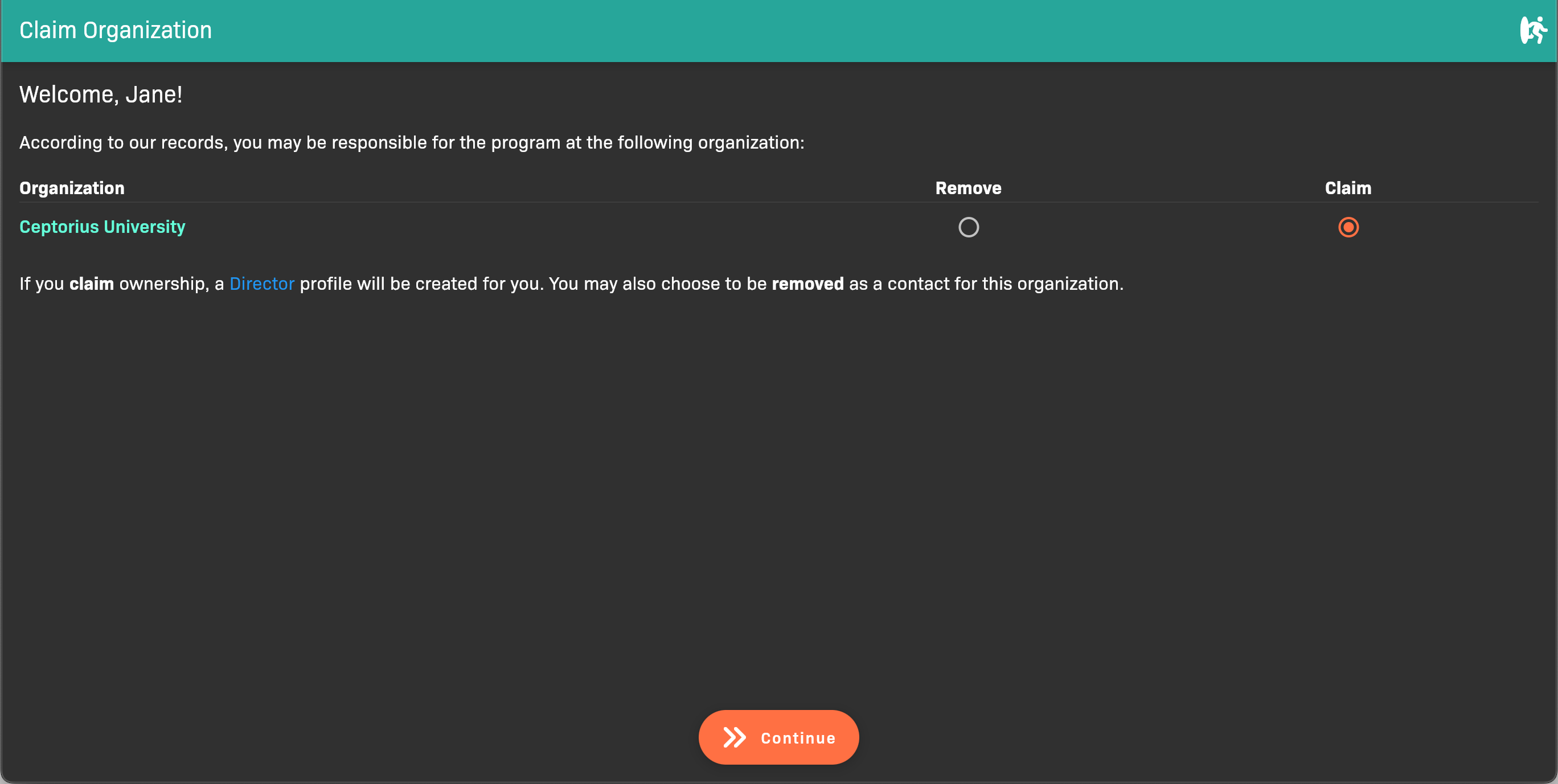
Auto-matched organization
- If the displayed organization is correct, make sure Claim is selected, then click Continue. You’re done! Move on to Add Your First Cohort.
- If the displayed organization is incorrect, select Remove and then click Continue. Proceed to Find your organization.
Find your organization
Section titled “Find your organization”If we couldn’t auto-match you to your organization based on your email address, you’ll see the the option to set up your profile by selecting a role.
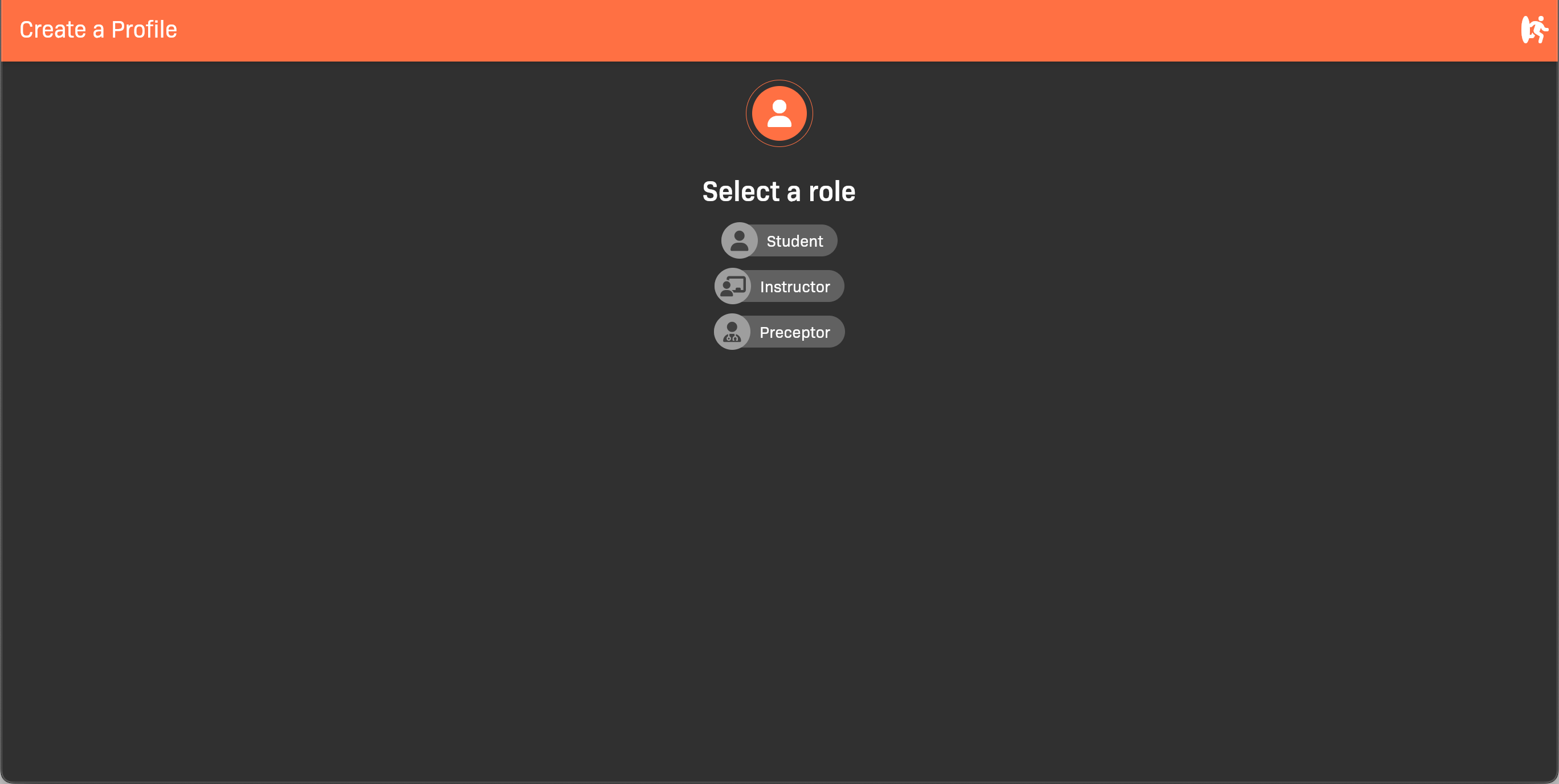
Select a role
-
Click Instructor.
-
Search for the name of your school/organization.
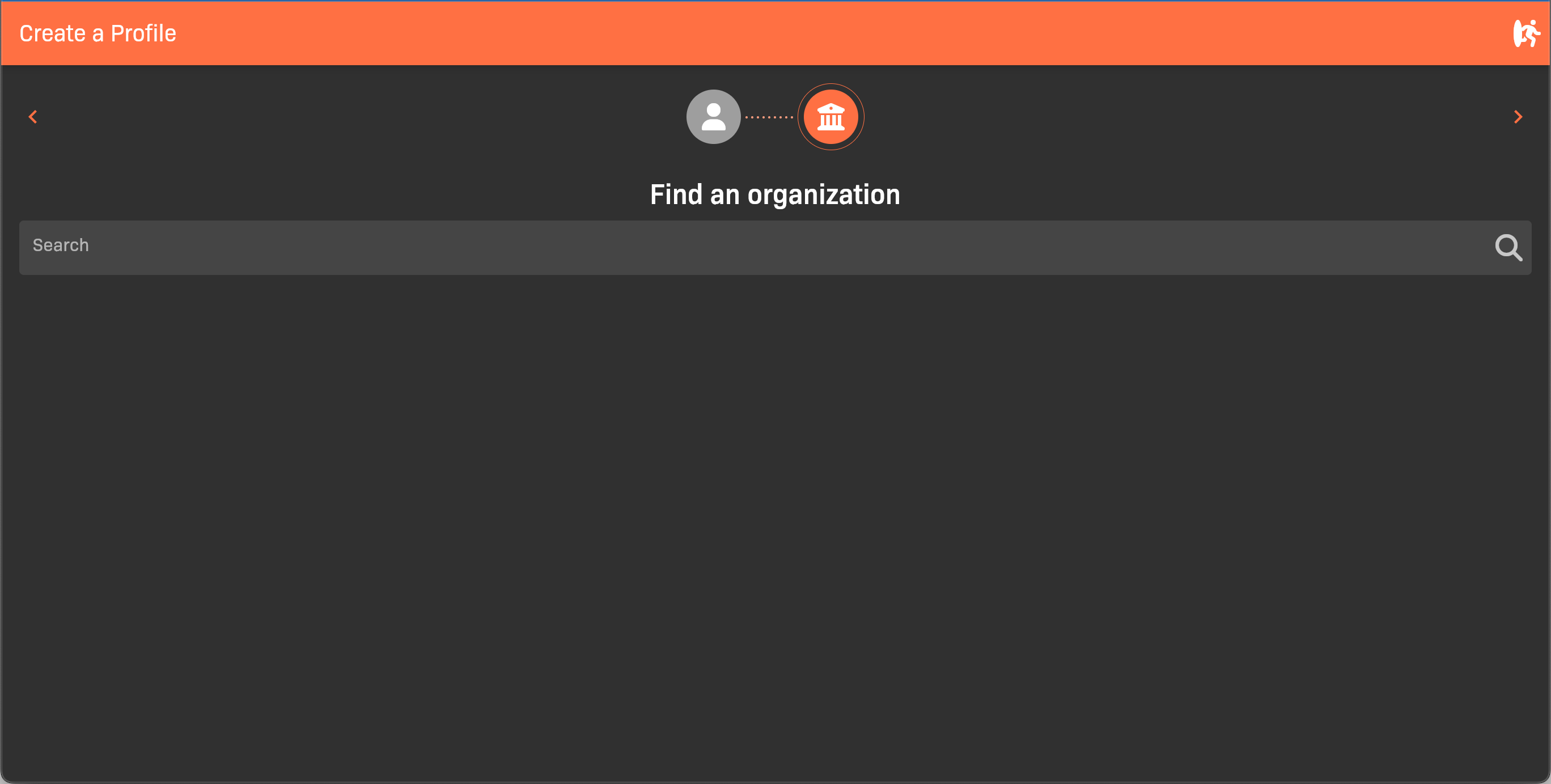
Search for your organization
- If you found your organization, select it.
- If you are prompted to activate the organization, click Save. You’re done! Move on to Add Your First Cohort.
- If you’re prompted select cohorts, go to Join an existing organization (select cohorts).
- If you didn’t find your organization, go to Create your organization.
- If you found your organization, select it.
Create your organization
Section titled “Create your organization”If you didn’t find your organization, you’ll need to create it.
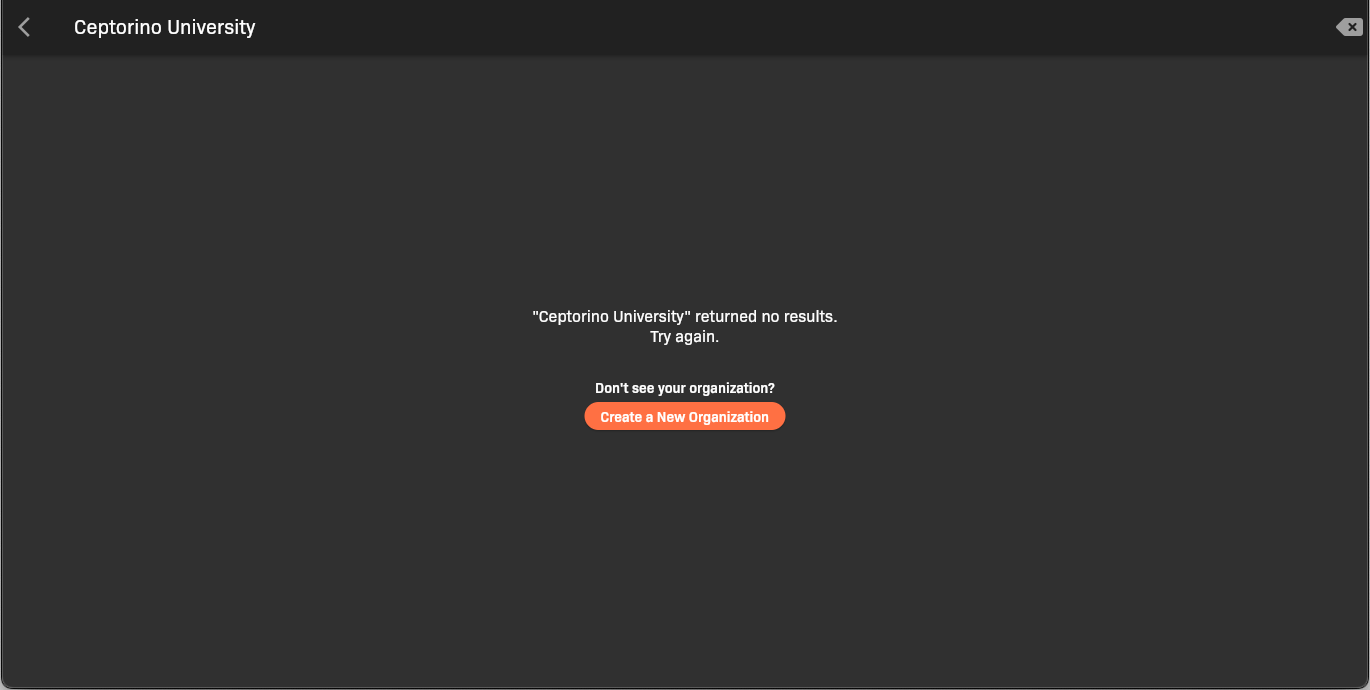
Organization not found
-
Click Create a New Organization.
-
Enter the organization information, then click Next. Required fields are marked in red.
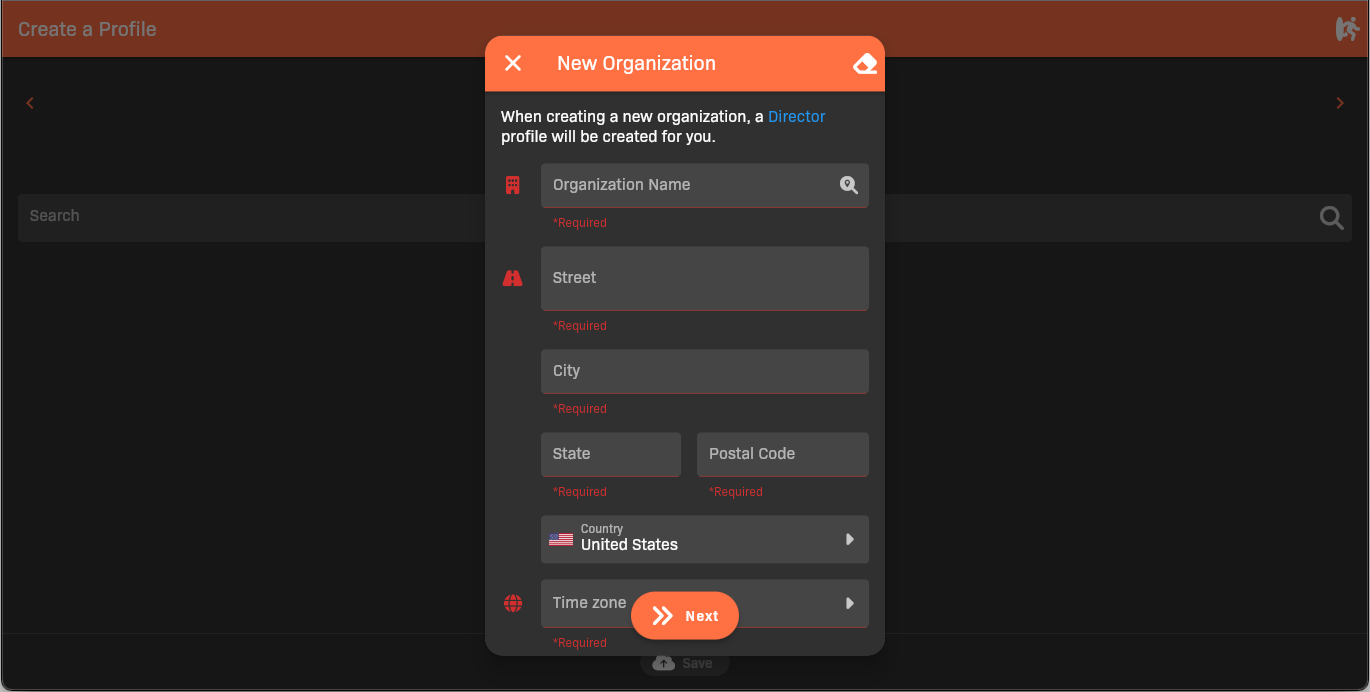
New organization setup
-
When you are prompted to activate the organization, click Save.
That’s it! Your new organization is created.
Join an existing organization (select cohorts)
Section titled “Join an existing organization (select cohorts)”If you found your organization, and it is already active, you are prompted to select cohorts.
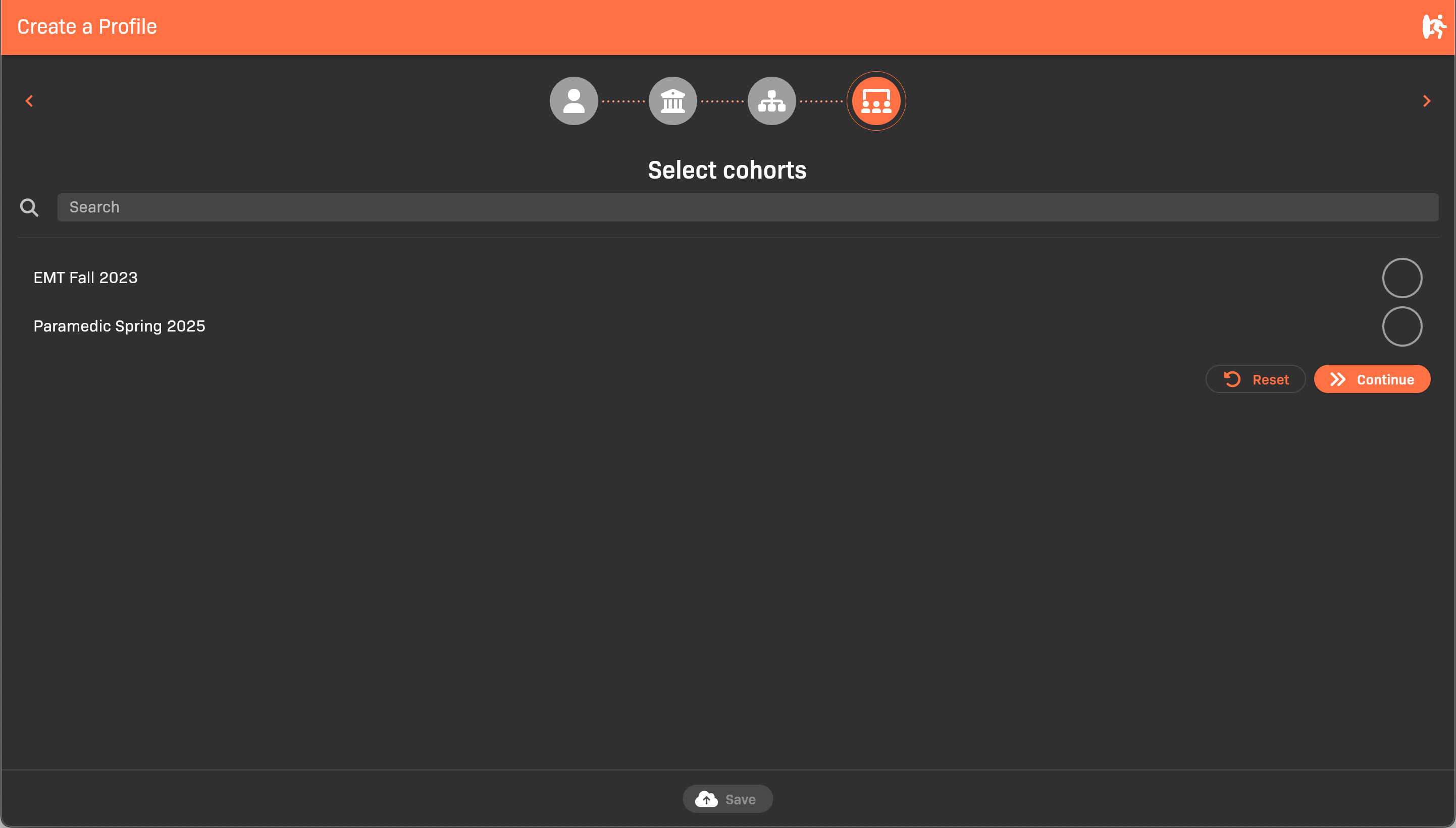
Select cohorts
- Select the cohorts that you will be an instructor for, then click Continue.
- Click Save to confirm.
You’re all set!