
Clocking in or out for an event
You can clock in and out from the EMCE mobile app, the website, or EMCE on Apple Watch.
For details about location accuracy and missing locations, see How location tracking works.
1. Mobile app or website clock in/out
Section titled “1. Mobile app or website clock in/out”- Find the event on the Dashboard Upcoming Events widget or the Schedule page.
- Tap the event.
- In the Attendance section, tap Clock In or Clock Out.
After you clock in, Clock Out remains disabled for one minute to prevent an accidental immediate clock-out. It becomes available automatically after the cooldown.
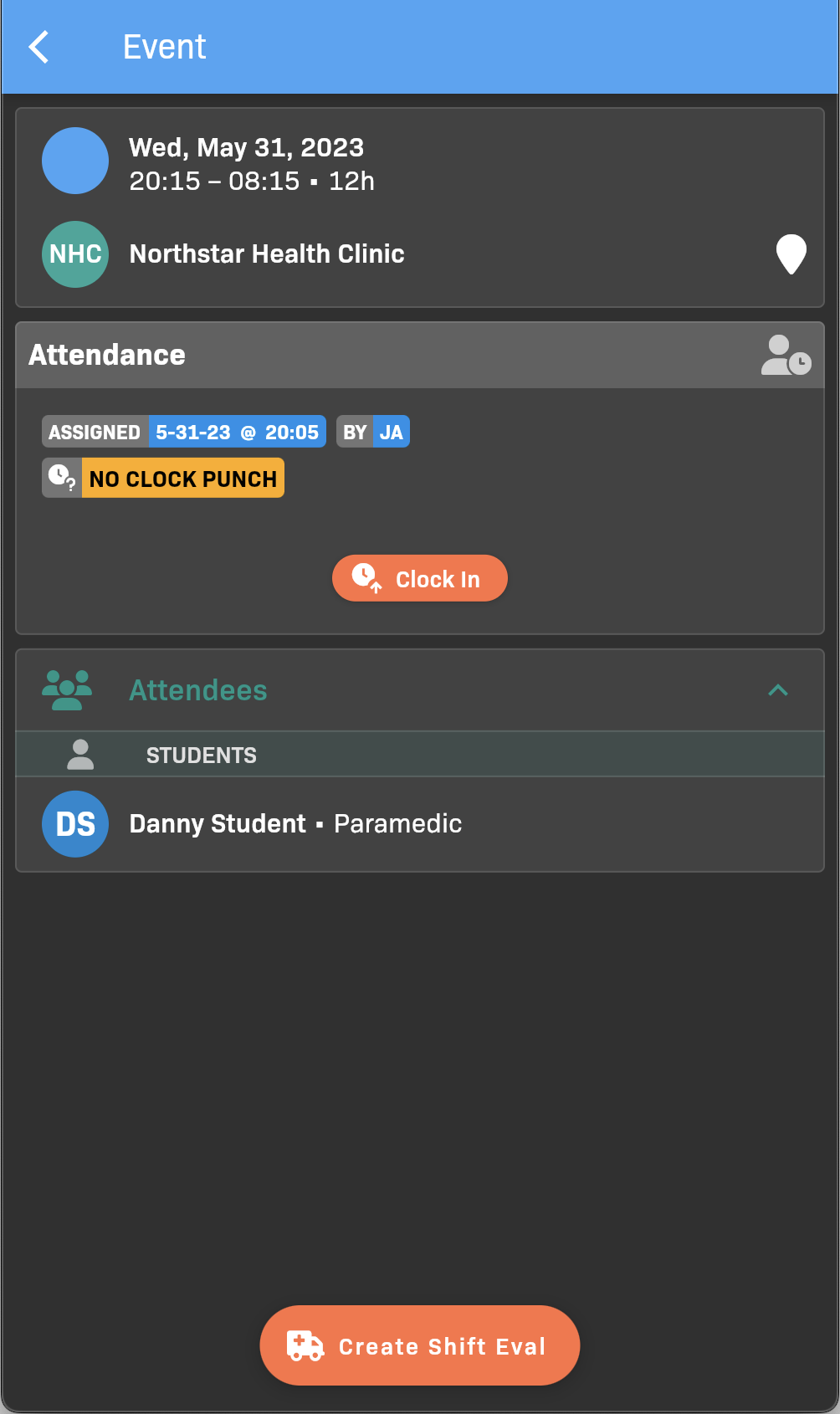
Event details
2. Apple Watch clock in/out
Section titled “2. Apple Watch clock in/out”- Open EMCE on your Apple Watch and go to Schedule.
- Select your event.
- Tap Clock In or Clock Out.
After you clock in, wait one minute for Clock Out to become available.
For setup and sign-in, see Using EMCE on Apple Watch.