
Getting Around the EMCE App
Select the tab that best matches your device:
If you use Apple Watch, see Using EMCE on Apple Watch.
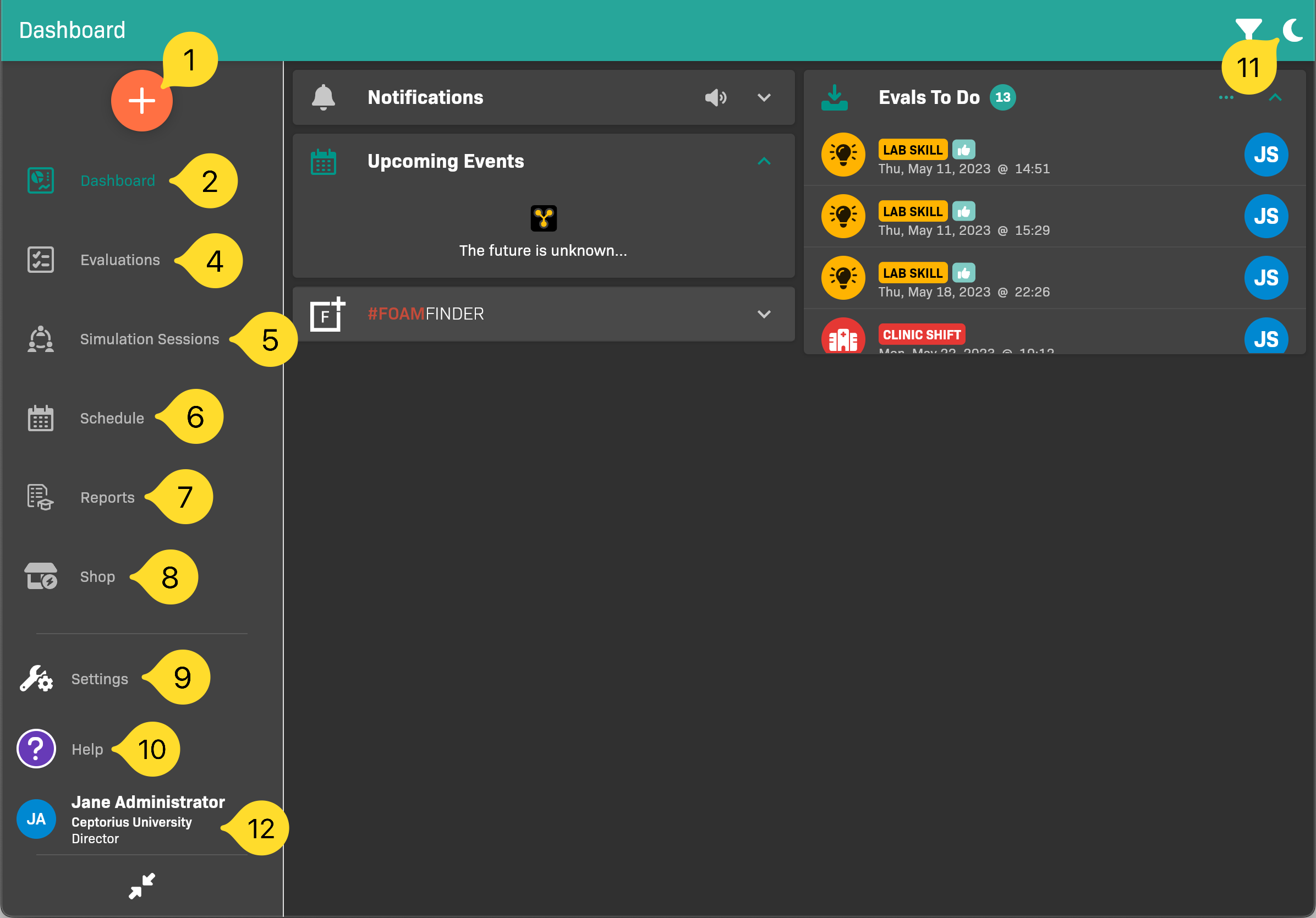
Tablet and computer navigation
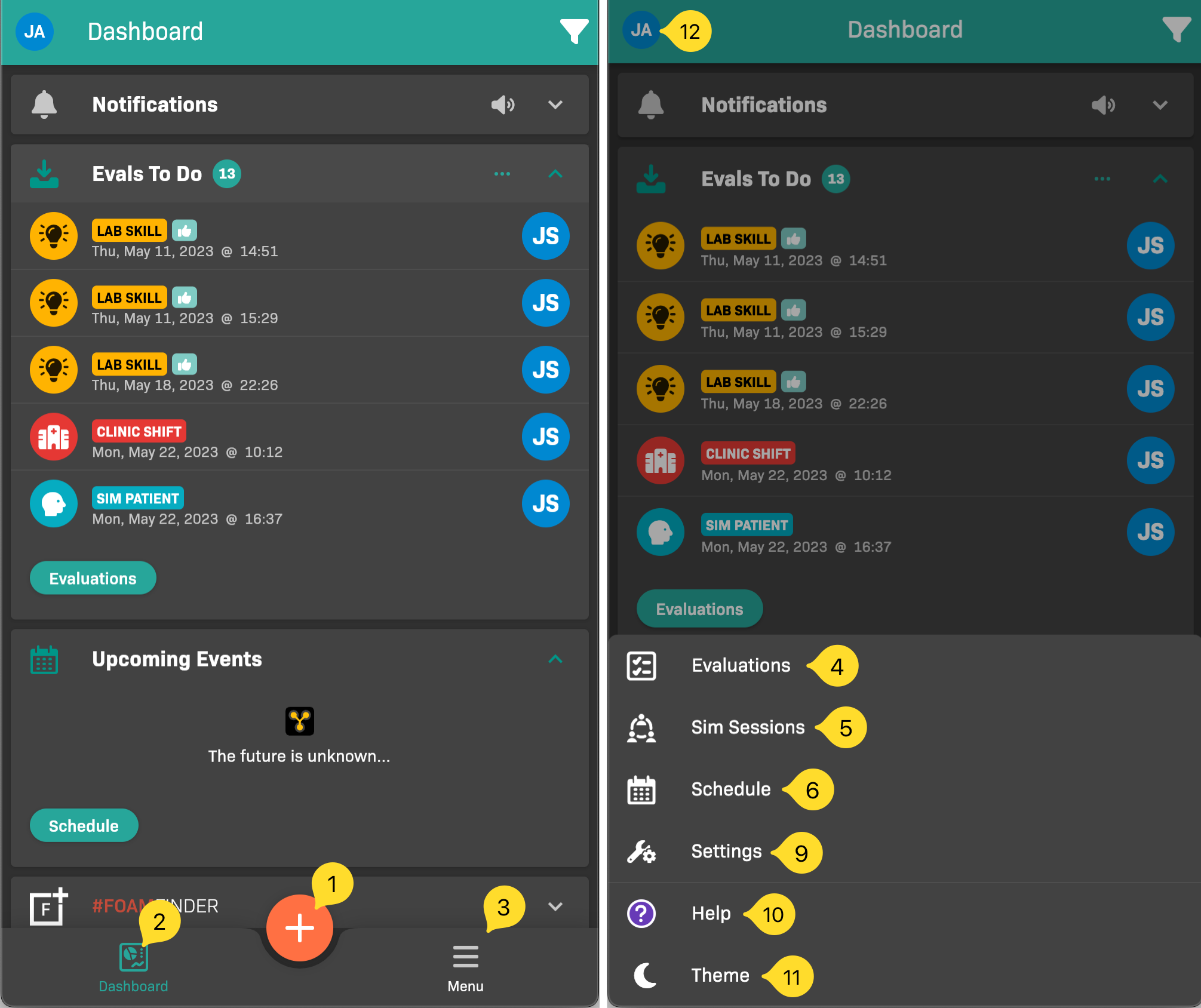
Smartphone navigation: menu closed at left, menu open at right
| Item | Name | Description |
|---|---|---|
| 1 | Create | Tap to create a Skill Eval, Simulated Patient Eval, or Shift Eval. |
| 2 | Dashboard | Tap to view the Dashboard. |
| 3 | Menu | (Smartphone-sized devices only) Tap to view the navigation menu. |
| 4 | Evaluations | Tap to view to do, submitted, and completed skill evaluations and solo simulated patient evaluations. See Working with Submitted Evaluations. |
| 5 | Simulation Sessions | Tap to view in progress and submitted Sim Sessions. |
| 6 | Schedule | Tap to view events on the schedule. See our scheduling articles. |
| 7 | Reports | (Tablet and laptop-sized devices only) Tap to view reports on your individual progress. |
| 8 | Shop | (Web app only) Tap to purchase EMCE Pro. See our purchasing instructions. |
| 9 | Help | Tap to view what’s new, documentation, contact EMCE for help, and access troubleshooting settings. |
| 10 | / Theme | Tap to switch between light and dark mode. |
| 11 | Your Profile | Tap to edit your profile, add a new profile, switch between profiles, or sign out. |