
Sign up for EMCE
Step 1: Get the EMCE app
Section titled “Step 1: Get the EMCE app”You can sign up from a computer, tablet, or mobile device. If you’re on a mobile device, we recommend installing the EMCE app.
| Your device | App options | Requirements |
|---|---|---|
| Windows computer | web app | Google Chrome or Microsoft Edge |
| Mac computer | web app or macOS app |
|
| iPhone or iPad | iOS app | iOS/iPadOS 13 or later |
| Android phone or tablet | Android app | Android 5 or later (9 or later recommended) |
This article provides instructions for the web app. However, the steps are the same for the macOS, iOS, and Android apps.
Step 2: Sign up for EMCE
Section titled “Step 2: Sign up for EMCE”If you previously provided an email address to an EMCE student, please use that address when you sign up. Doing so allows us to match your existing profile.
-
Open the EMCE app (either the web app or the app you installed previously).
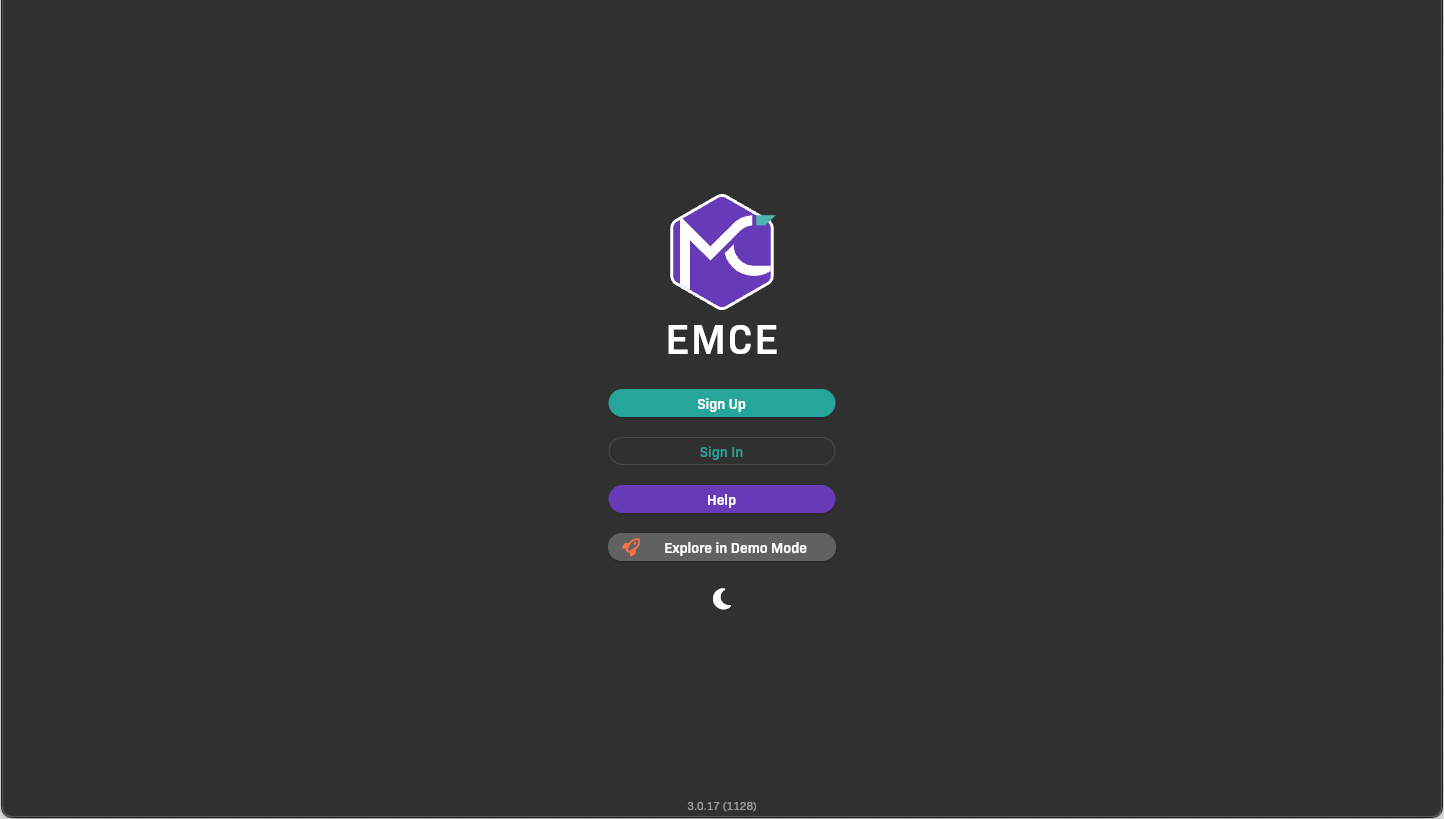
Home screen
-
Click Sign Up.
-
Create your account.
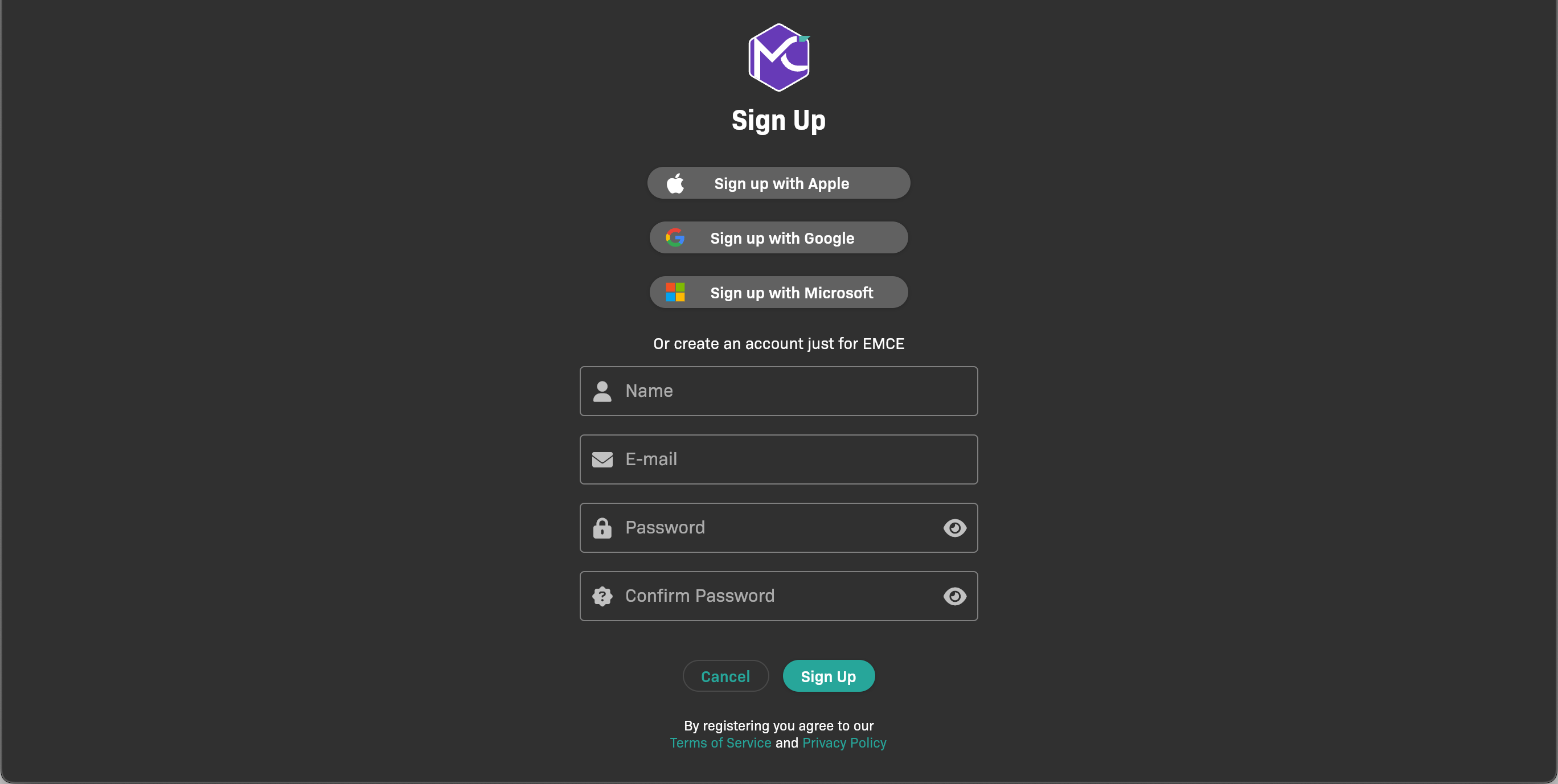
Sign up options
You can:
- Sign up with an existing Apple, Google, or Microsoft account.
- Create an EMCE account by entering a username and password.
After you create your account, the next screen appears.
Step 3: Set up your profile
Section titled “Step 3: Set up your profile”In order to promote the integrity of the data entered by students, we ask all preceptors to provide information about their professional certification and current employers. (All information is optional except for Profession and Certification / Credential.) This will help instructors and program directors validate a preceptor’s identity and contact them as needed.
-
When you are prompted to select a role, click Preceptor.
.png)
Select a role
-
Complete your professional profile information.
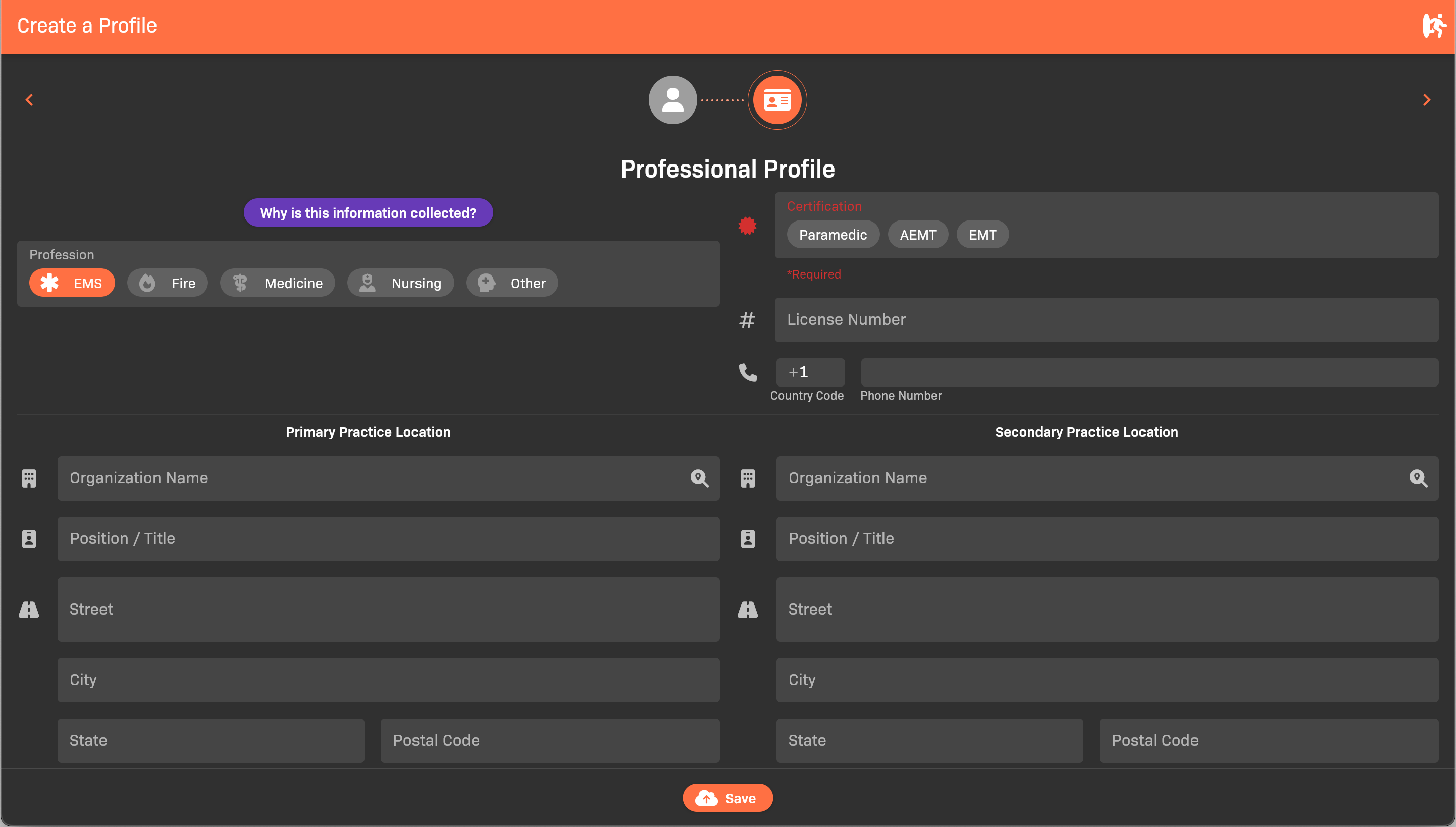
Professional profile
-
Click Save.