
Create your EMCE account
Step 1: Get the EMCE app
Section titled “Step 1: Get the EMCE app”You can sign up from a computer, tablet, or mobile device. If you’re on a mobile device, we recommend installing the EMCE app.
| Your device | App options | Requirements |
|---|---|---|
| Windows computer | web app | Google Chrome or Microsoft Edge |
| Mac computer | web app or macOS app |
|
| iPhone or iPad | iOS app | iOS/iPadOS 13 or later |
| Android phone or tablet | Android app | Android 5 or later (9 or later recommended) |
This article provides instructions for the web app. However, the steps are the same for the macOS, iOS, and Android apps.
Step 2: Sign up for EMCE
Section titled “Step 2: Sign up for EMCE”If you’re signing up as a program director, be sure to use your school-provided email address. We may be able to expedite the setup process by auto-matching your address.
-
Open the EMCE app (either the web app or the app you installed previously).
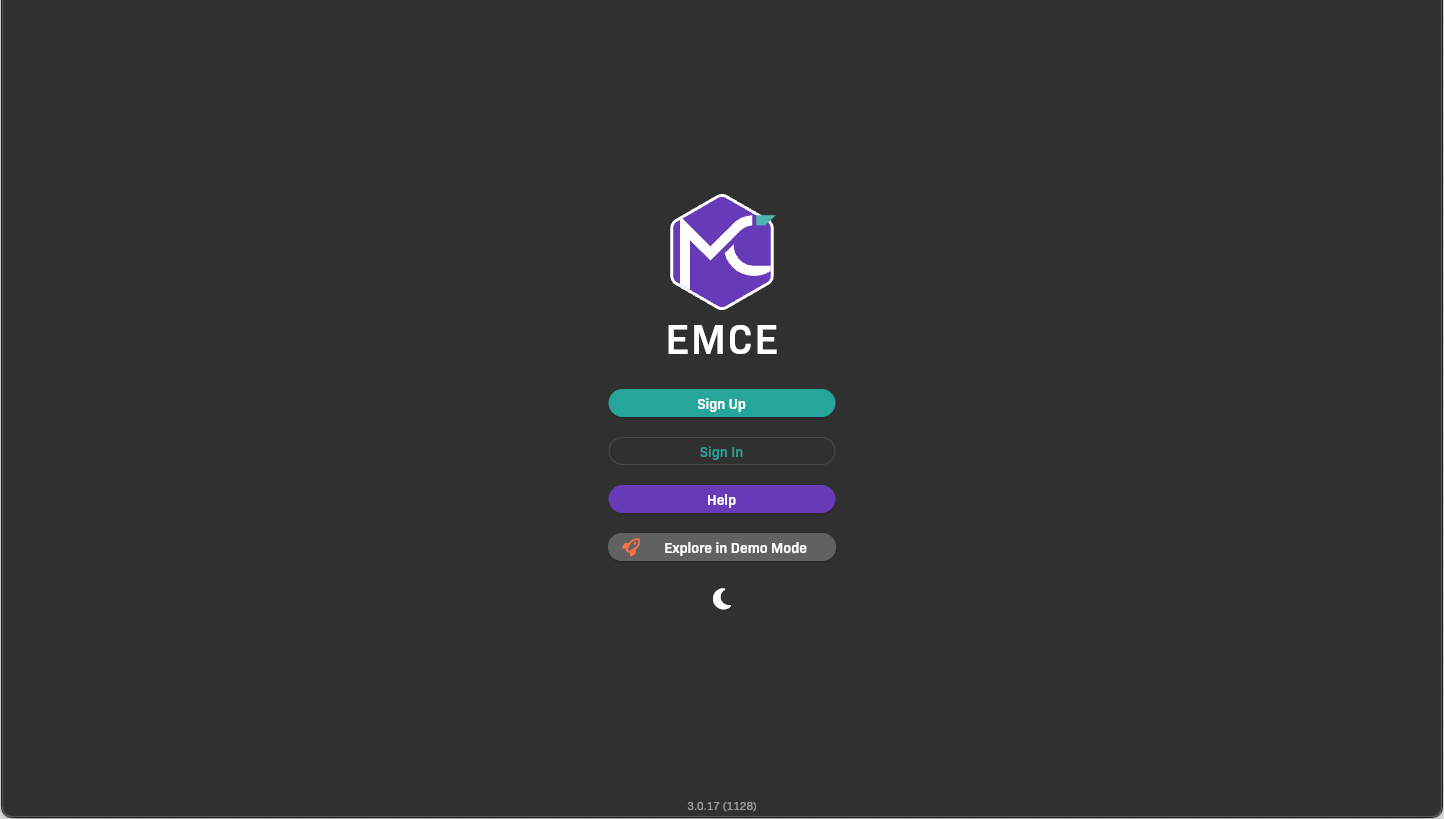
Home screen
-
Click Sign Up.
-
Create your account.
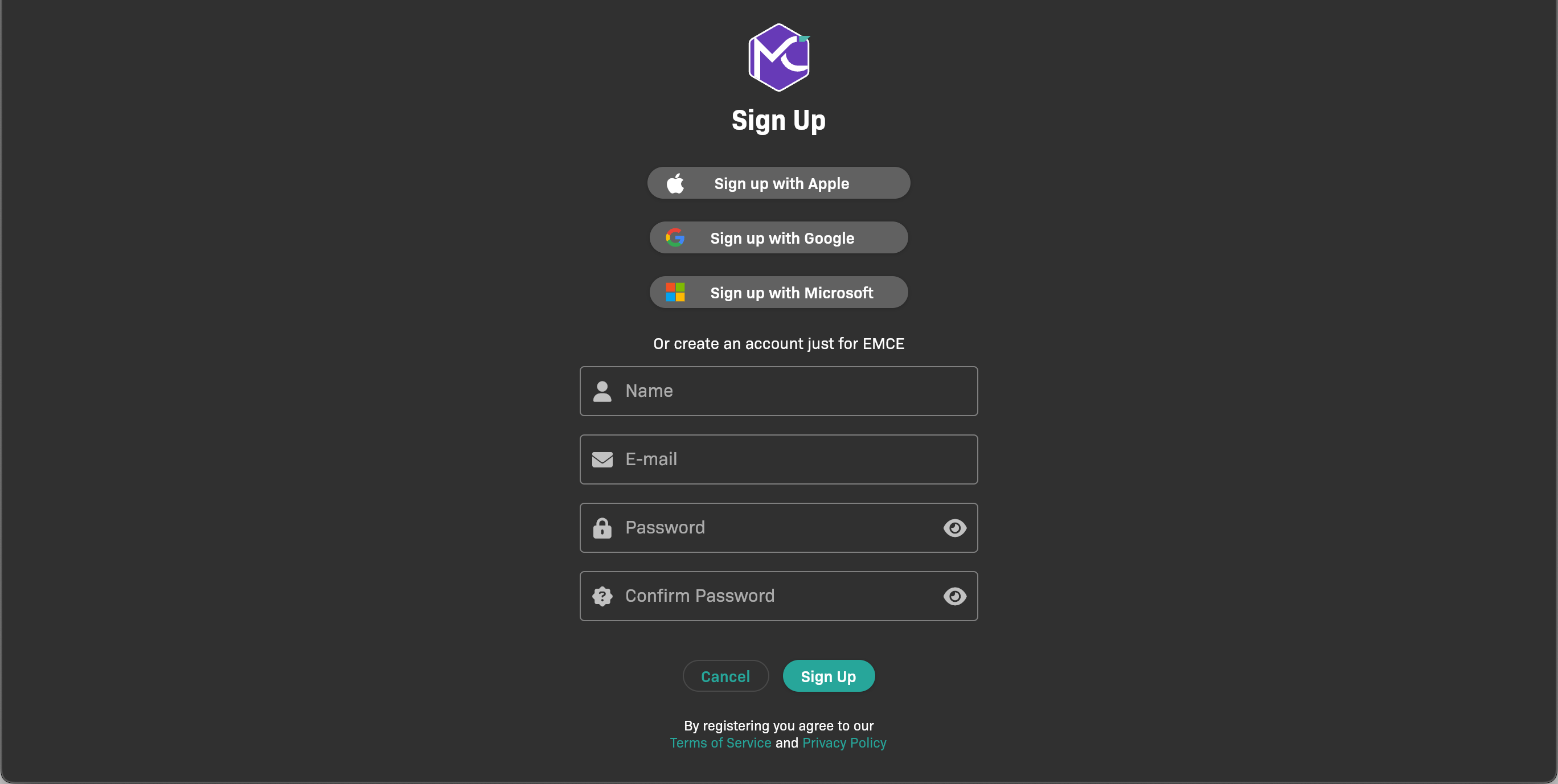
Sign up options
You can:
- Sign up with an existing Apple, Google, or Microsoft account.
- Create an EMCE account by entering a username and password.
After you create your account, the next screen appears. You’re ready to create or join an organization in EMCE!