
Signing up for an available event
Viewing available events
Section titled “Viewing available events”-
Go to the Schedule page. If you’re using a mobile device, you may need to access this page by first tapping (menu).
-
Go to the Available Events tab.
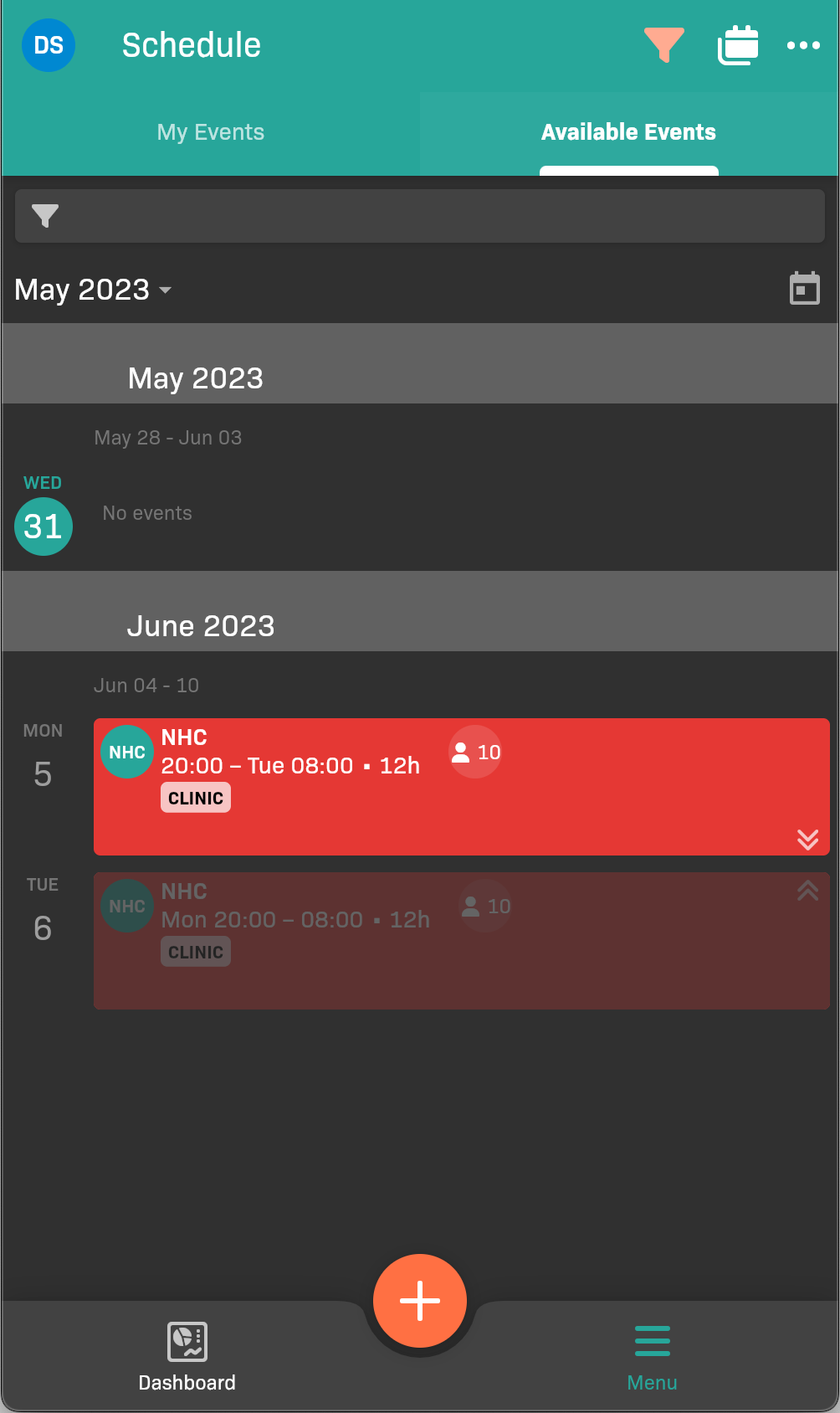
Available Events tab
Signing up for an event
Section titled “Signing up for an event”-
On the Available Events tab, tap the event that you’d like to take.
-
Tap Sign Up at the bottom of the page to take the first eligible empty slot. You can also use the sign-up button beside an individual empty slot in the attendee list. Both options apply the same eligibility rules.
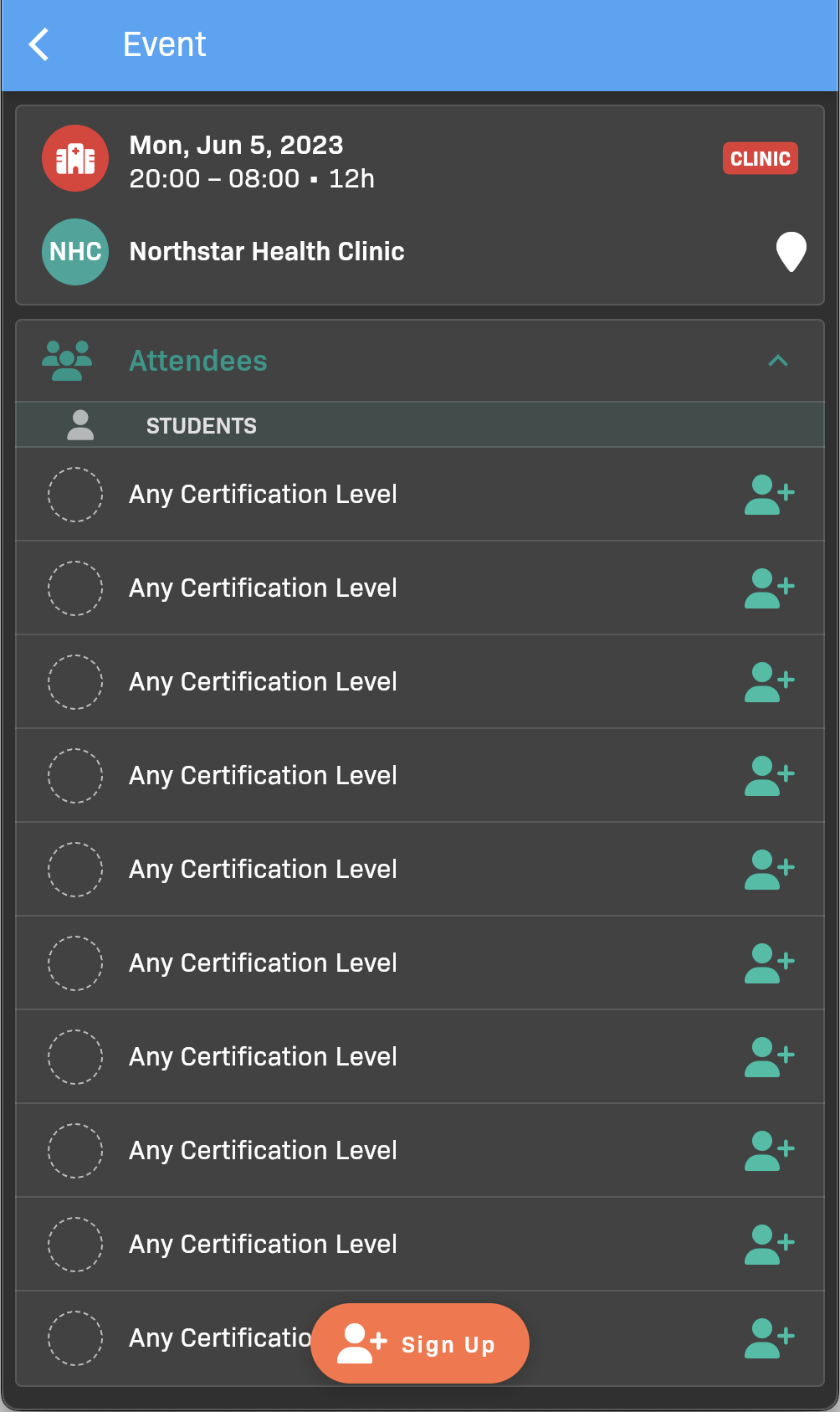
Available Event details
-
Tap OK to confirm.
Why sign-up may be unavailable
Section titled “Why sign-up may be unavailable”Seeing an event does not mean you can take every slot on it. To sign up:
- An empty student slot must allow your cohort’s certification level, your cohort, and your organization or org unit. For example, an EMT student cannot take a Paramedic-only slot.
- Your school must allow you to manage your schedule, and student sign-ups must be enabled for the event.
- If the event has sign-up windows, at least one must be open for your certification level, cohort, and organization or org unit. An open window does not override a slot’s restrictions.
- The event must not have started, and you must not have passed your cohort’s graduation date.
A disabled Sign Up button or a lock beside a slot means sign-up is unavailable. Check the accompanying explanation. If your cohort cannot be verified, reload the event and try again. Contact your scheduling coordinator if you believe your eligibility is incorrect.
Availability is checked again when you sign up. A window can close or a slot’s restrictions can change while you have the event open.