
Sign up for EMCE
Step 1: Get the EMCE app
Section titled “Step 1: Get the EMCE app”You can sign up from a computer, tablet, or mobile device. If you’re on a mobile device, we recommend installing the EMCE app.
| Your device | App options | Requirements |
|---|---|---|
| Windows computer | web app | Google Chrome or Microsoft Edge |
| Mac computer | web app or macOS app |
|
| iPhone or iPad | iOS app | iOS/iPadOS 13 or later |
| Apple Watch (with iPhone) | watchOS app (auto-install or watchOS App Store) | Apple Watch paired with iPhone running the EMCE iOS app |
| Android phone or tablet | Android app | Android 5 or later (9 or later recommended) |
If you plan to use EMCE on Apple Watch, see Using EMCE on Apple Watch.
This article provides instructions for the web app. However, the steps are the same for the macOS, iOS, and Android apps.
Step 2: Sign up for EMCE
Section titled “Step 2: Sign up for EMCE”-
Open the EMCE app (either the web app or the app you installed previously).
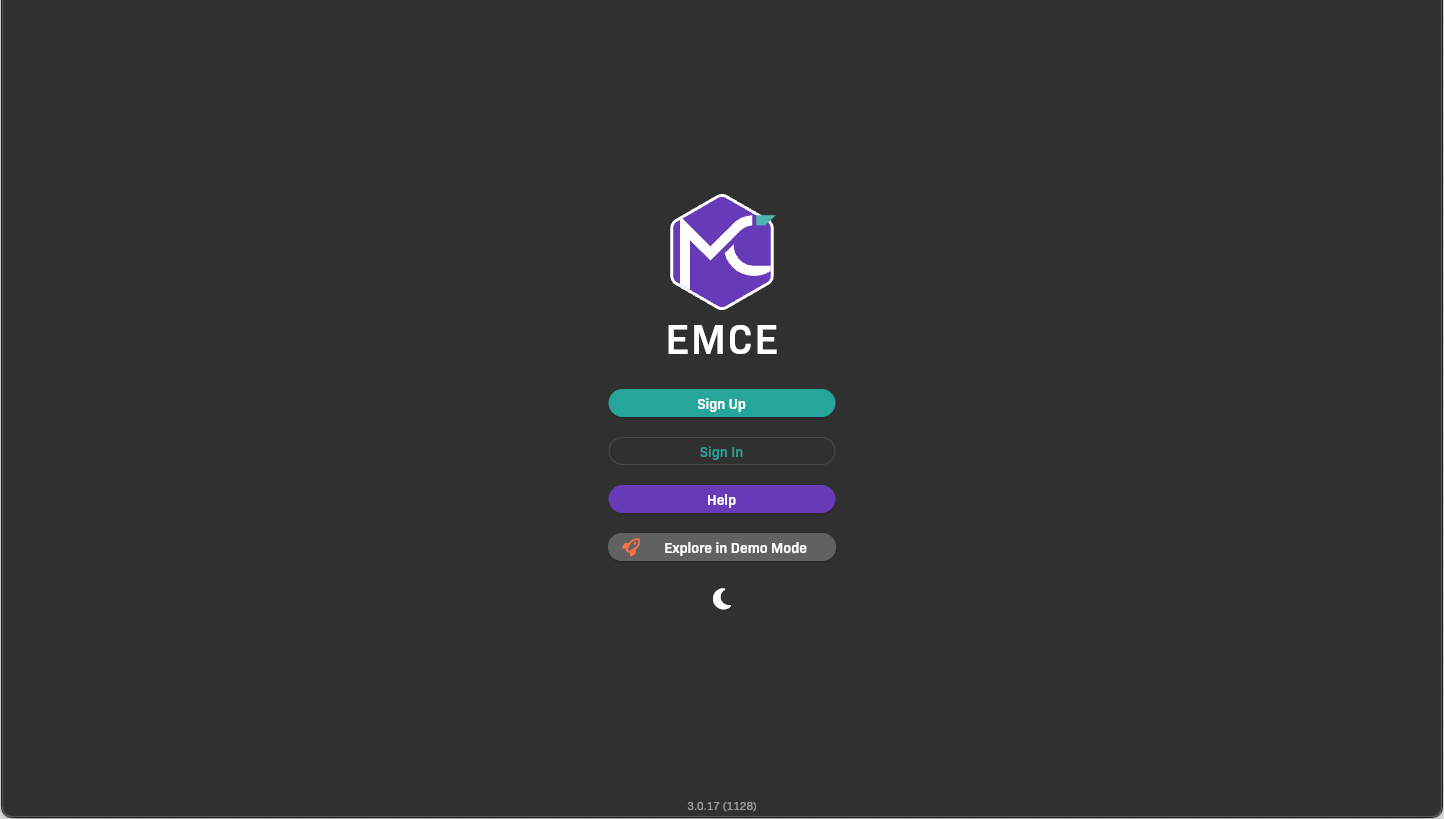
Home screen
-
Click Sign Up.
-
Create your account.
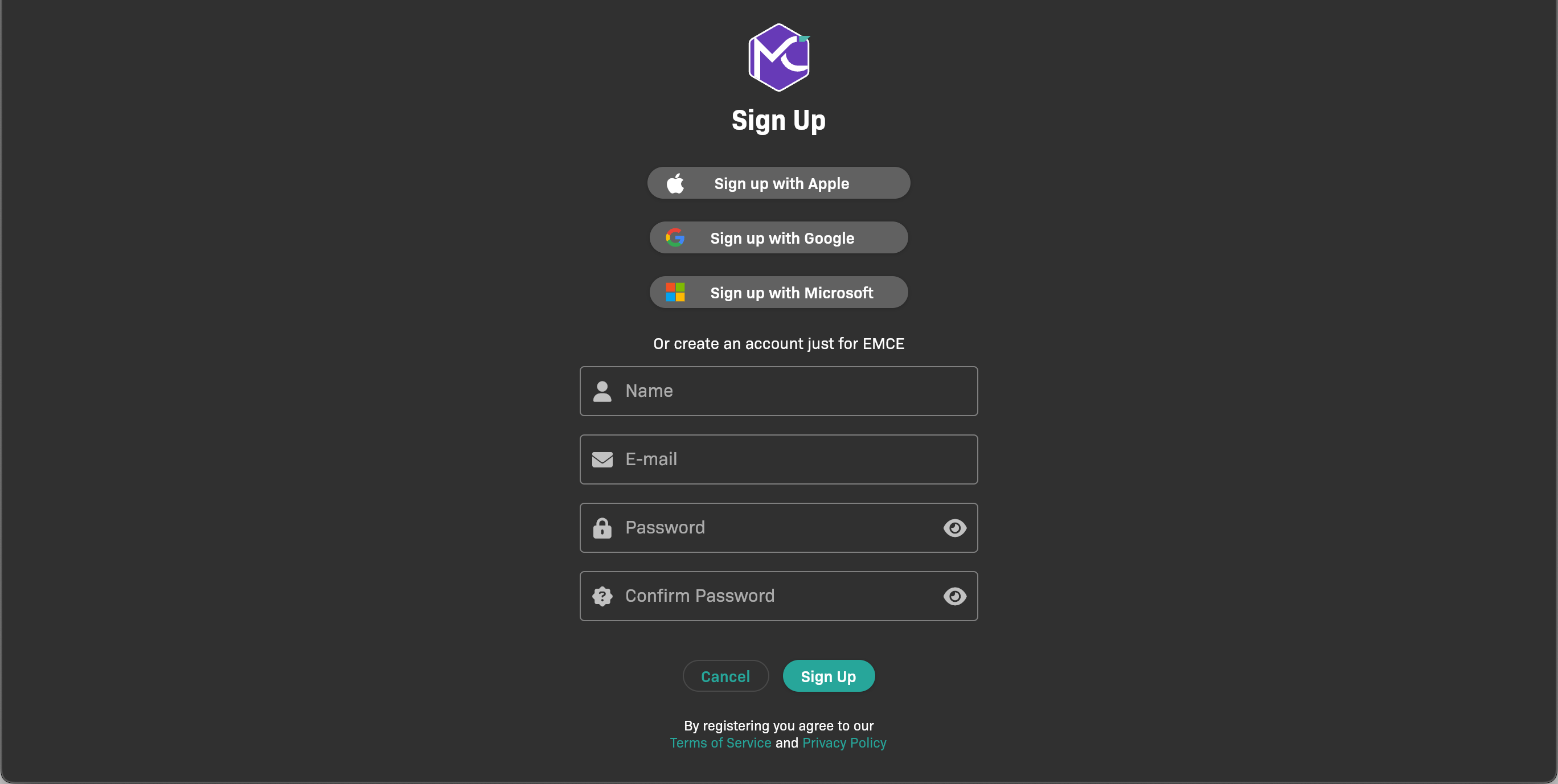
Sign up options
You can:
- Sign up with an existing Apple, Google, or Microsoft account.
- Create an EMCE account by entering a username and password.
After you create your account, the next screen appears.
Step 3: Join your school (organization)
Section titled “Step 3: Join your school (organization)”In EMCE, schools are called organizations. Find and join your school’s organization in EMCE.
-
When you are prompted to select a role, click Student.

Select a role
-
Search for the name of your school/organization.
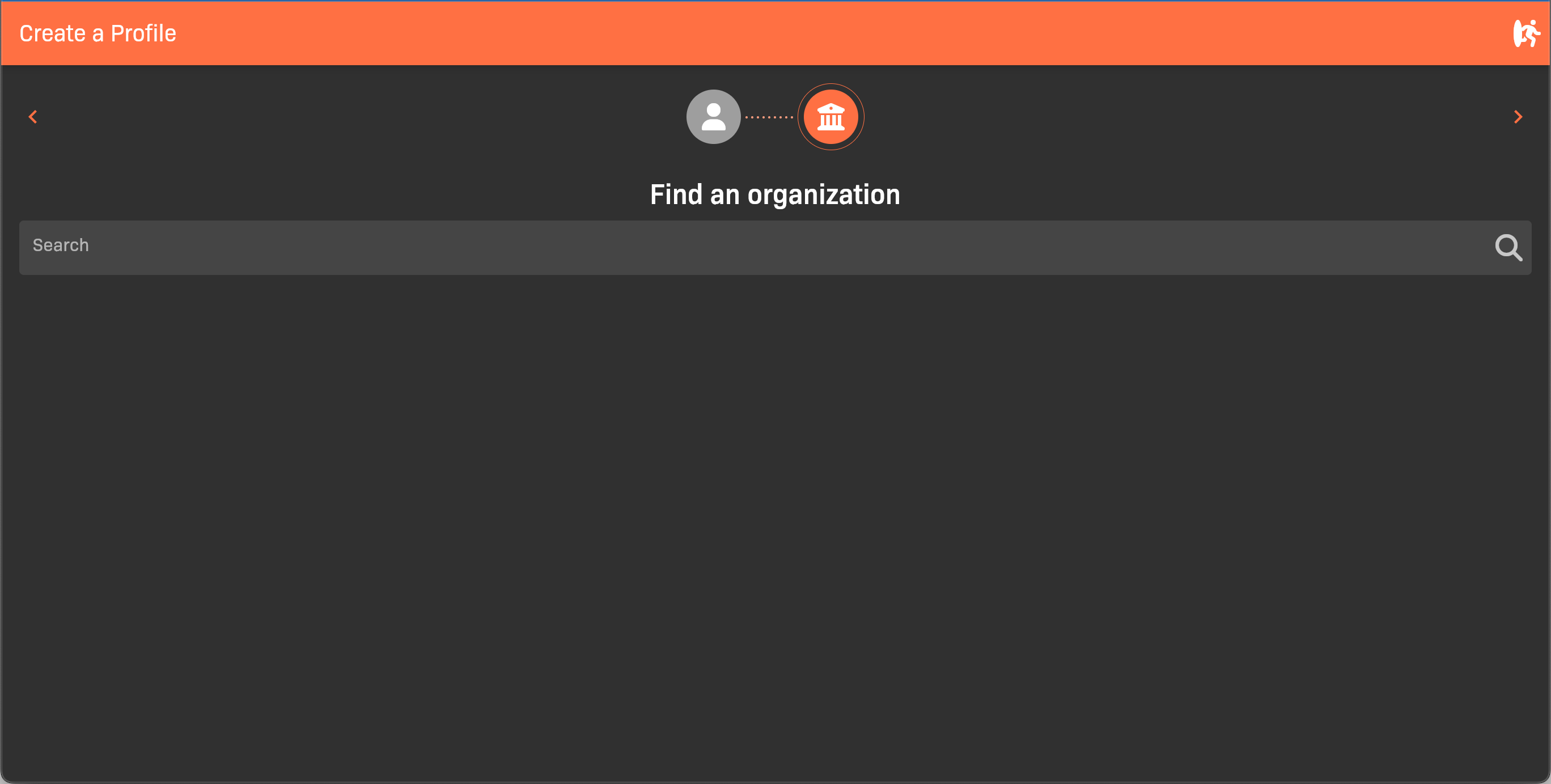
Find an organization
-
Select your school/organization from the search results.
-
Select the cohort for your class.
Take care to select the correct cohort; if you choose the wrong one, you must contact EMCE support to correct the issue.
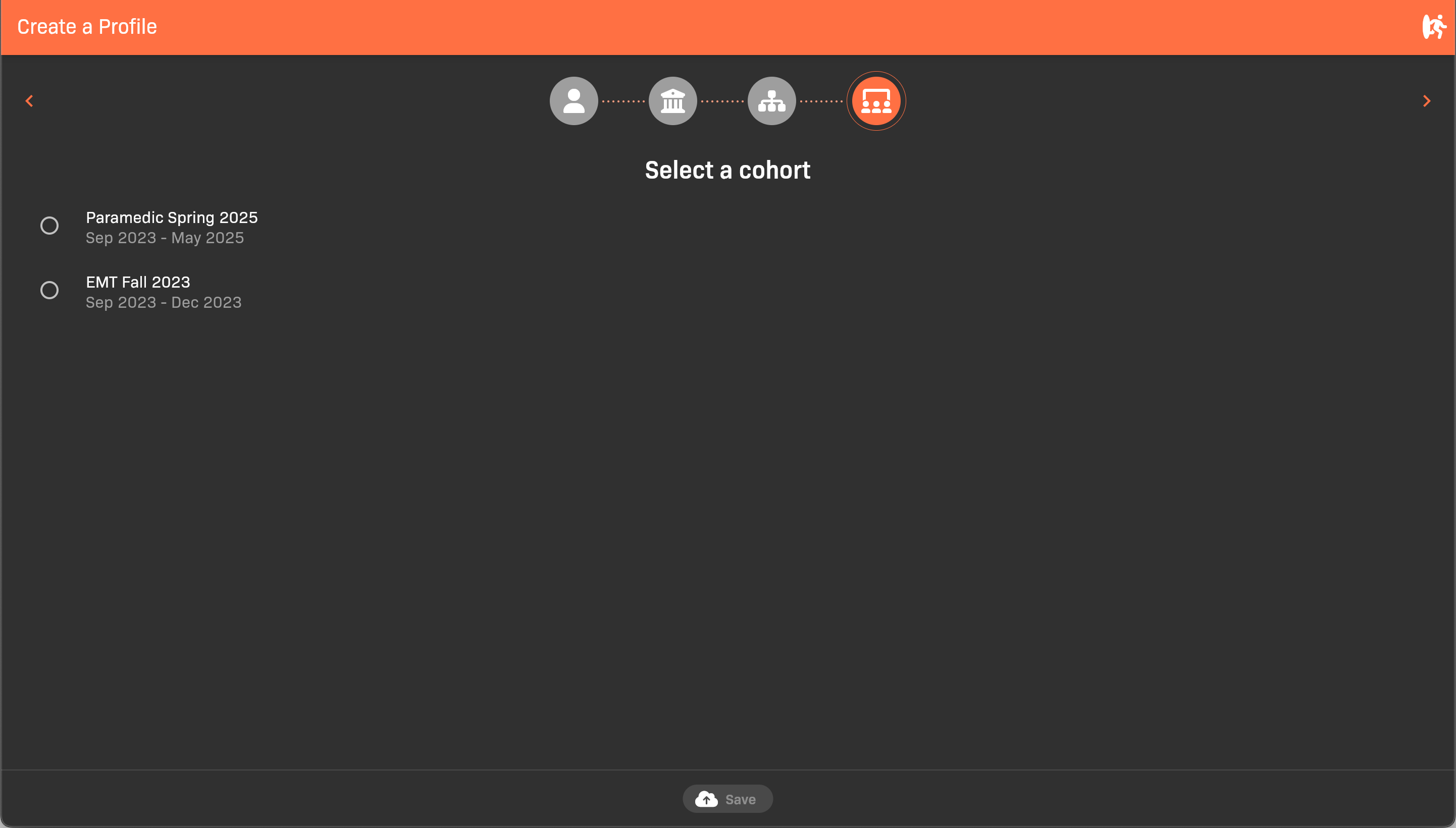
Select a cohort
-
To confirm your choices, click Save. If you need to change any of your selections, click Start Over.
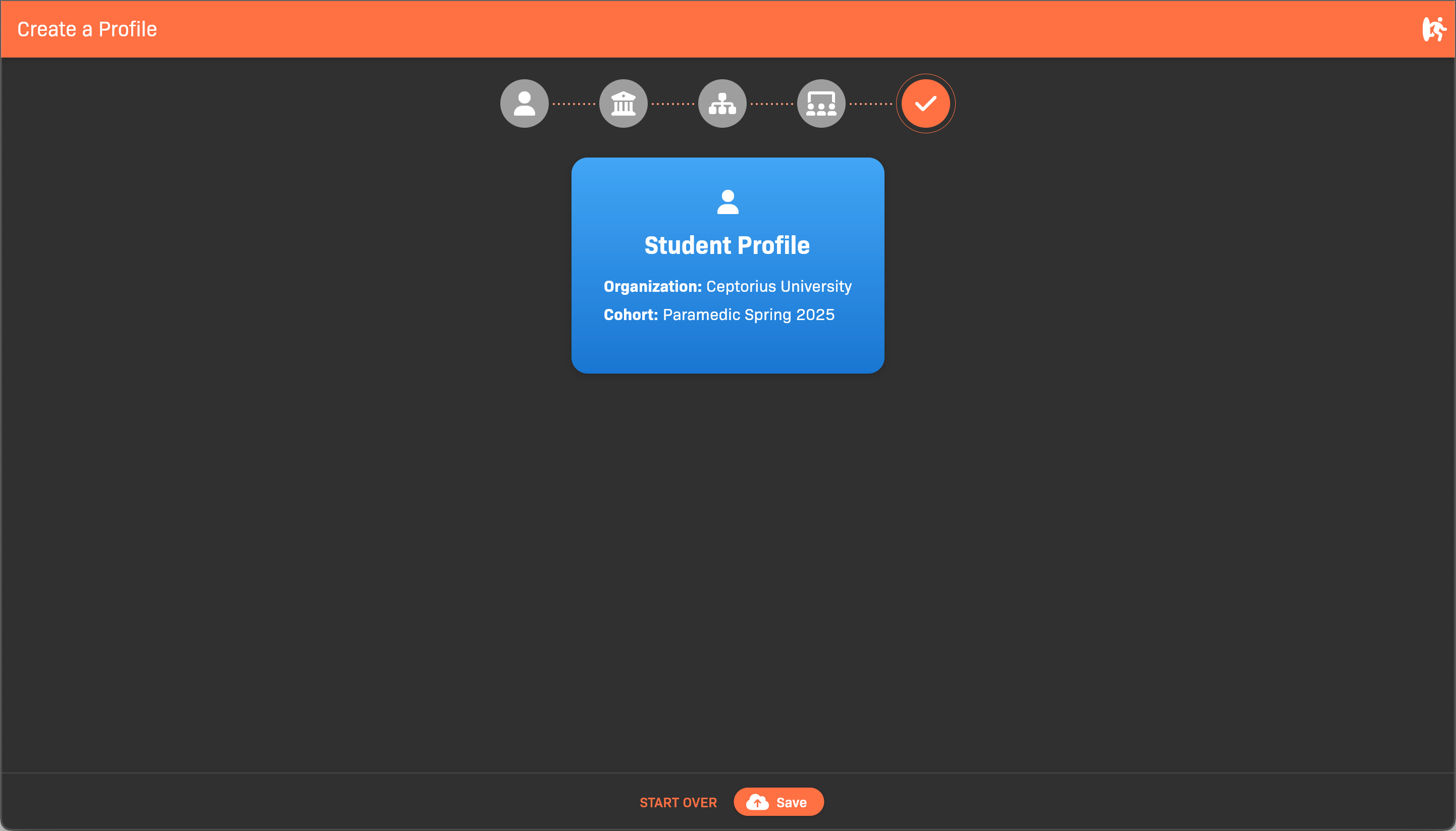
Complete profile