
Submitting evaluations
Starting an evaluation
Section titled “Starting an evaluation”Tap from anywhere in the app, then select the type of eval that you want to create from the menu.
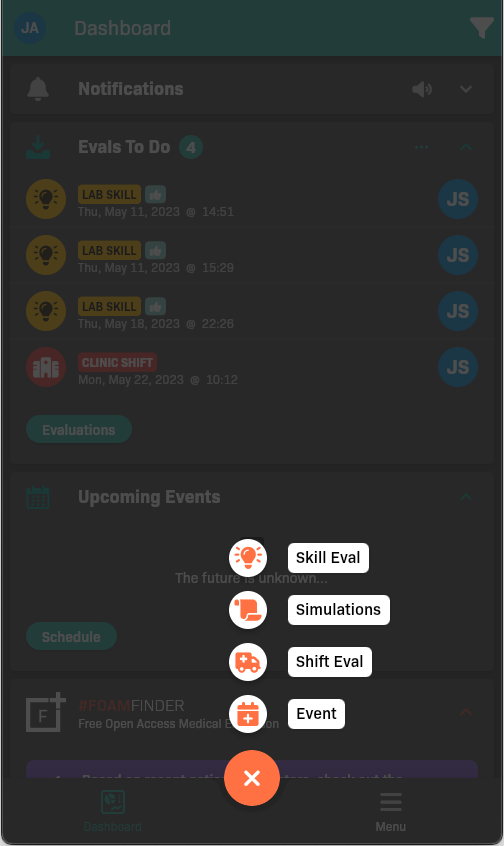
Create evaluation menu
For more details, check out our articles on creating skill evals, simulated patient evaluations, and shift evaluations.
Save actions
Section titled “Save actions”When you’re finished with an evaluation, tap Save.
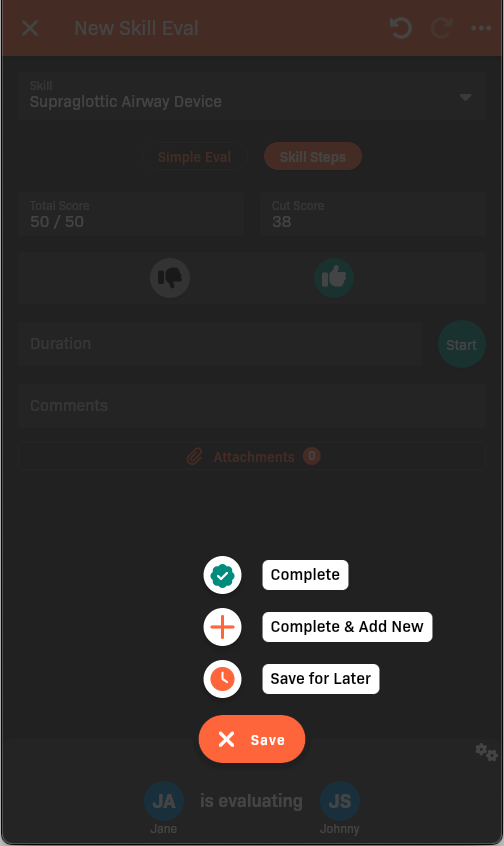
Evaluation save actions
- Complete verifies and finalizes the evaluation. You will not be able to edit the eval after it is completed.
- Complete & Add New completes the evaluation and then returns directly to the skill or patient entry screen instead of returning to the dashboard.
- Save for Later saves the changes you have made to the evaluation and moves it to the To Do tab in your evaluations list. You can edit the evaluation before completing it.