
Working with submitted evaluations
The Evaluations page
Section titled “The Evaluations page”All evaluation types, except simulation sessions, appear on the Evaluations page. If you’re using a mobile device, you may need to access this page by first tapping (menu).
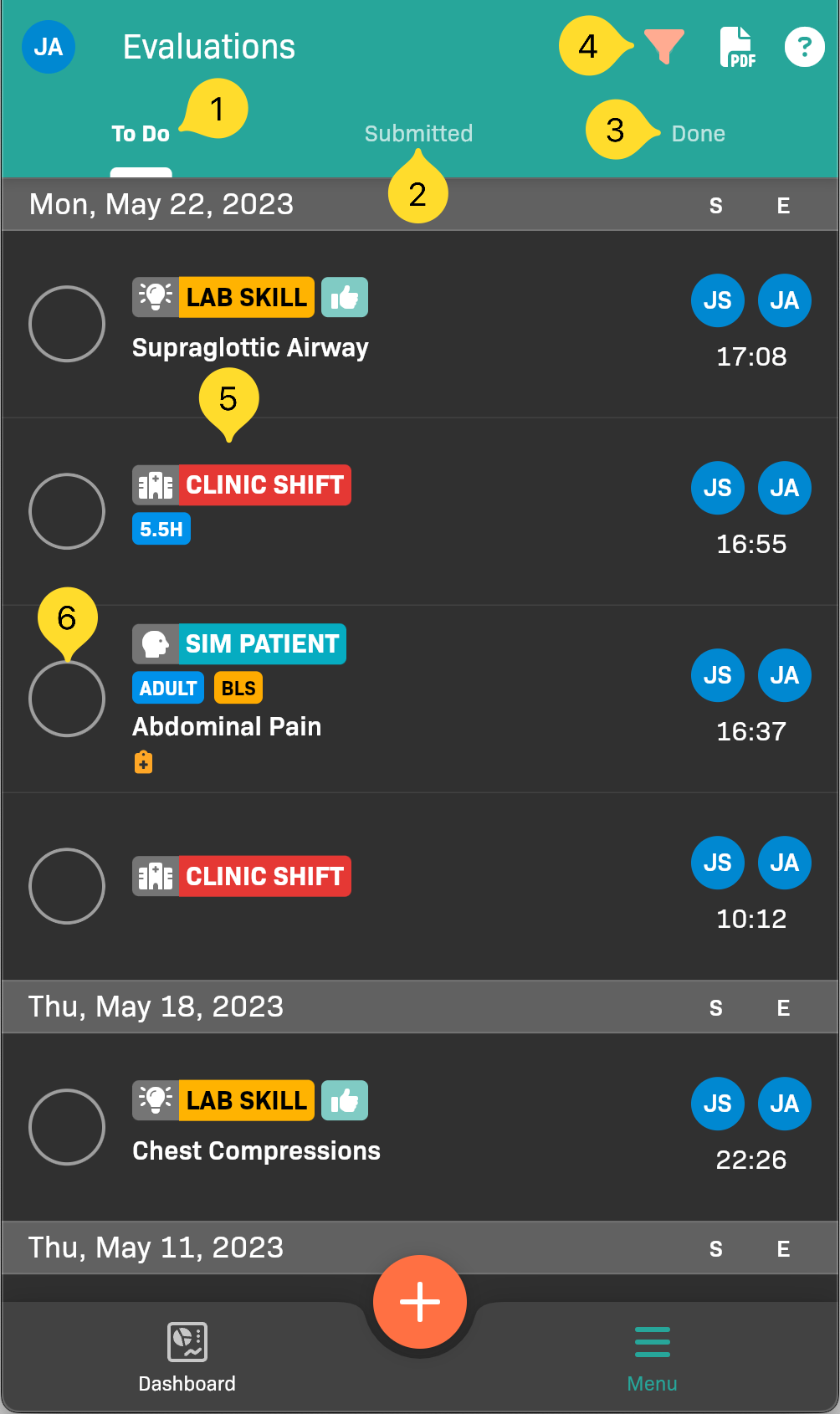
Evals page with annotations
| Item | Description |
|---|---|
| 1 | The To Do tab displays:
|
| 2 | The Submitted tab displays the evaluations about you that have been submitted for verification, but have not yet been approved by the evaluator. You cannot edit these evaluations. |
| 3 | The Done tab displays all the evaluations about you that have been verified. You cannot edit these evaluations. |
| 4 | An evaluation item; tap to view expanded information about the evaluation. |
| 5 | Tap to filter the evaluations list by any of the following:
|
| 6 | Tap to select an evaluation item; multiple evaluations can be selected at once and acted on in bulk.
|
Acting on evaluations
Section titled “Acting on evaluations”You can act on evaluations from list view or when viewing a particular evaluation’s details.
From list view
Section titled “From list view”Submit, Complete, or Approve evals in bulk by selecting box next to the evaluations in the list view, and then tapping the orange floating button on the bottom of the screen.
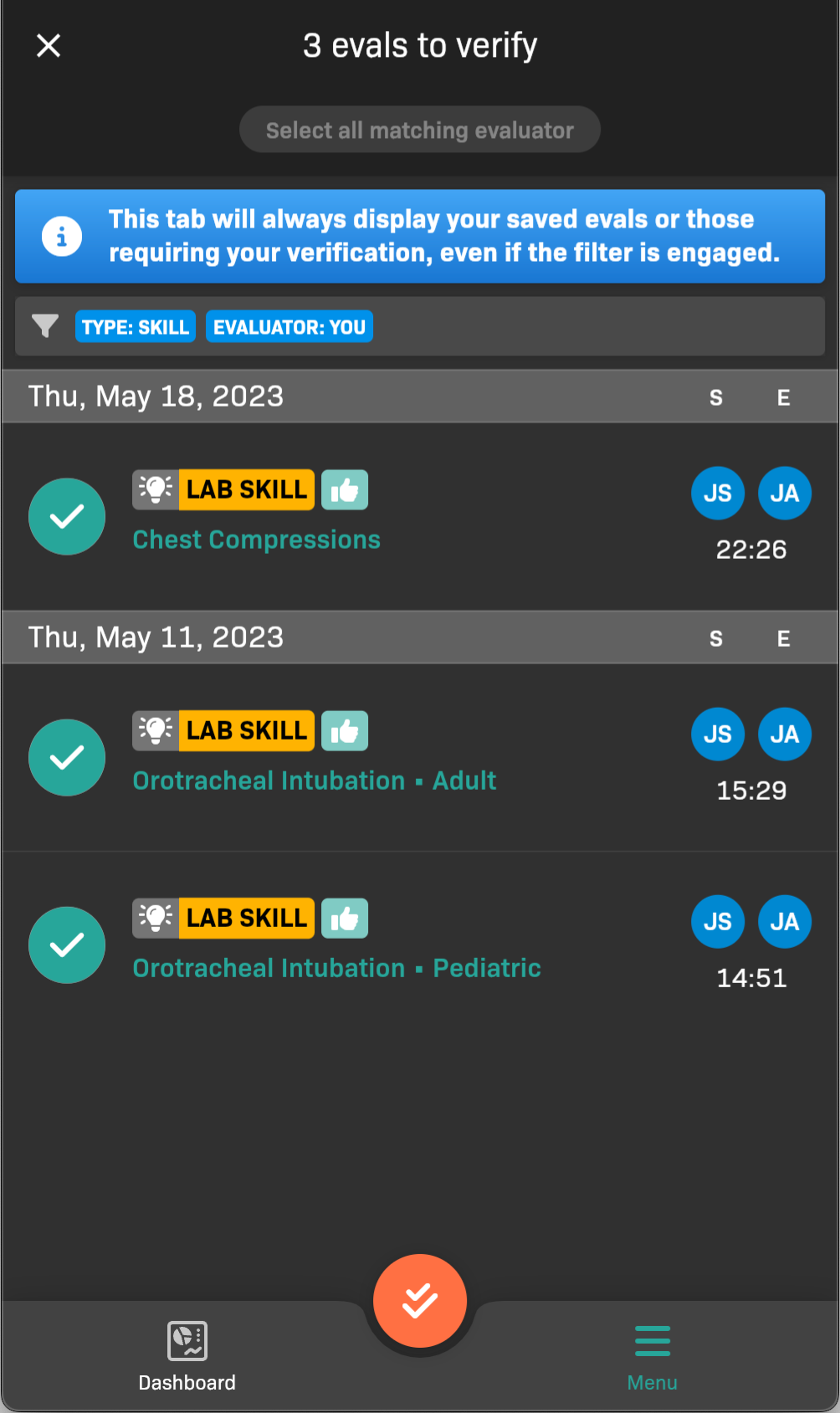
Bulk update evaluations
Filter the list of evaluations by tapping at the top of the screen.
From an evaluation’s details view
Section titled “From an evaluation’s details view”From the details view, you can:
- Approve an evaluation for which you are the evaluator.
- Reject an evaluation for which you are the evaluator.
- Submit an evaluation for verification (you are not the evaluator).
- Complete an evaluation that you started previously but haven’t submitted.
- Edit an evaluation if it is not yet submitted.
- Delete an evaluation.