
Filling out a shift evaluation
Step 1: Start the evaluation
Section titled “Step 1: Start the evaluation”You’ll need to complete the form for all shift evaluations. Evaluators must complete the Student Affect Evaluation rating, which is not available to self-submissions.
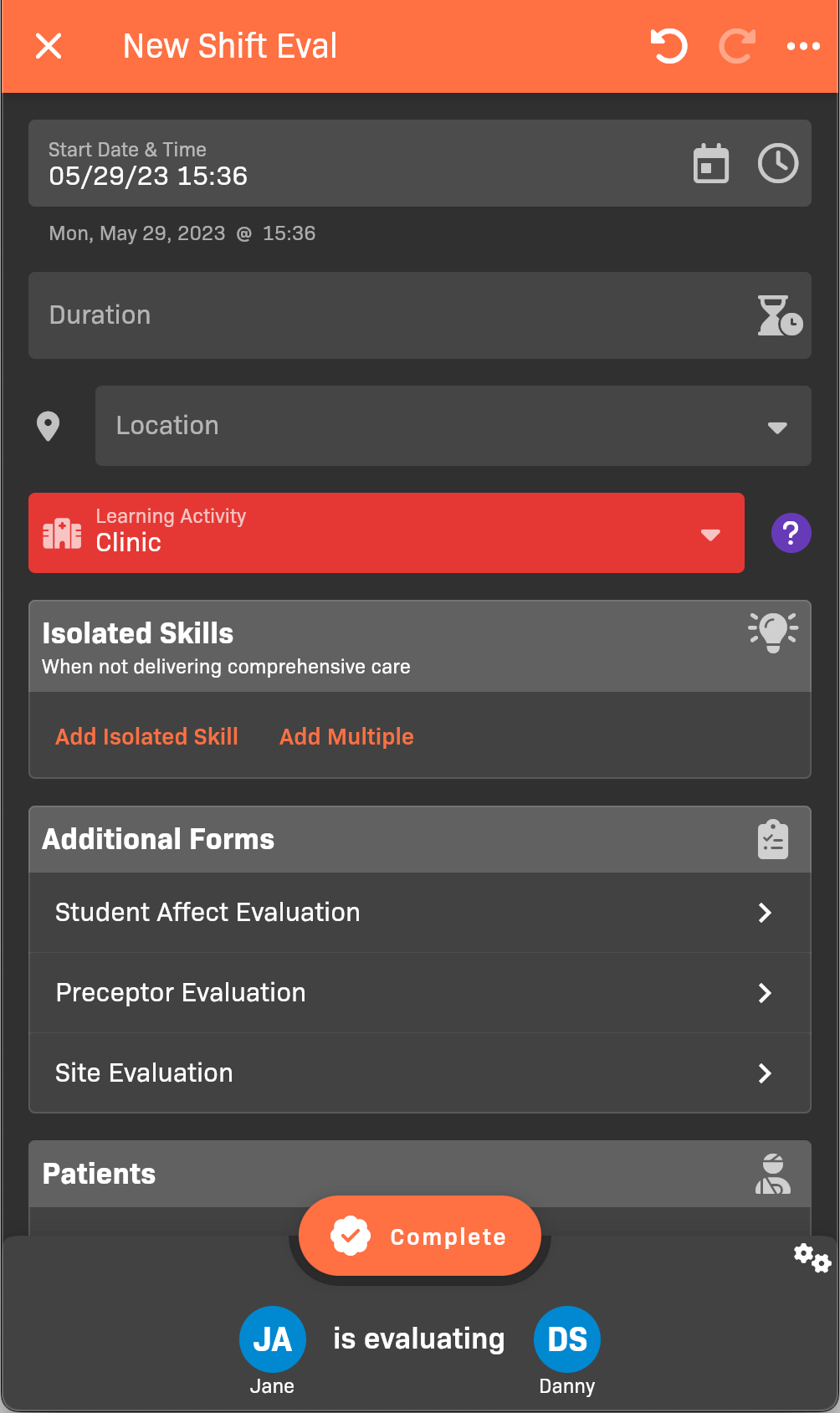
New Shift Eval
Step 2: Complete shift information
Section titled “Step 2: Complete shift information”The shift information captures when and where the shift took place.
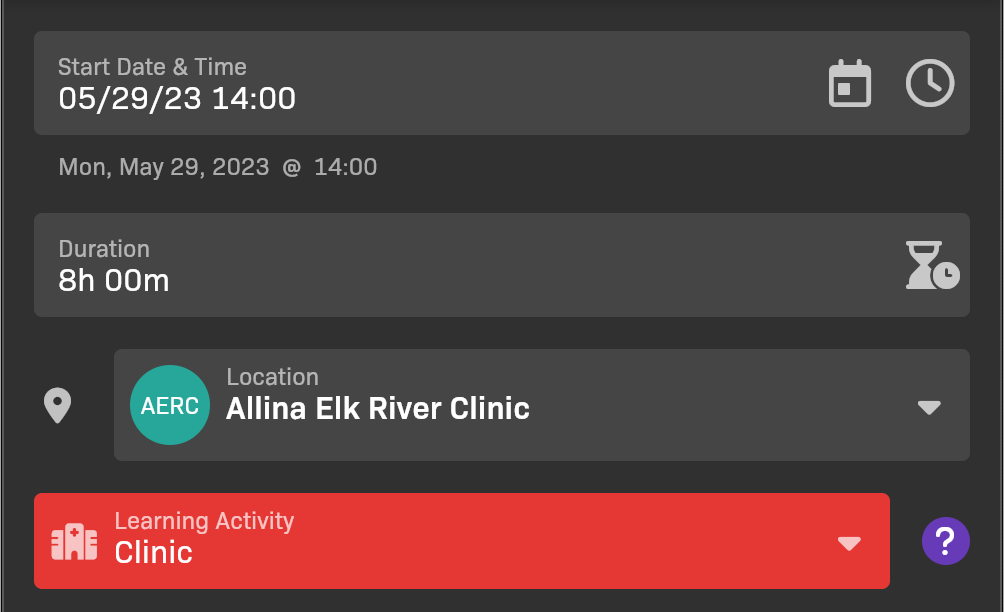
Shift details
- Set the Start Date & Time.
- Set the shift’s Duration.
- Select the Location where the shift took place.
- Confirm that Learning Activity captures the context for the shift.
Step 3: Add isolated skills
Section titled “Step 3: Add isolated skills”Add any Isolated Skills that the student demonstrated while not delivering comprehensive care.
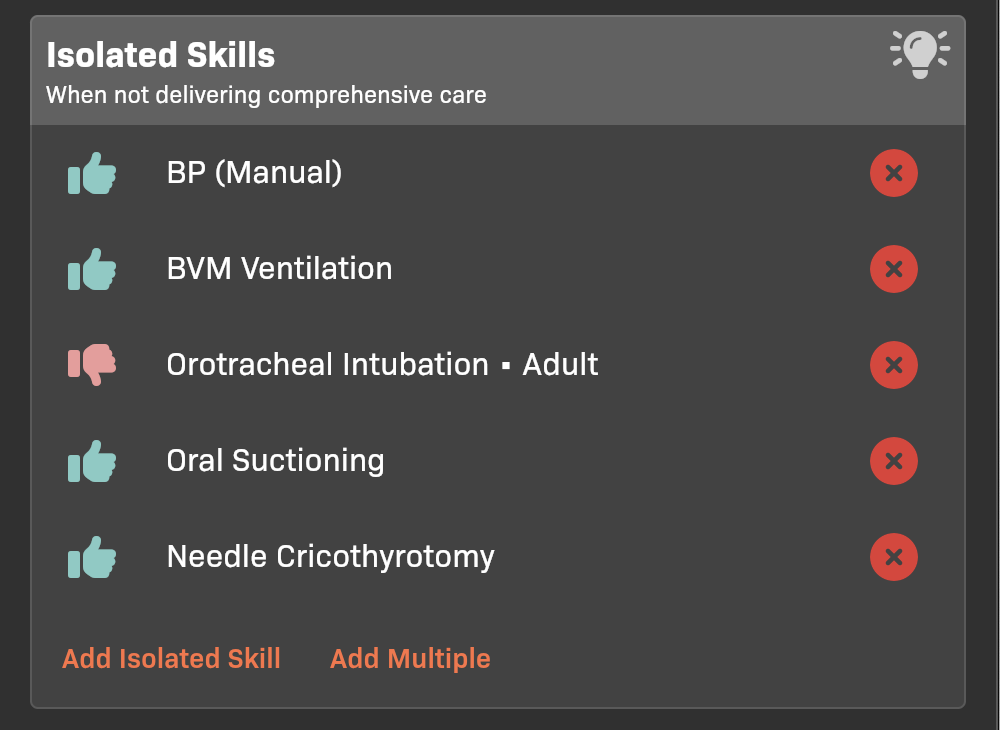
Isolated Skills section
- To add an individual skill, tap Add Isolated Skill.
- To add multiple skills at once, tap Add Multiple.
- To edit an individual skill that you’ve added, including rating individual skill steps, tap the name of the skill after you’ve added it.
Step 4: Add patients
Section titled “Step 4: Add patients”Add the Patients for whom the student provided comprehensive care.
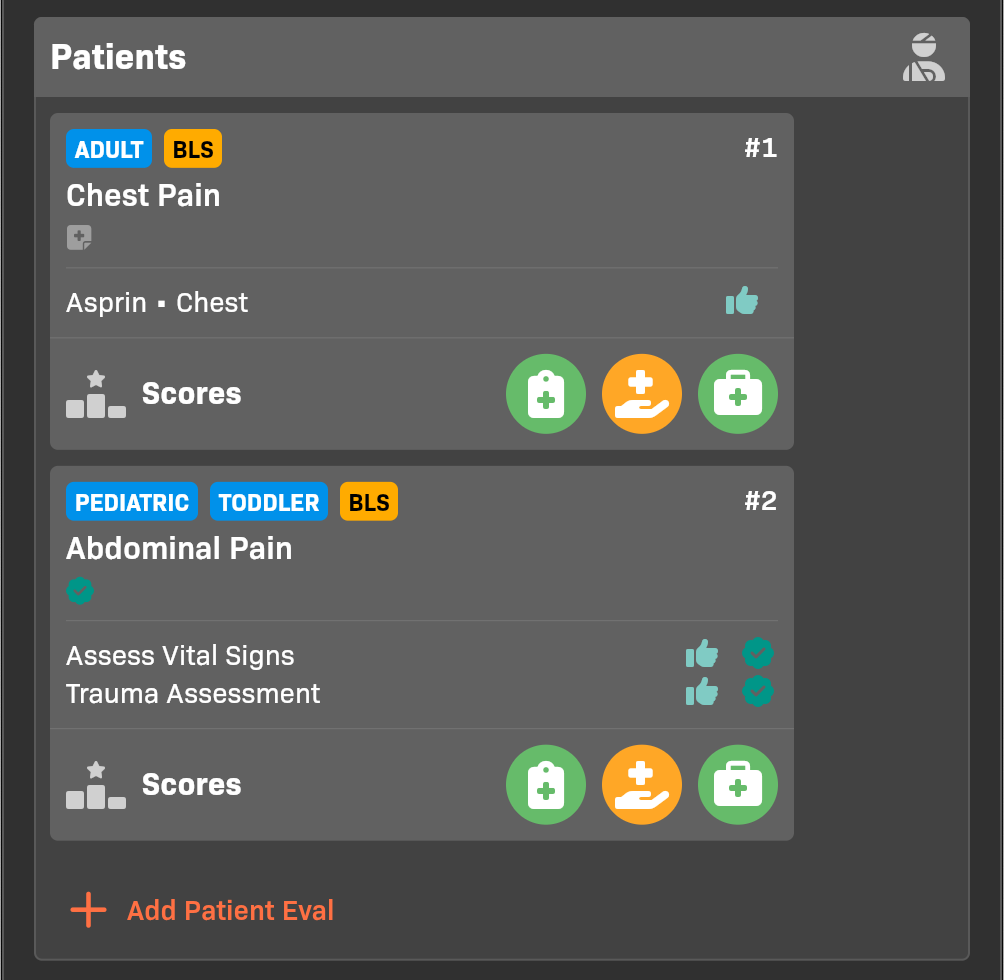
Patients section
- To add a patient, tap Add Patient Eval.
- When you add the patient eval, the evaluator will default to the same person as the shift evaluator. You can optionally select a different evaluator.
- When saving the patient eval, you can choose to be evaluated now or save the evaluation for later.
- If the preceptor has an EMCE account, they will complete the evaluation on their own device in the future.
- If the preceptor does not have an EMCE account, you must hand them your device to complete the evaluation.
- To edit a patient eval, click the card for the eval.
- To quickly edit the Scores, tap the icons for Assessment, Treatment, or Management.
Step 4a: Use PreceptoBot to draft evaluation details (optional)
Section titled “Step 4a: Use PreceptoBot to draft evaluation details (optional)”If your organization has PreceptoBot evaluation editing enabled, you can use it to speed up patient and shift evaluation documentation.
- In the evaluation editor, tap
PreceptoBot. - Provide information by dictating a narrative, typing it, or uploading a photo or PDF of a paper form.
- Review the proposed changes and tap Apply.
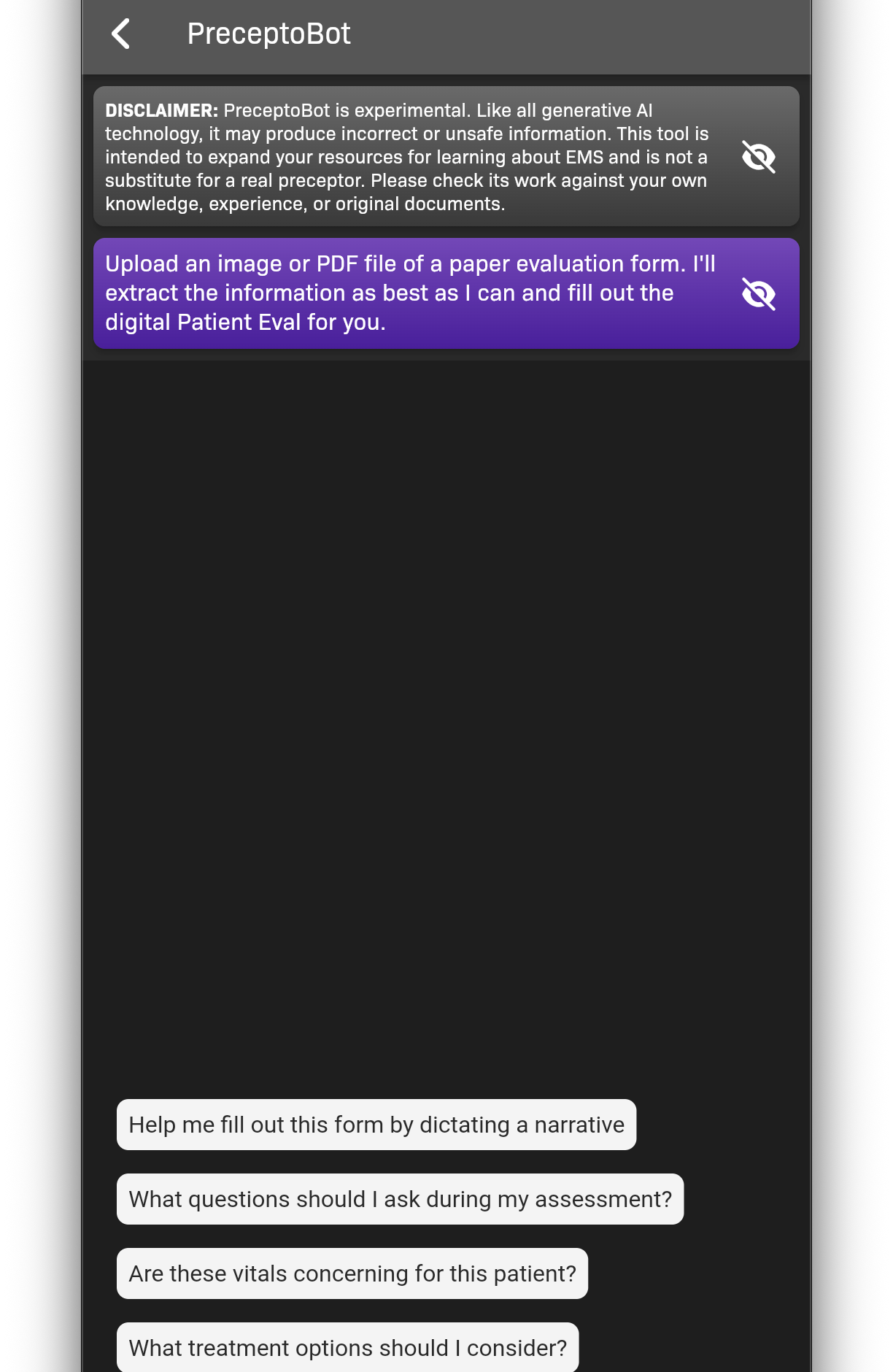
PreceptoBot in the evaluation editor
Step 5: Complete Additional Forms
Section titled “Step 5: Complete Additional Forms”In Additional Forms, complete the Student Affect Evaluation, Preceptor Evaluation, and Site Evaluation.
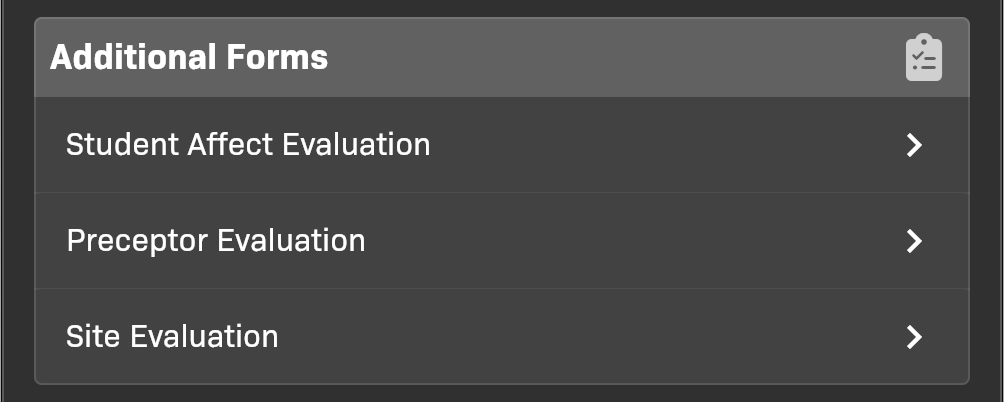
Additional Forms section
Step 6: Finish the evaluation
Section titled “Step 6: Finish the evaluation”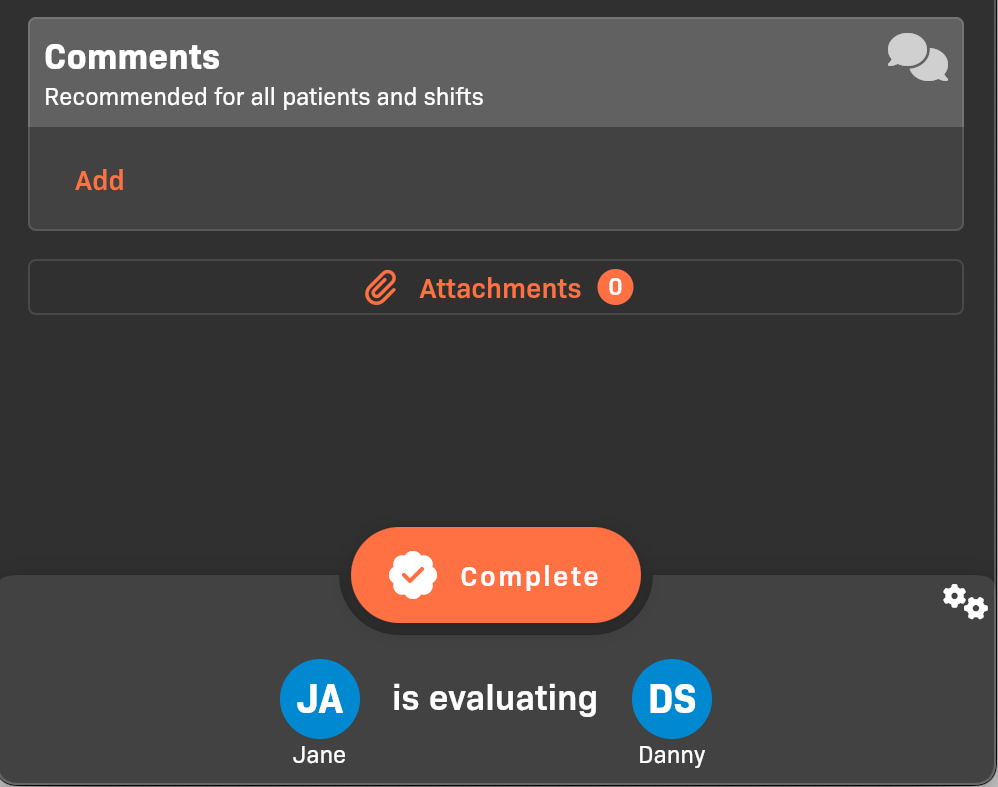
Comments and attachments
- (Optional) Add Comments and Attachments.
- Tap Complete or Submit for Verification to complete the evaluation.
- If there are any patient evaluations that do not have Assessment, Treatment, and Management scores, your evaluator will be prompted to complete them at this time.