
Reviewing submitted simulated patient evaluations
Finding simulated patient evaluations that need your attention
Section titled “Finding simulated patient evaluations that need your attention”By default, this To Do tab on the Evaluations page shows evaluations that you need to review, as well as in-progress evaluations that you haven’t yet finished.
-
Go to the Evaluations page.
-
Go to the To Do tab.
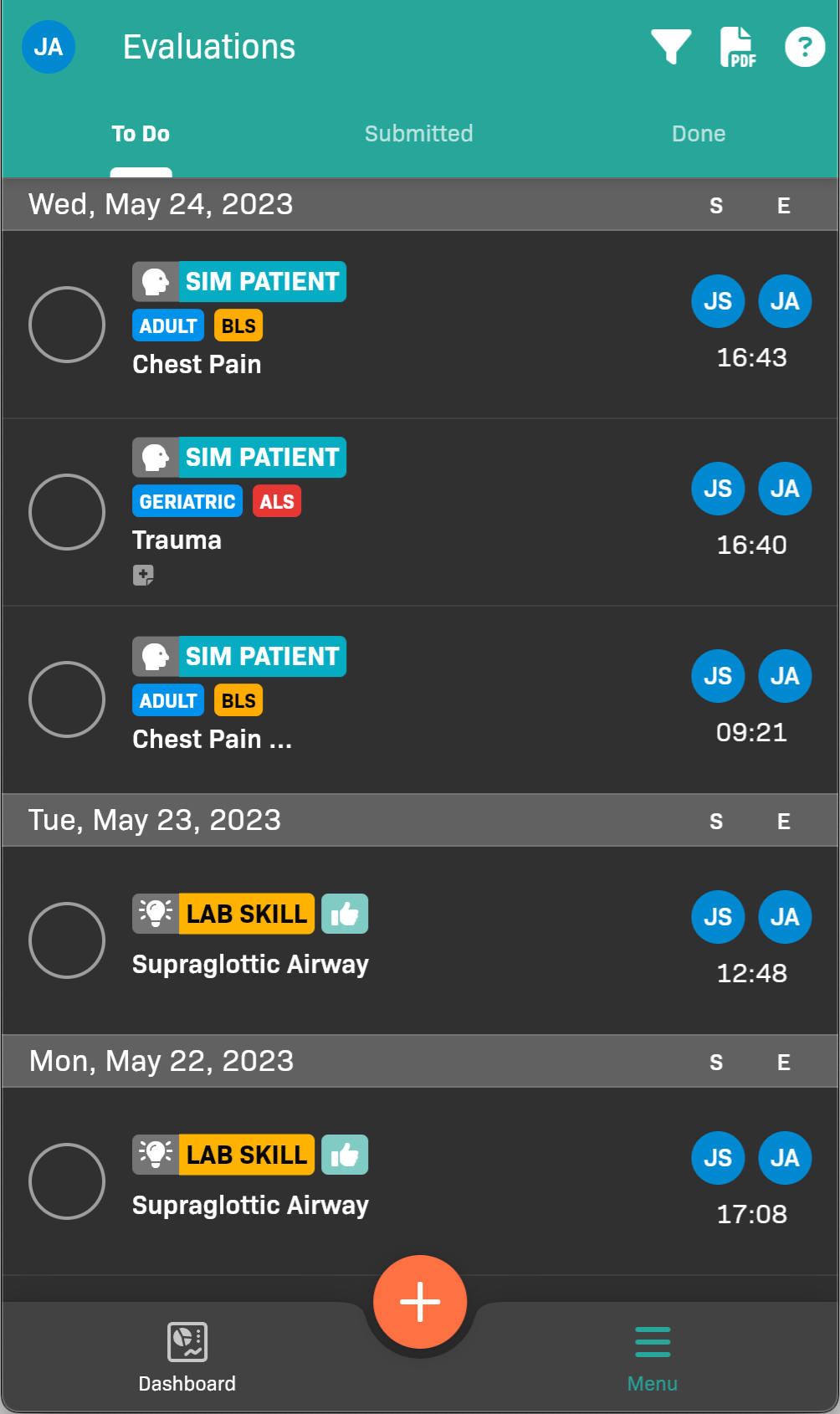
Evaluations To Do tab
-
(Optional) If you would like to see only the skill evals that need your approval, tap the at the top of the screen to filter the list.
- Select Patient under Eval type to see only simulated patient evaluations
- Select yourself as the evaluator.
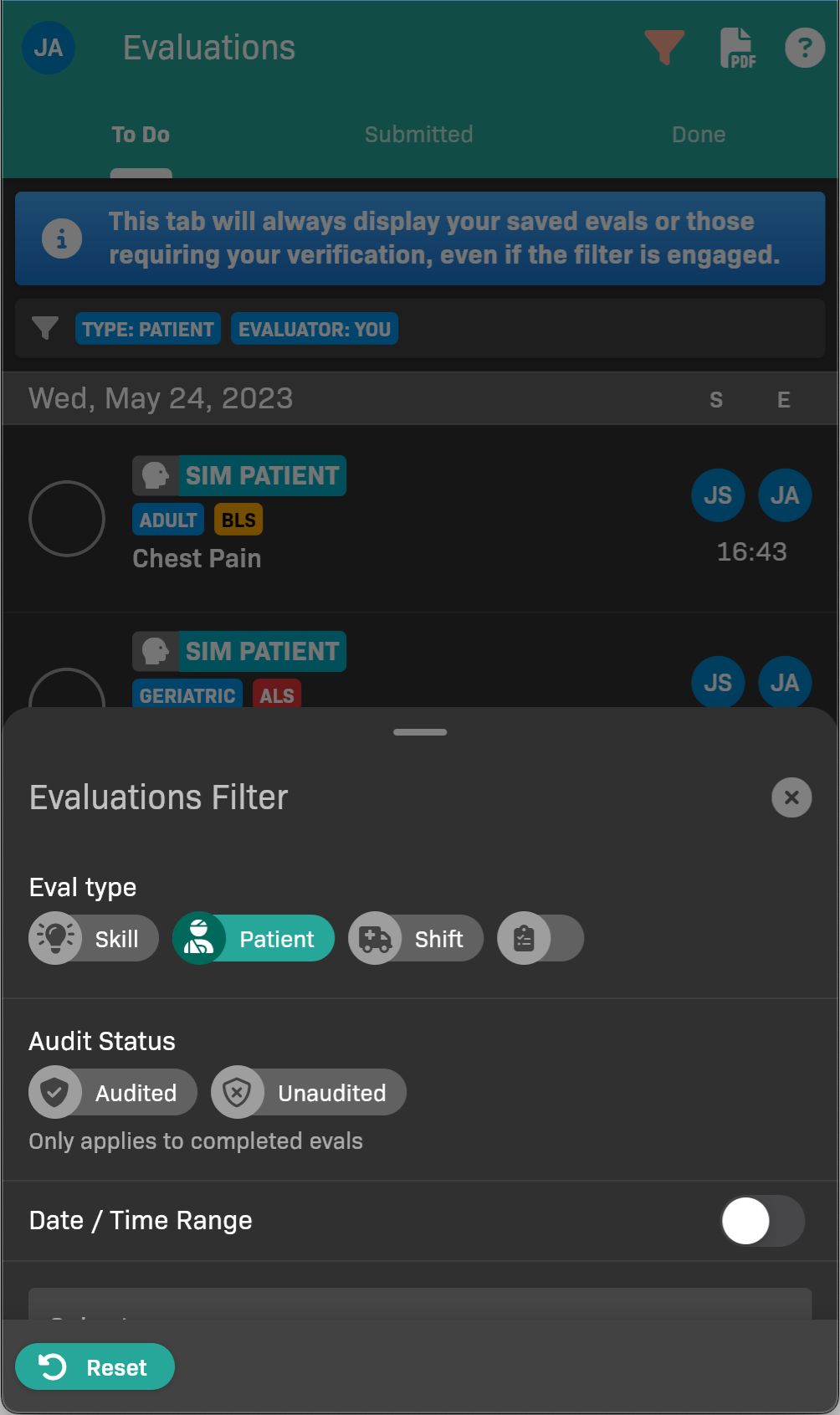
Evaluations Filter
Responding to an individual simulated patient evaluation
Section titled “Responding to an individual simulated patient evaluation”Review the form and complete additional ratings for Assessment Score, Treatment Score, and Management Score.
-
Click the simulated patient evaluation in the To Do list.
-
Review the simulated patient evaluation details. See Filling Out a Simulated Patient Evaluation for details on the form.

Simulated patient evaluation details
-
(Optional) Leave a Comment or Faculty Notes.
-
If you need to make changes, tap , then select (edit).
-
Tap to approve. You’re prompted to add missing scores for Assessment, Treatment, and Management.
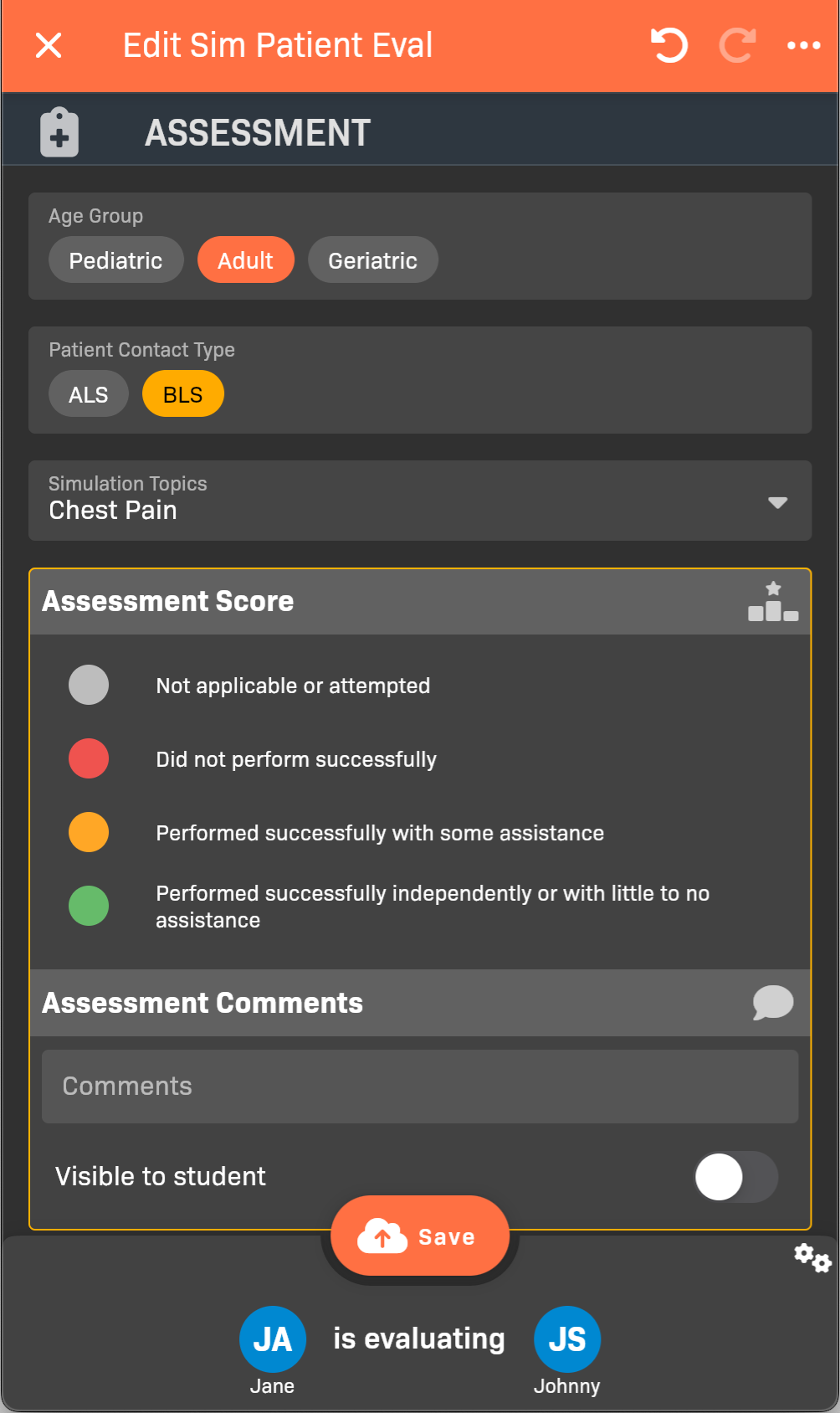
Edit Sim Patient Eval
-
Add ratings for Assessment Score, Treatment Score, and Management Score.
-
Tap Save.