
Editing an event
Find the event
Section titled “Find the event”-
Go to the Schedule page. If you’re using a mobile device, you may need to access this page by first tapping (menu).
-
On the calendar, tap the date the event takes place.
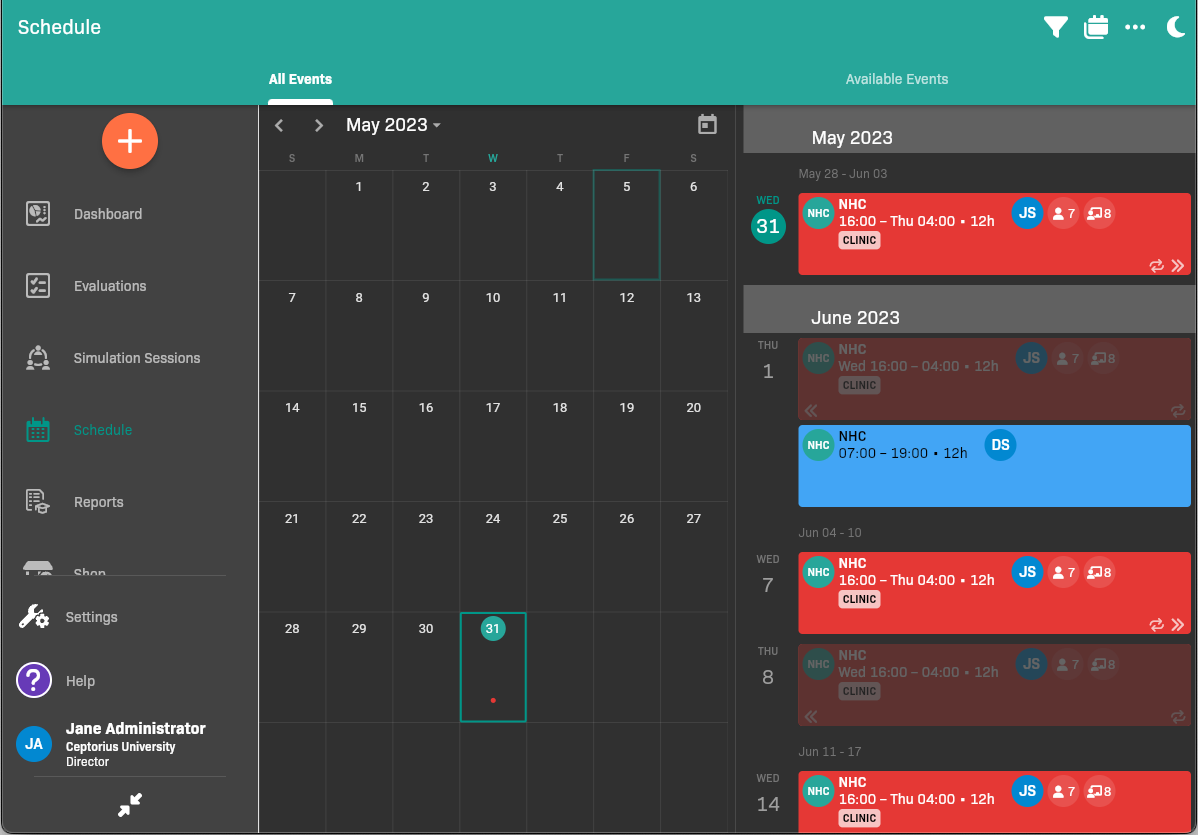
Schedule All Events view
-
In the sidebar, tap the event.
The event details appear.
.png)
Event details
Enable or disable sign-ups
Section titled “Enable or disable sign-ups”If you want to disable or enable sign-ups, disable the Allow Sign-ups toggle.
Delete the event
Section titled “Delete the event”- Tap .
- Select .
Clone the event
Section titled “Clone the event”- Tap .
- Select Clone.
Edit the event
Section titled “Edit the event”- Tap .
- Select Edit.
- Make the needed changes. See Scheduling an Event.
- Tap Save.
Edit an attendance record
Section titled “Edit an attendance record”After an event has occurred, an Instructor with Scheduling permission may edit a student’s attendance record to modify the clock-in and clock-out times, mark a student as absent, or delete the attendance record altogether.

- Under Attendees, locate the student’s attendance record.
- To modify a student’s clock-in/clock-out times:
- Tap located to the right of the student’s clock-in/clock-out times. (NOT the at the bottom of the screen)
- To mark a student as Absent or remove them from the event entirely, tap
- Make the needed changes.
- Tap Save.