
Reviewing event drop requests
Open a drop request
Section titled “Open a drop request”- Go to the Schedule page. If you’re using a mobile device, you may need to access this page by first tapping (menu).
- On the calendar, open the event with the request.
- Under Attendees, select the student with a Drop Request tag.
- Tap Resolve Drop Request.
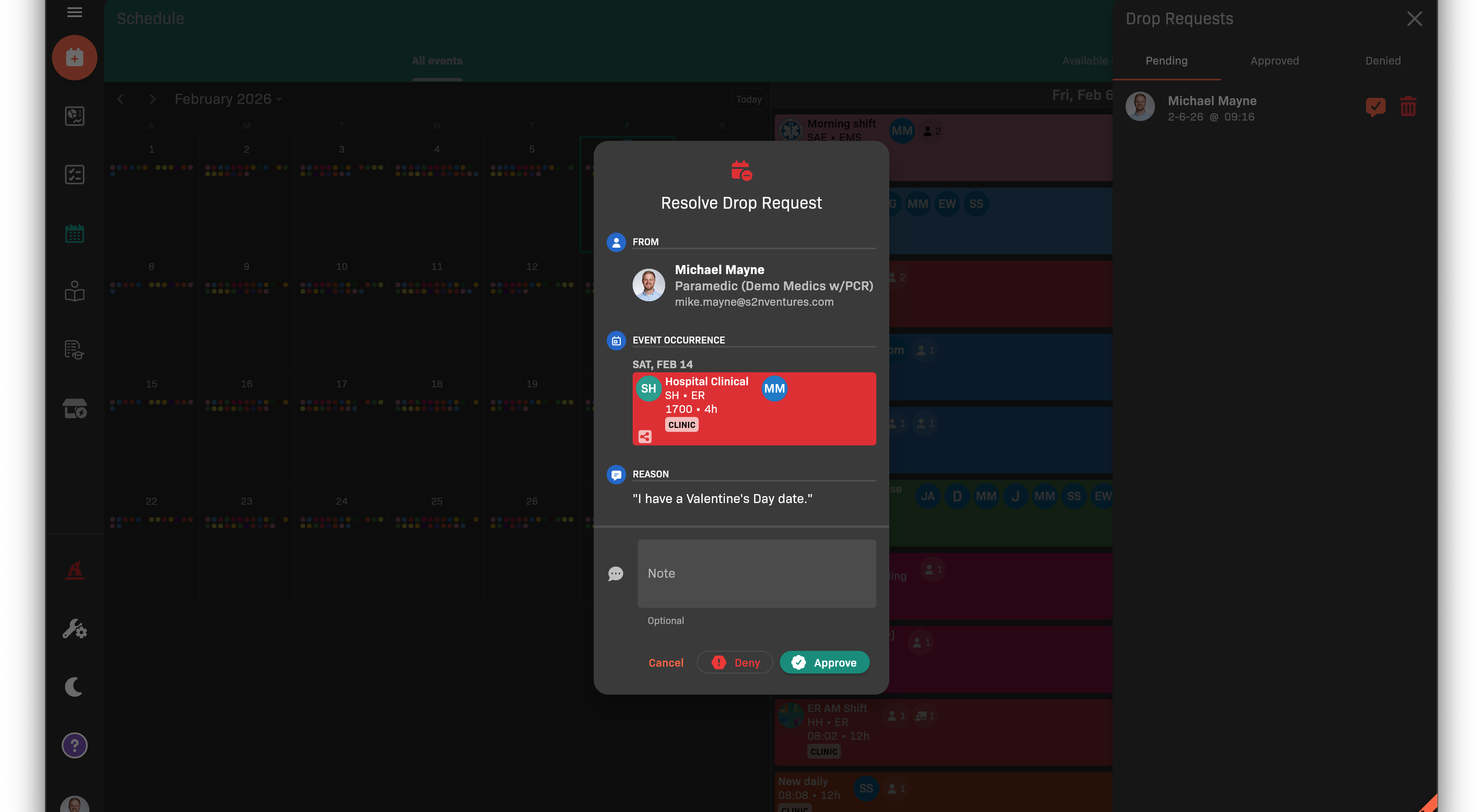
Resolve Drop Request dialog
Approve or deny the request
Section titled “Approve or deny the request”- Review the event details and the student’s reason.
- (Optional) Add a note for the student.
- Tap Approve or Deny.
The student will receive a push notification and email with the result.