
Creating a shift evaluation for yourself
Step 1: Start the evaluation
Section titled “Step 1: Start the evaluation”-
Tap the button, then select Shift Eval.
-
When prompted, select where the shift is taking place.
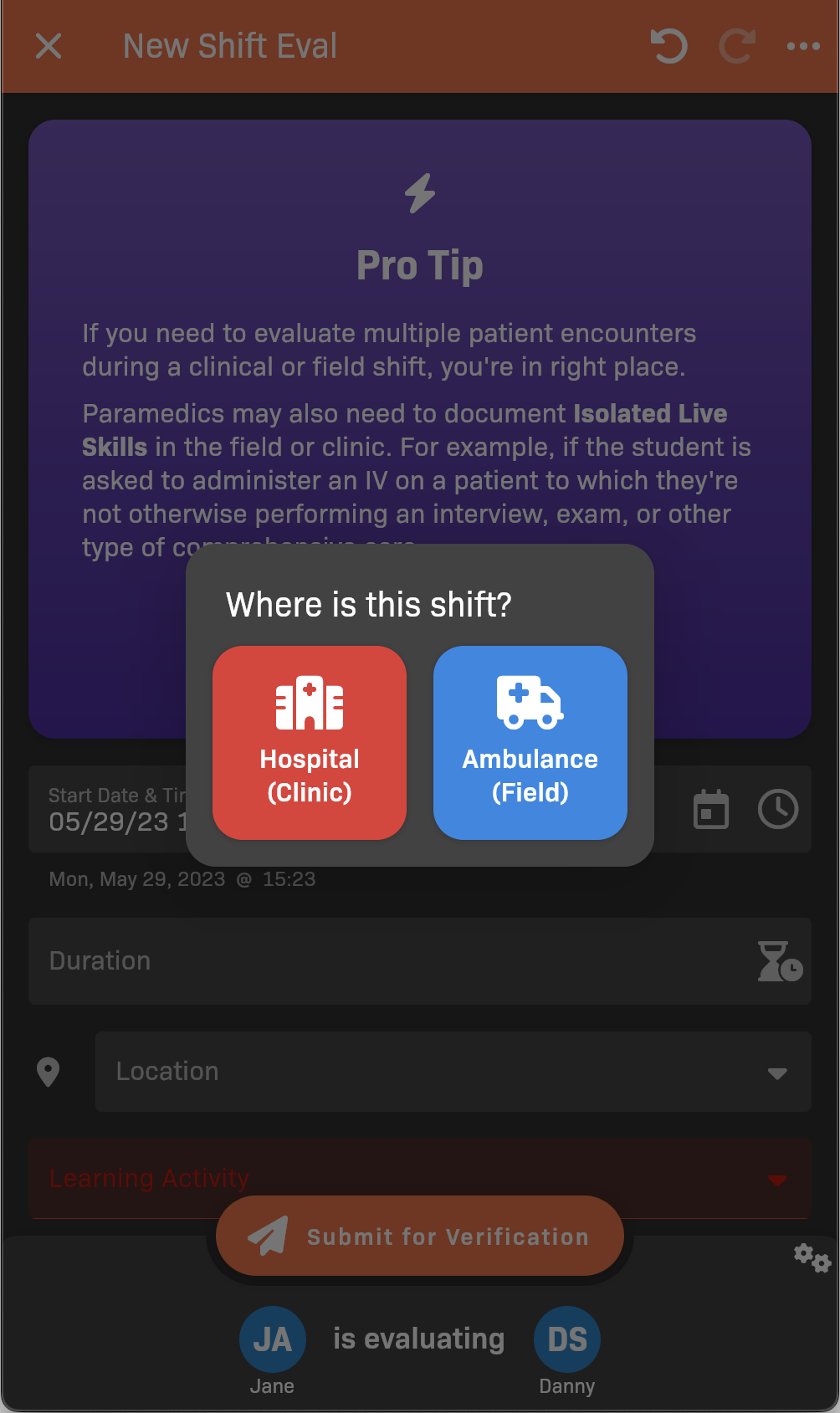
Select a location
-
Tap the bottom bar to choose the person that will be evaluating you.
The bottom bar may show “Pick People” or “[name] is evaluating [name]”.
-
Set the evaluation parameters:
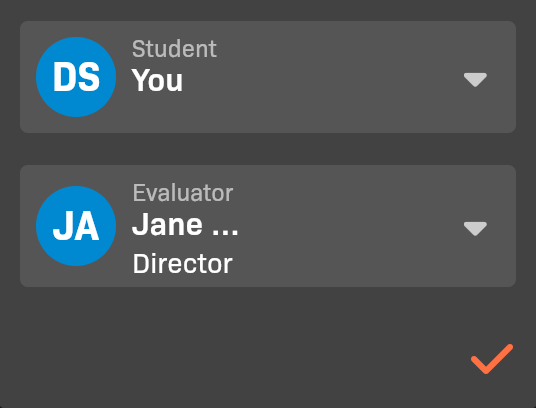
Evaluation participants
- Make sure you are selected as the Student.
- Select the person that is evaluating your skill performance as the Evaluator. This person could be an instructor or another student.
-
When you’re finished, tap the .
Step 2: Fill out the evaluation details
Section titled “Step 2: Fill out the evaluation details”Complete the form to record your performance.
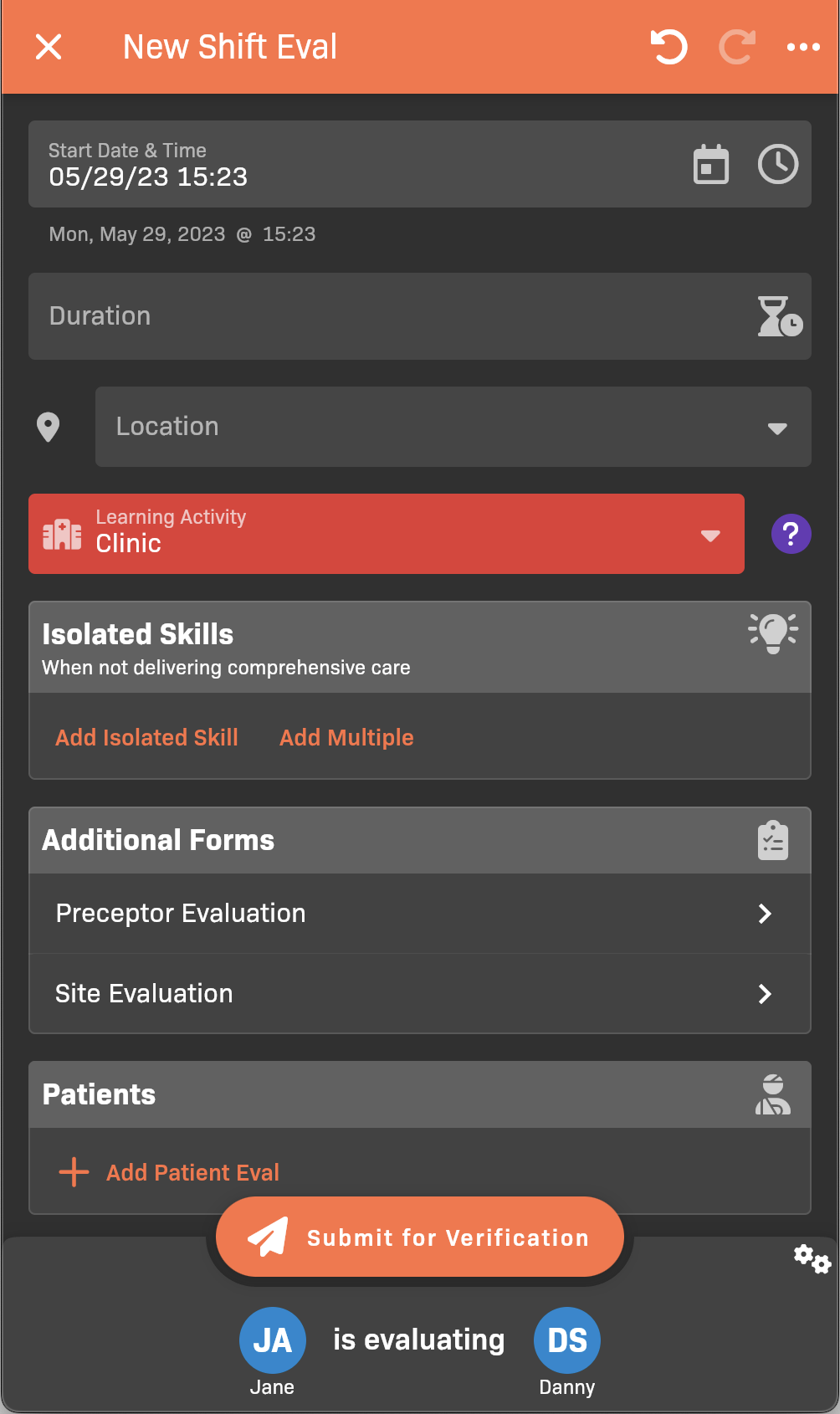
Shift evaluation details
See Filling Out a Simulated Patient Evaluation for more details.
Step 3: Evaluator review
Section titled “Step 3: Evaluator review”If you selected a preceptor to evaluate you, and that preceptor doesn’t have an EMCE account, you are prompted to get Evaluator Review instead of submitting the evaluation.
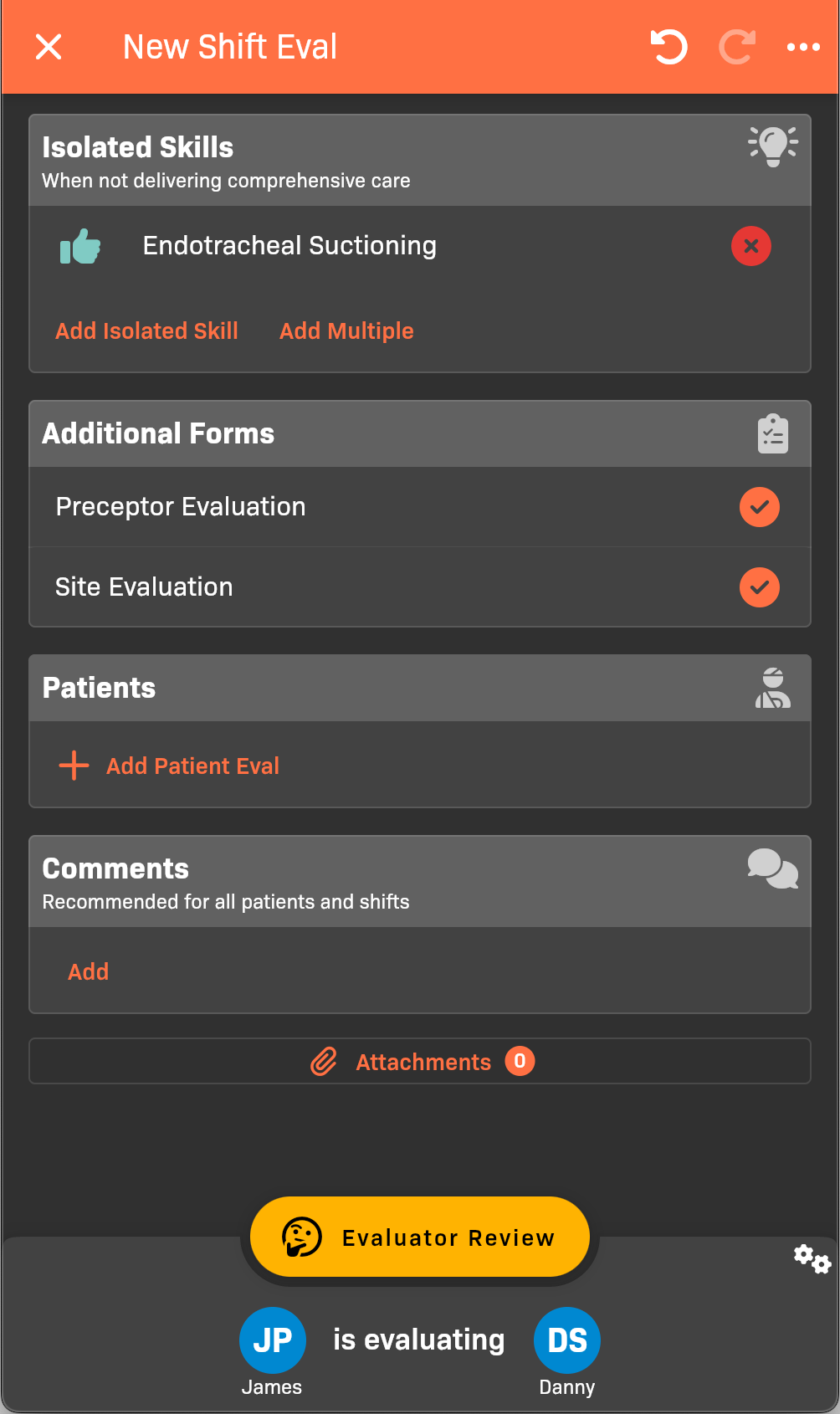
Evaluator Review button
- Tap Evaluator Review.
- Hand your device to the preceptor so that they can complete the review. See performing-evaluator-review-for-a-shift-evaluation for more information.