
Reviewing submitted shift evaluations
Finding shift evaluations that need your attention
Section titled “Finding shift evaluations that need your attention”By default, this To Do tab on the Evaluations page shows evaluations that you need to review, as well as in-progress evaluations that you haven’t yet finished.
- Go to the Evaluations page.
- Go to the To Do tab.
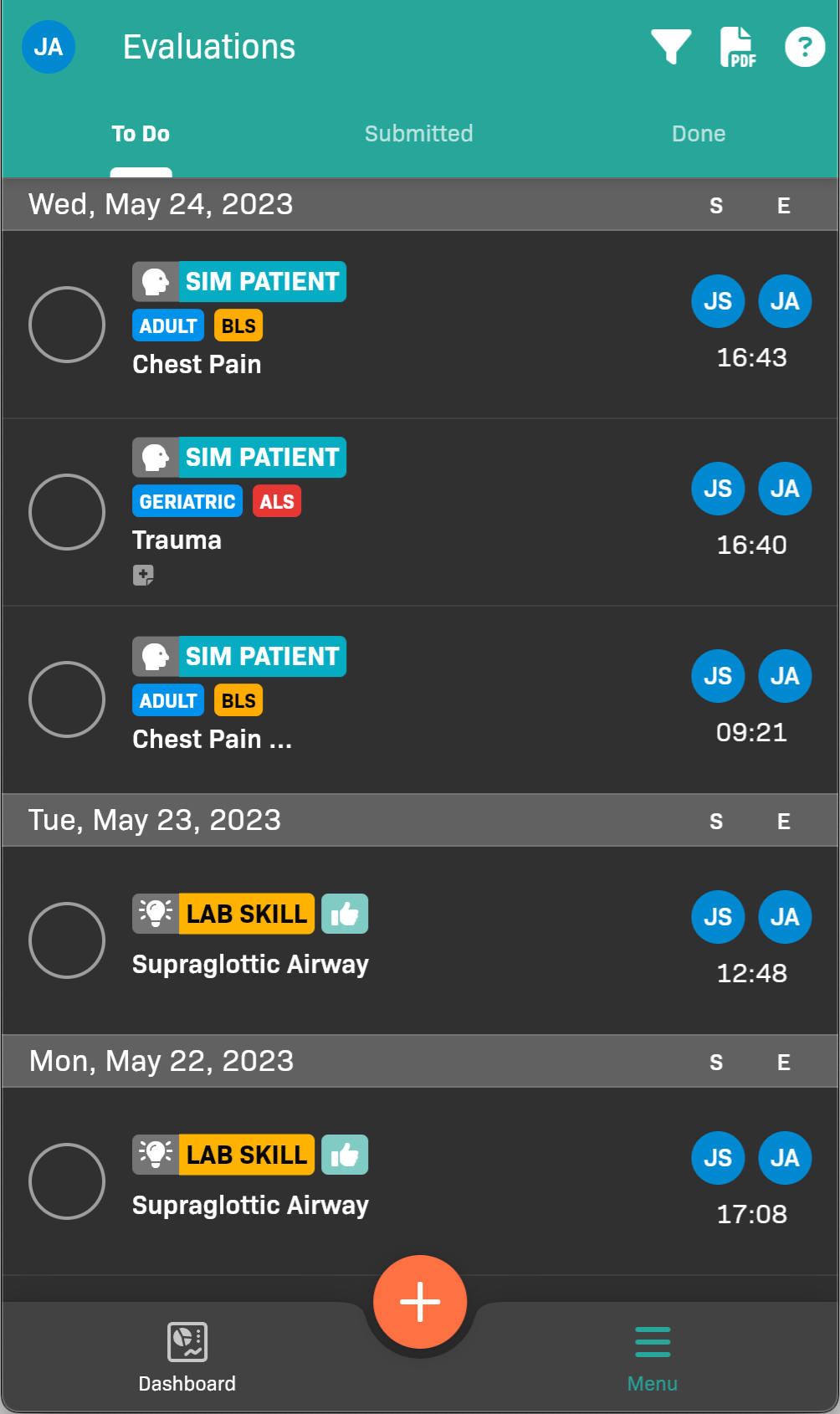
Evaluations To Do tab
- (Optional) If you would like to see only the shift evals that need your approval, tap the at the top of the screen to filter the list.
- Select Shift under Eval type to see only simulated patient evaluations
- Select yourself as the evaluator.
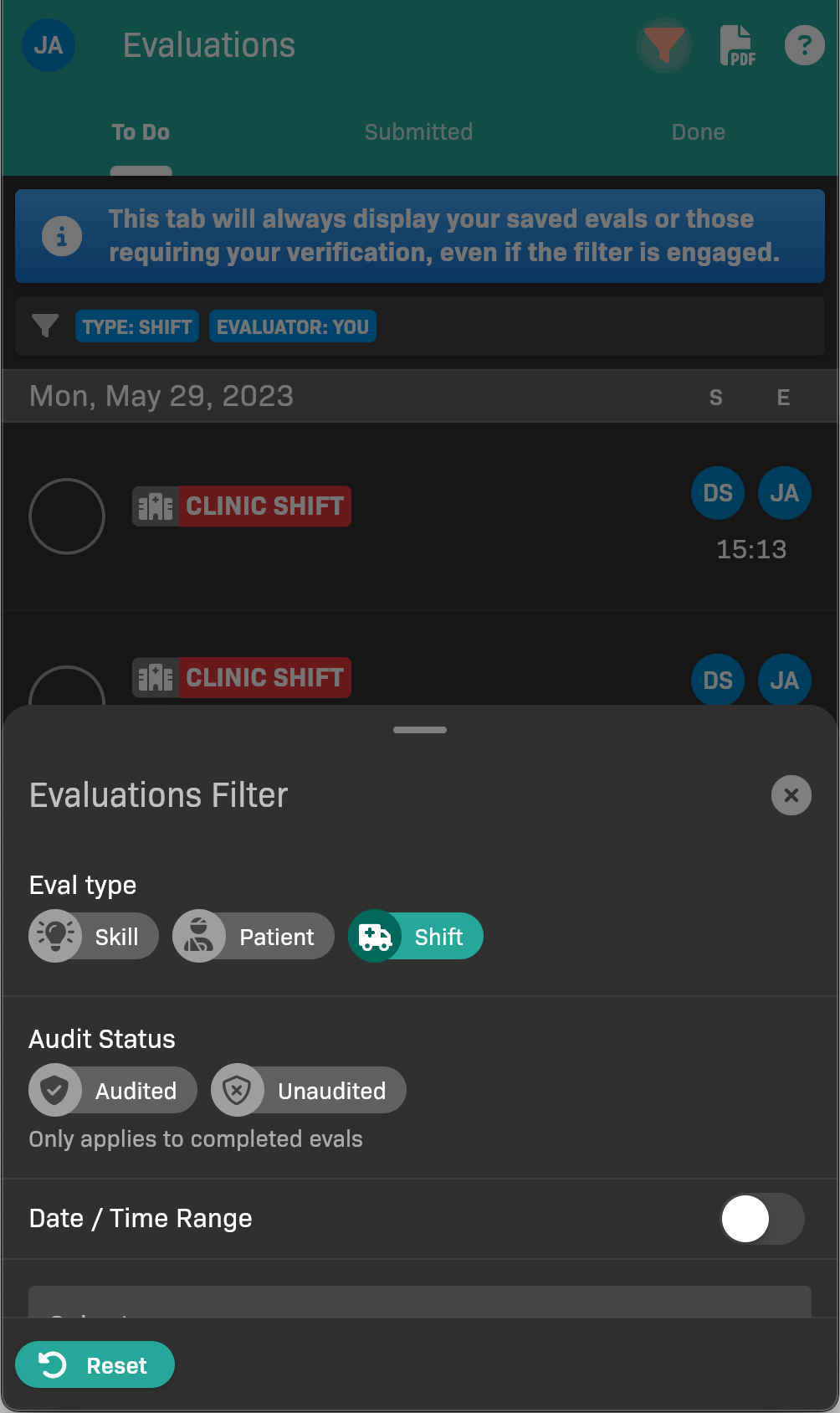
Evaluations Filter
Responding to an individual shift evaluation
Section titled “Responding to an individual shift evaluation”Review the shift evaluation, add any missing inforomation, and approve or reject it.
- Tap the shift evaluation in the To Do list.
- Review the shift evaluation details.
See Filling Out a Shift Evaluation for details on the form.
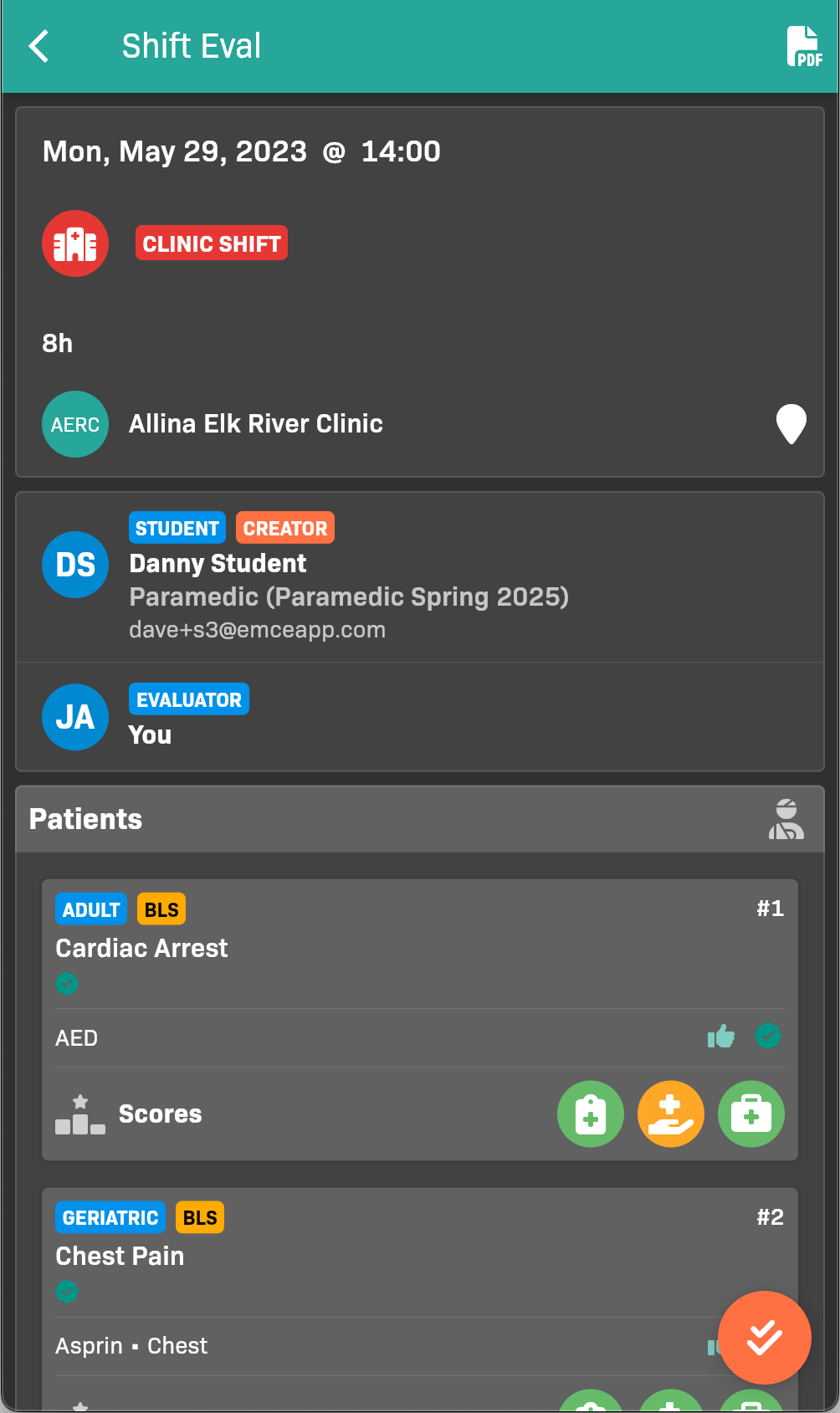
Shift evaluation details
- If you need to make changes, tap , then select (edit).
- (Optional) Leave a Comment or Faculty Notes.
- Approve or reject the shift evaluation:
- To approve, tap then select Approve.
- To Reject, tap then select Reject.
What happens after rejection
Section titled “What happens after rejection”Rejection behavior depends on whether the evaluator has an active EMCE account.
- If the evaluator has an active EMCE account, the student updates the evaluation and resubmits it back to that evaluator.
- If the evaluator does not have an active EMCE account, the rejection modal includes an Evaluator Review Required checkbox:
- If selected, EMCE clears the existing verification signature/photo. The student must complete Evaluator Review again and get a new signature/photo before resubmitting.
- If not selected, EMCE keeps the existing verification signature/photo. When the student resubmits, the evaluation appears in faculty To Do lists for users with the Responds to Resubmitted and Automatically Submitted Evals responsibility.
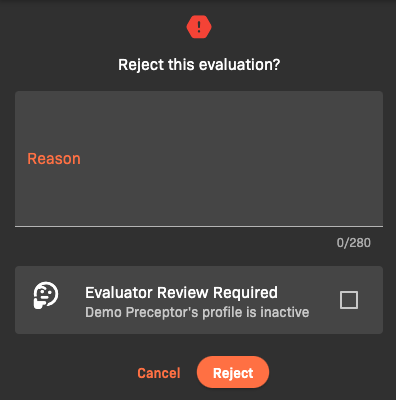
Rejection modal with Evaluator Review Required