
Facilitating a Sim Session
Step 1: Create the sim session
Section titled “Step 1: Create the sim session”In this step, you’ll create the sim session and add scenario information.
- Tap the button, then select Simulations.
- When you’re prompted to pick a sim type, tap Simulation Session.
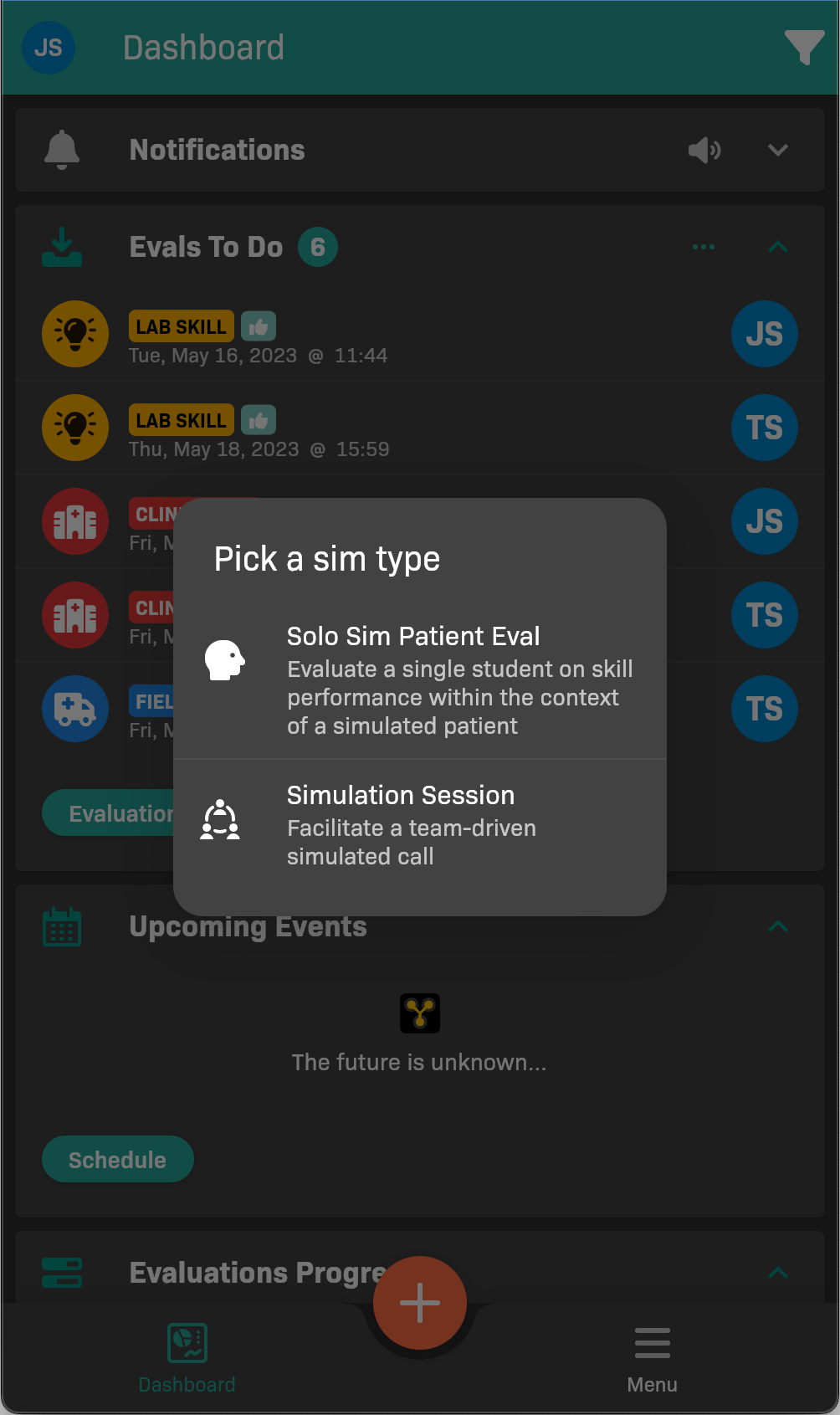
Pick a sim type
- Set up the Scenario.
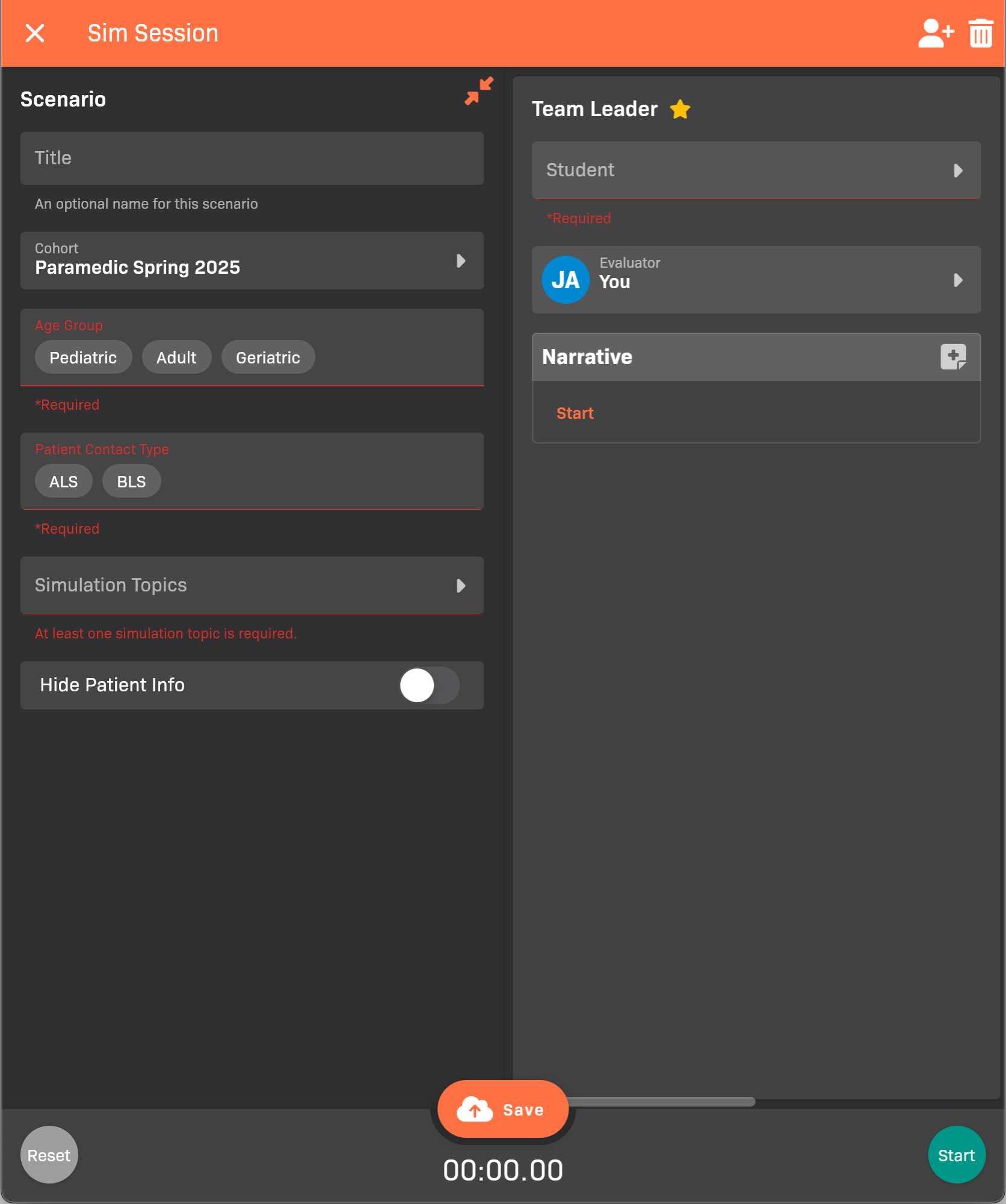
Sim Session Scenario
- (Optional) Set a Title.
- Select a Cohort.
- Select the patient’s Age Group.
- Select the Patient Contact Type; ALS or BLS.
- Select one or more Simulation Topics that capture the patient’s symptoms.
- (Optional) Enable Hide Patient info to prevent participants from seeing patient information that might given them an advantage during the session.
- Tap outside the Scenario pane to close it.
Step 2: Add team members
Section titled “Step 2: Add team members”In this step, you’ll add the student facilitator and other participating students.
- In the Team Leader column, select a Student.
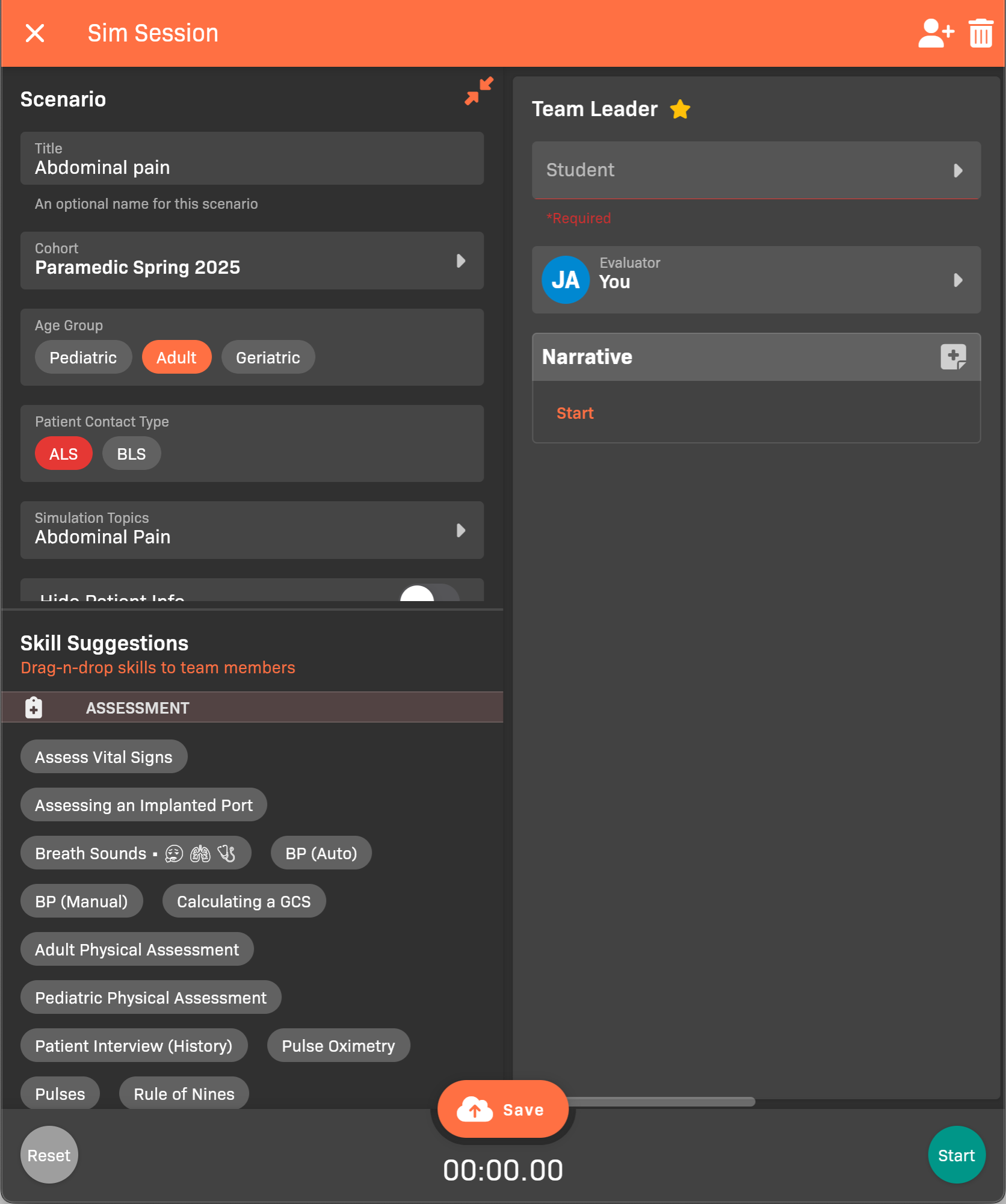
Select a Team Leader
- Add the next team member:
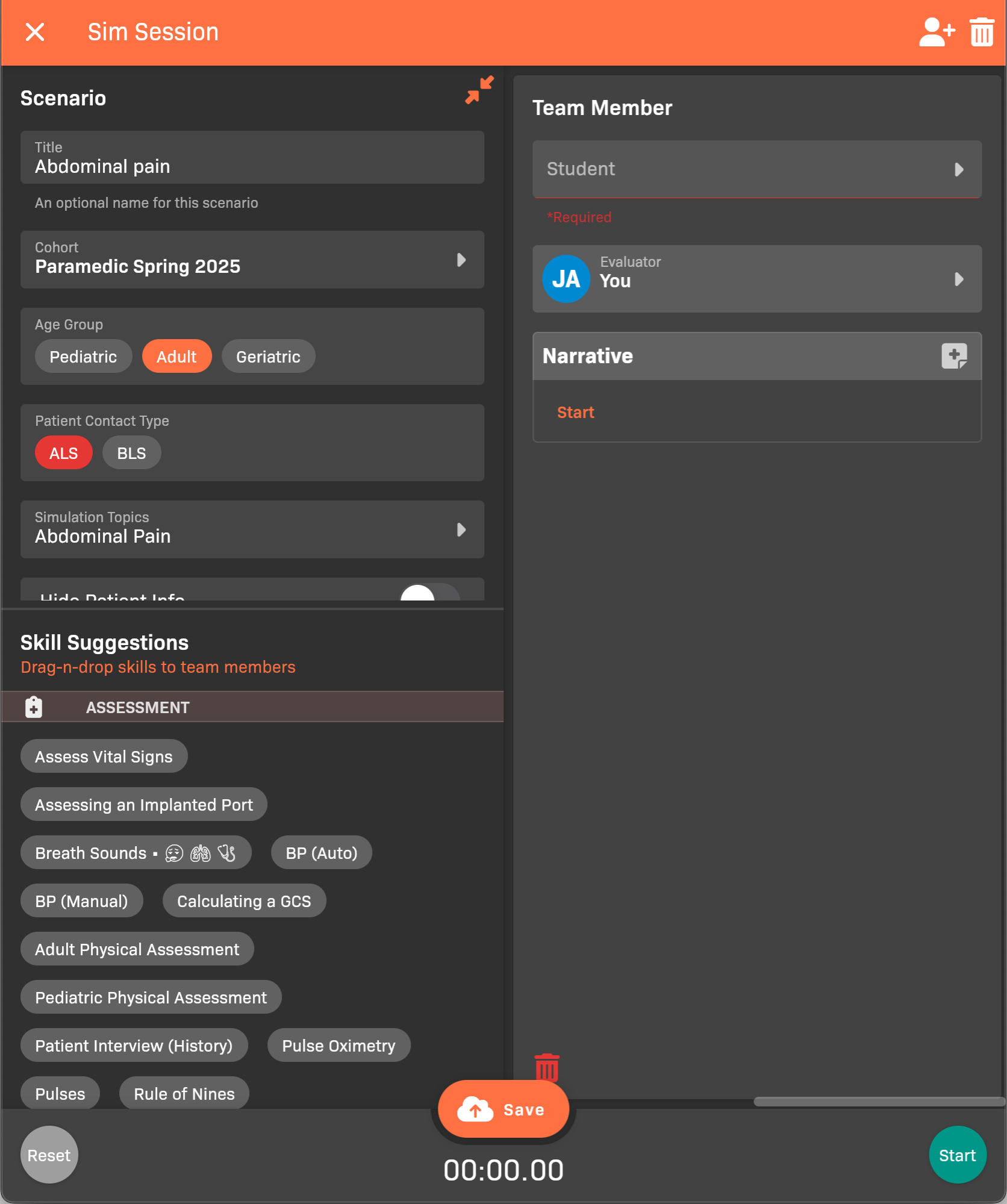
Select a Team Member
- Scroll to the Team Member to the right.
- Select a Student.
- Add each additional participating student.
- Tap to add a team member.
- Select a Student.
Step 3: Provide instruction to the participating students
Section titled “Step 3: Provide instruction to the participating students”At this point, you’re ready to let participating students and observing students know what to do.
- (Optional) Designate students that will observe and evaluate participating students.
- If you don’t do this, you will need to evaluate the participating students yourself.
- Let the observing students know that they should join the Sim Session from their devices in the EMCE app. See Joining a Sim Session as an Evaluator for more information.
- Present the scenario information to the participating students.
Step 4: Start the Sim Session
Section titled “Step 4: Start the Sim Session”Start the session and record the results.
- Tap Start at the bottom of the screen.
- If you are personally evaluating one or more participants:
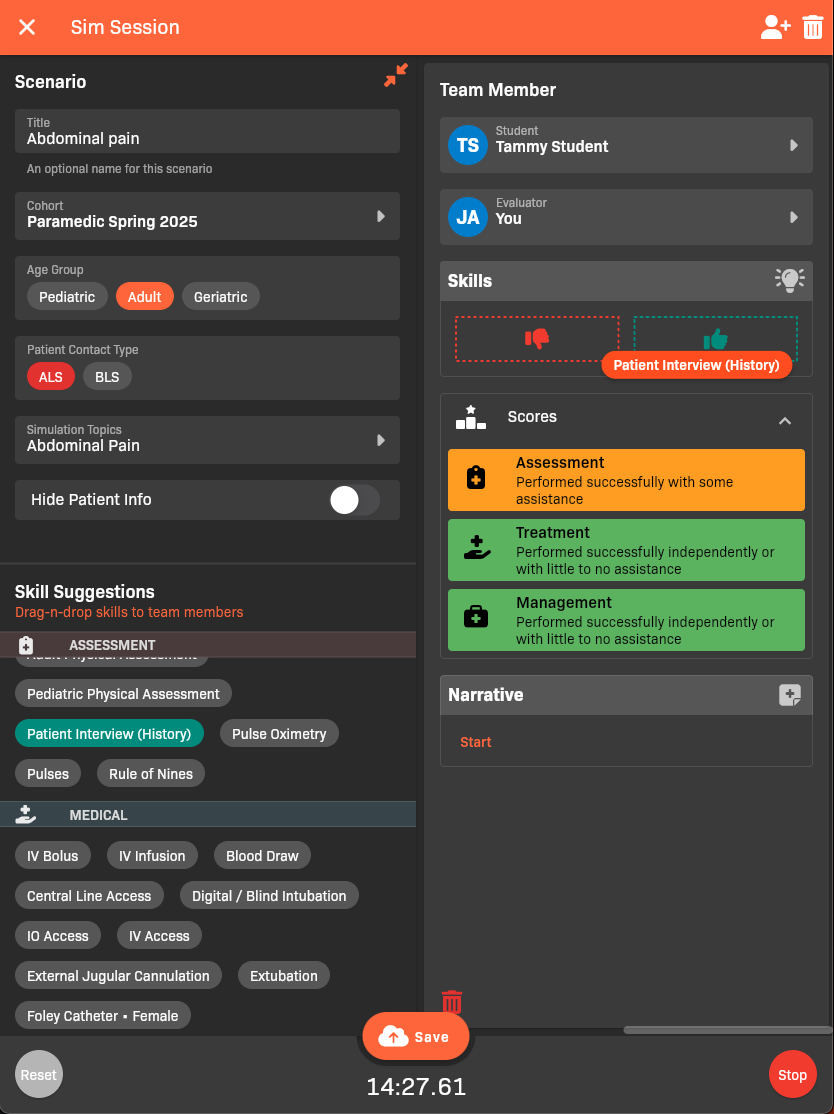
Dragging the Patient interview (History) skill
- Add the Skills that the student demonstrated. You can Add One, Add Multiple, or drag skills from the Sill Suggestions area to the or student’s Skills area.
- In the Scores area, provide an Assessment, Treatment, and Management score.
- Add a Narrative that explains what the student did.
- When the session is finished, tap Stop at the bottom of the screen.
- Make sure all the evaluators have finished adding their ratings of the participants.
- Tap tap Save to complete the Sim Session.