
Filling out a simulated patient evaluation
Step 1: Start the evaluation
Section titled “Step 1: Start the evaluation”You’ll need to complete the form for all simulated patient evaluations. Evaluators must complete additional ratings that are not available to self-submissions, including Assessment Score, Treatment Score, and Management Score.
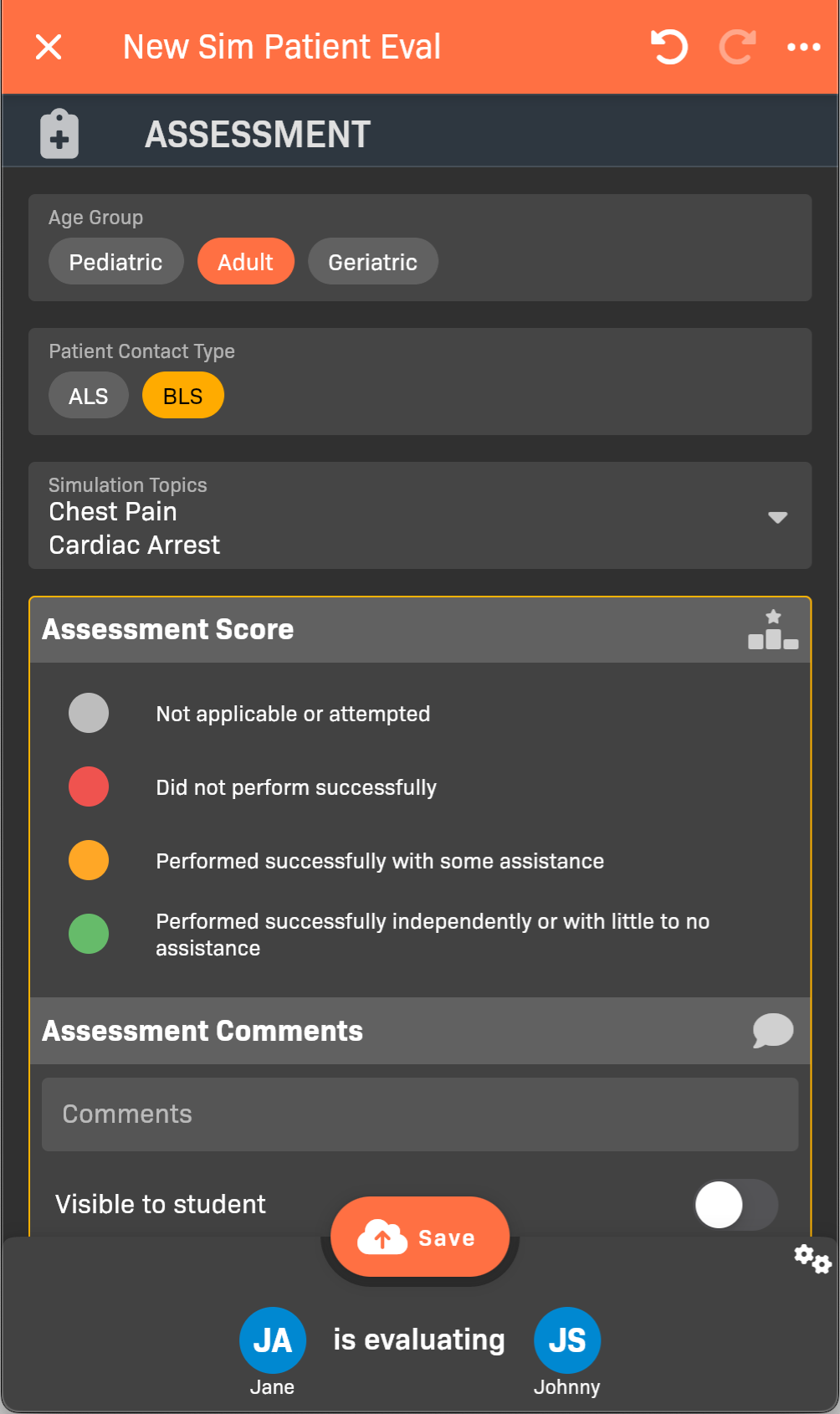
New Sim Patient Eval
Step 2: Complete the Assessment section
Section titled “Step 2: Complete the Assessment section”The Assessment section captures information about the patient and the symptoms they presented.
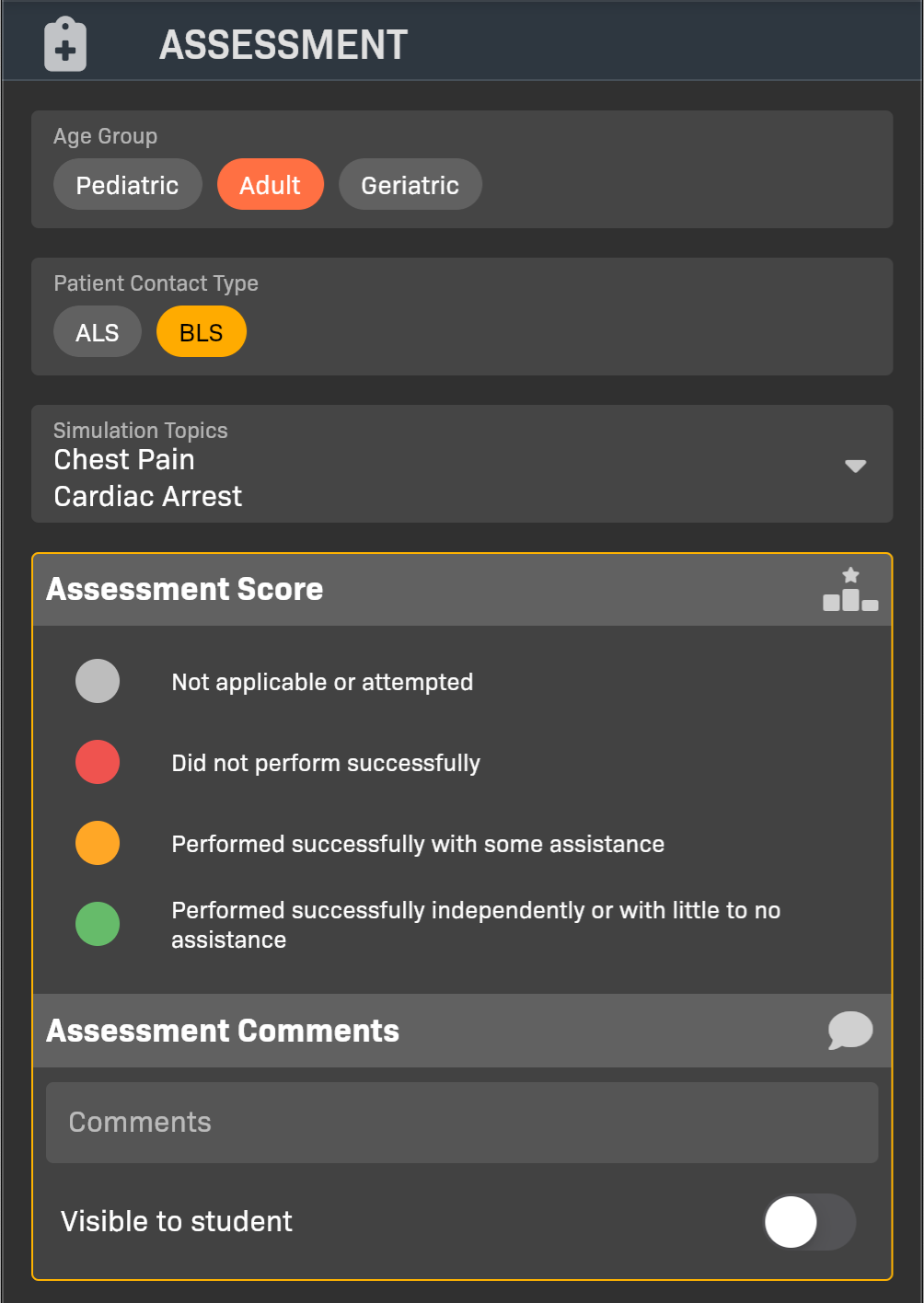
Assessment section of the simulated patient evaluation
- Select the patient’s Age Group.
- Select the Patient Contact Type; ALS or BLS.
- Select one or more Simulation Topics that capture the patient’s symptoms.
- (Evaluators only) Add an Assessment Score and Assessment Comments. If you want to make the comments visible to the student, enable Visible to student.
Step 3: Complete the Treatment section
Section titled “Step 3: Complete the Treatment section”The Treatment section captures what the student did.
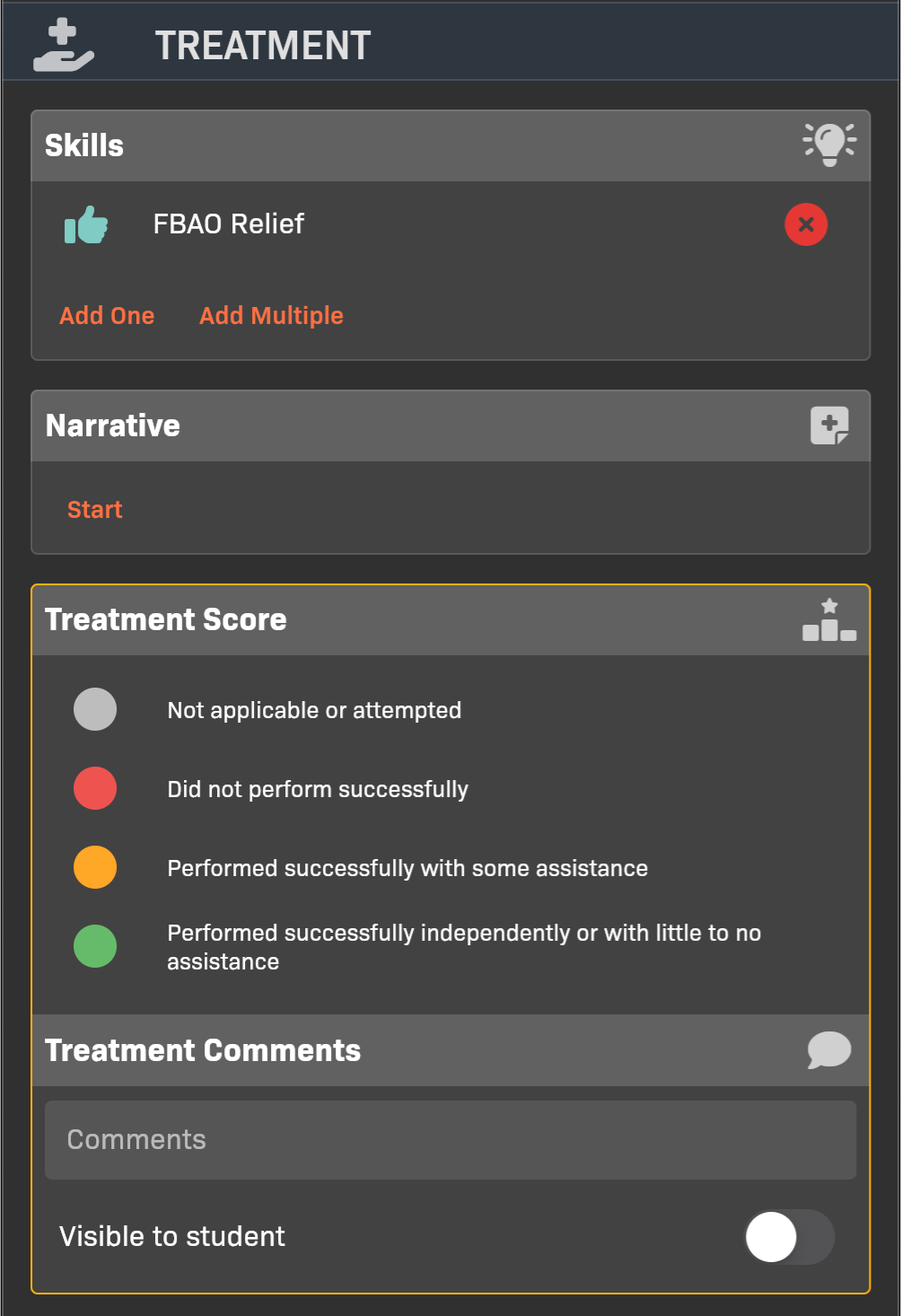
Treatment section of the simulated patient evaluation
- Add one or more Skills that the student demonstrated while working with
the patient.
- To edit an individual skill, including rating individual skill steps, tap the name of the skill after you’ve added it.
- For more information, see Filling Out a Skill Evaluation.
- Add a Narrative that explains what the student did.
- (Evaluators only) Add an Treatment Score and Assessment Comments. If you want to make the comments visible to the student, enable Visible to student.
Step 4: Complete the Management section (evaluators only)
Section titled “Step 4: Complete the Management section (evaluators only)”(Evaluators only) Rate the student on their overall performance managing the patient encounter, including the scene, their communication, and affect.
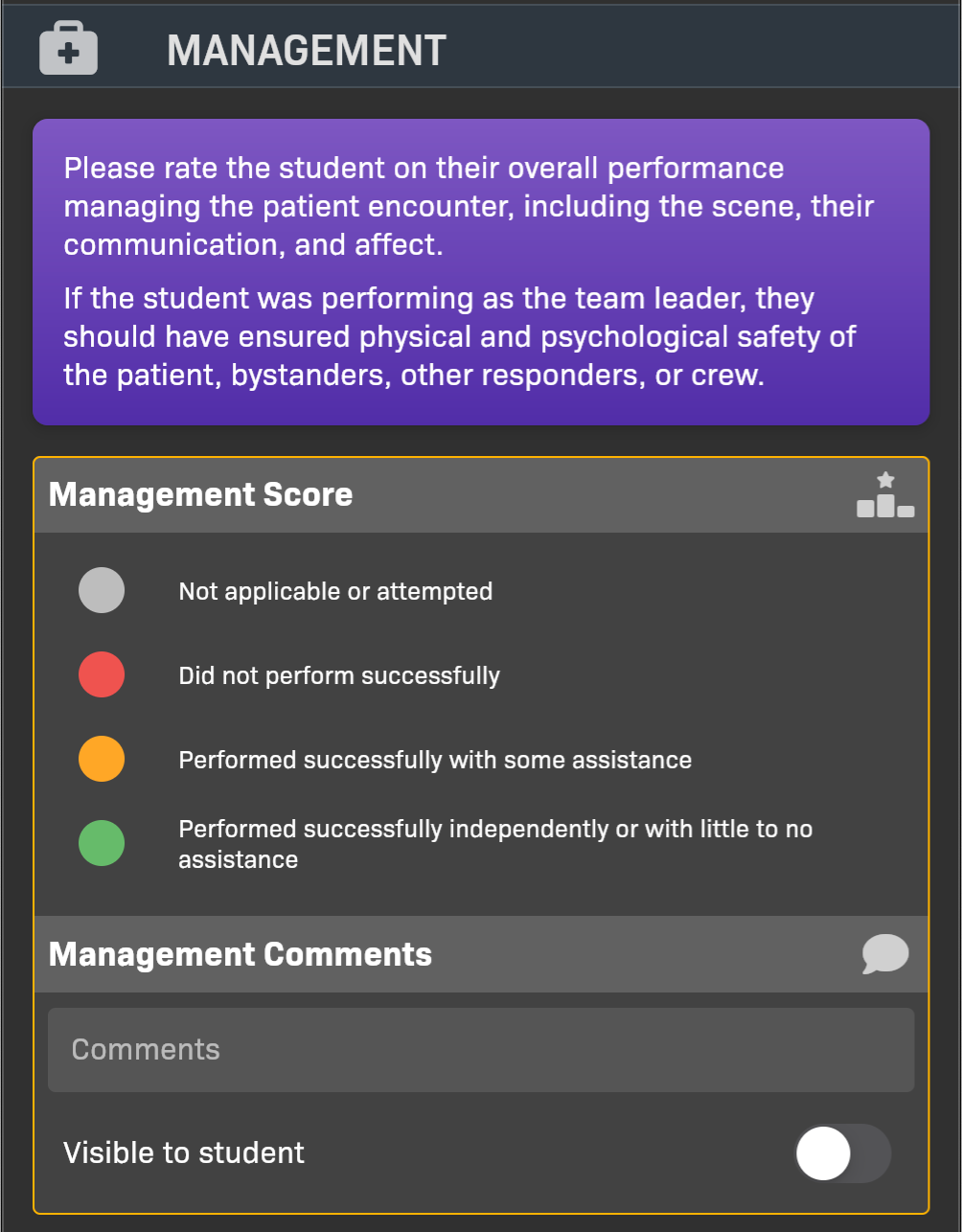
Management section of the simulated patient evaluation
Add an Management Score and Assessment Comments. If you want to make the comments visible to the student, enable Visible to student.
Step 5: Finish the evaluation
Section titled “Step 5: Finish the evaluation”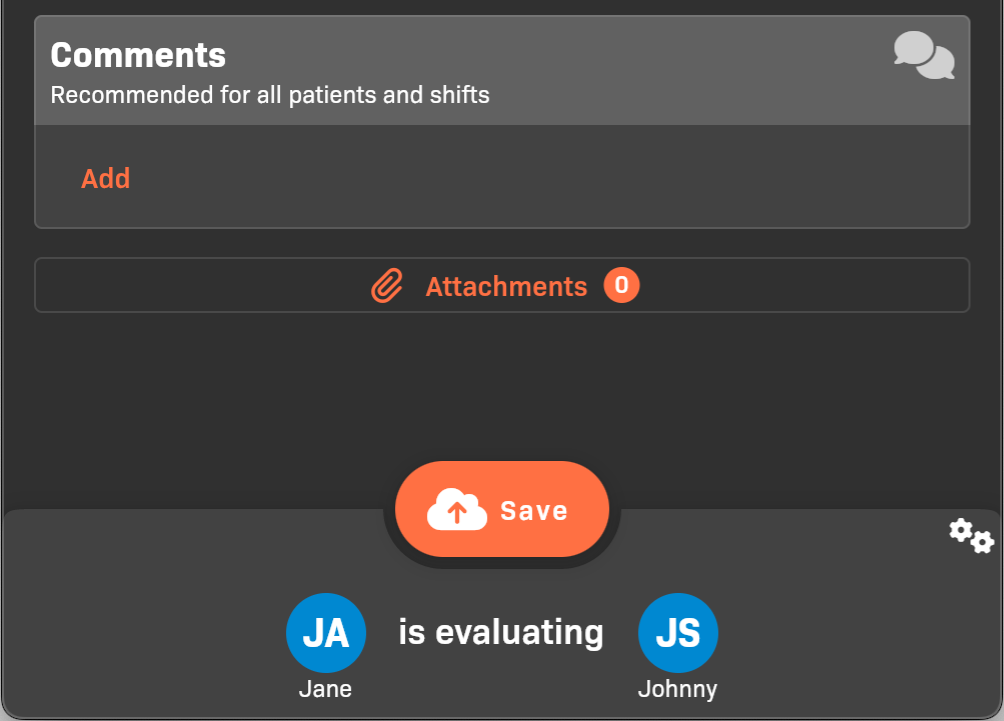
Comments and attachments
- (Optional) Add Comments and Attachments.
- Tap Save to complete the evaluation.