
Reporting on your personal progress (students)
Viewing a report
Section titled “Viewing a report”All report data is updated in real time.
-
Go to the Reports page.
-
Tap the type of report that you want to view.
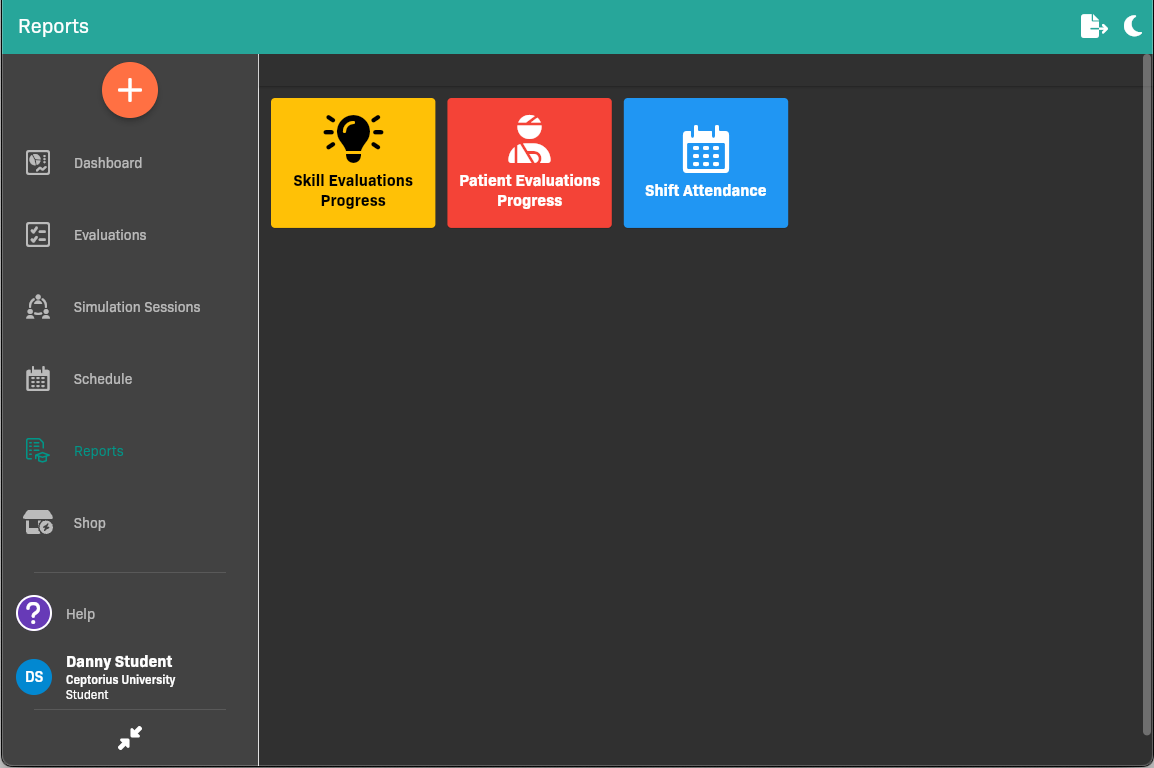
Reports page
Working with Evaluation Progress reports
Section titled “Working with Evaluation Progress reports”The Skill Evaluations Progress report and Patient Evaluations Progress reports have a similar format and viewing options.
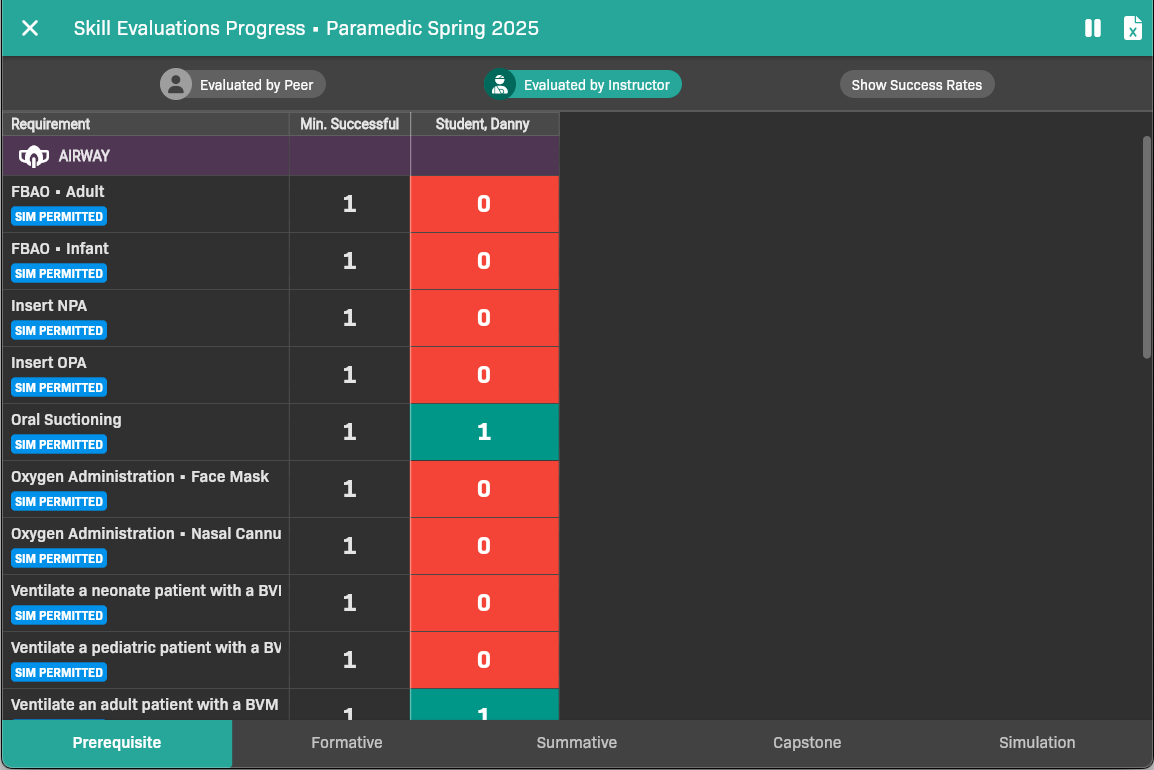
Skill Evaluations Progress report
View data for a specific learning phase
Section titled “View data for a specific learning phase”Use the tabs at the bottom of the screen to view evaluation data for each learning phase.
View evaluations that counted towards a requirement
Section titled “View evaluations that counted towards a requirement”To view the specific evaluations that counted towards a requirement, tap the count in the [your name] column.
Filter by evaluator type
Section titled “Filter by evaluator type”- To view peer evaluations, tap Evaluated by Peer.
- To view instructor evaluations, tap Evaluated by Instructor.
Show success rates
Section titled “Show success rates”Tap Show Success Rates to show the percentage of evaluations that were successful for each requirement.
Export to Excel
Section titled “Export to Excel”In the top-right corner, tap . The file downloads to your device.
Working with the shifts report
Section titled “Working with the shifts report”The Shift Attendance report shows scheduled hours versus attended hours.
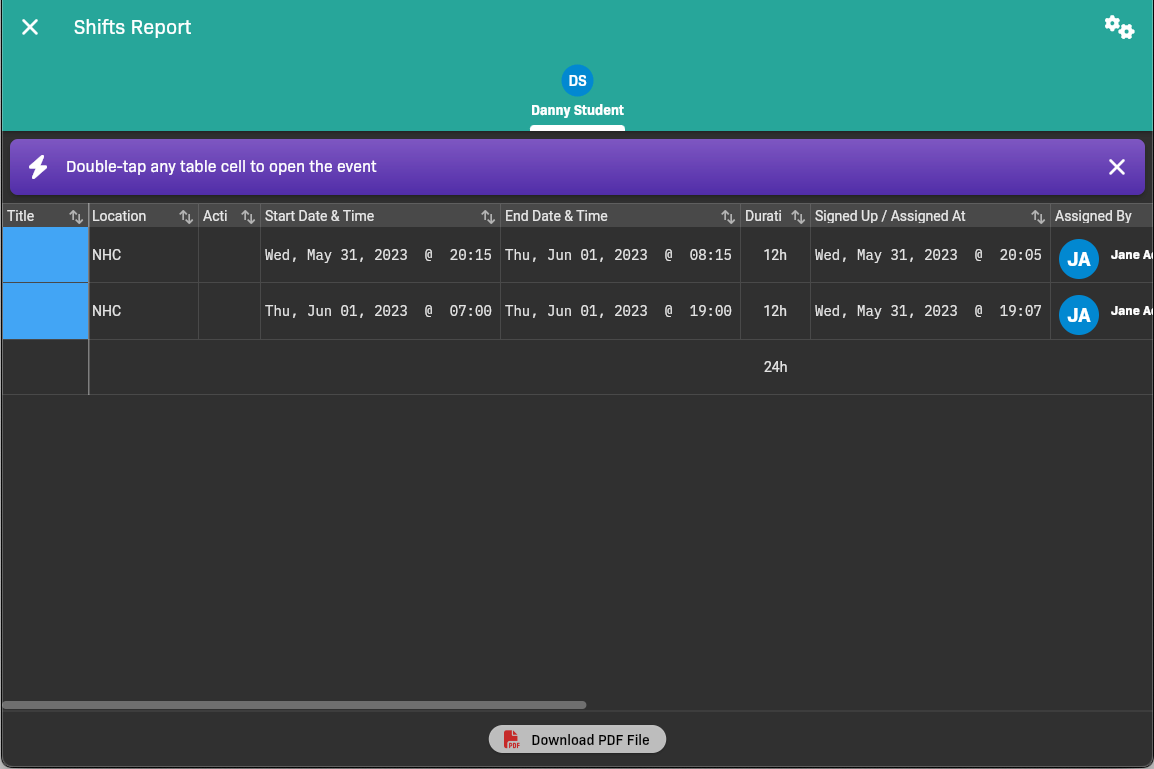
Shifts Report
Filter the shifts report
Section titled “Filter the shifts report”You can filter shifts by Learning Activities, Start Date / Time, and End Date / Time.
Tap in the top-left corner of the screen to access filtering parameters.
View an event’s details
Section titled “View an event’s details”Double-tap on a row to view details for that event.
Export to PDF
Section titled “Export to PDF”Tap Download PDF File to export the report to PDF.